📄 仓库 README
在 GitHub 查看 ↗
AndroidMic
Use your Android phone as a microphone for your PC



Features
- Cross-platform: Works on Linux, Windows, and macOS
- Multiple connection options: WiFi (TCP/UDP), USB Serial, and USB ADB
- Audio processing: Noise cancellation and audio wave visualization
- Customizable audio settings: Sample rate, channels, and bit depth
⚠️ Important Requirements
This app requires a virtual audio cable device to work!
AndroidMic streams audio from your phone to your PC, but your PC needs a way to recognize this audio stream as a microphone input. This is where virtual audio cables come in.
Virtual Audio Cable Setup
On Windows: - Install Virtual Audio Cable (VAC) or VB Cable (both free options available) - These tools create virtual audio devices on your system - Once installed, you'll have a virtual output device (speaker/playback) and a virtual input device (microphone) - AndroidMic plays audio to the virtual output, which is internally wired to the virtual input that your apps can use as a microphone
On Linux:
- Use PulseAudio or PipeWire to create virtual audio devices
- Example with PulseAudio:
bash
  pactl load-module module-null-sink sink_name=virtual_mic
  pactl load-module module-remap-source master=virtual_mic.monitor source_name=virtual_mic_source
On macOS: - Use BlackHole or similar virtual audio driver
Setup Guide
Step 1: Install Virtual Audio Cable
Follow the instructions above for your operating system to install a virtual audio cable solution. This step is required before proceeding.
Step 2: PC Application Setup
- Download and install
- Get the latest release from the releases page
- Nix / NixOS: Run
nix run nixpkgs#android-micor addpkgs.android-micto your configuration - Install and launch the app
macOS users: You may need to run this command to allow the app to run:
sh
xattr -c /Applications/AndroidMic.app
See this discussion for more details.
-
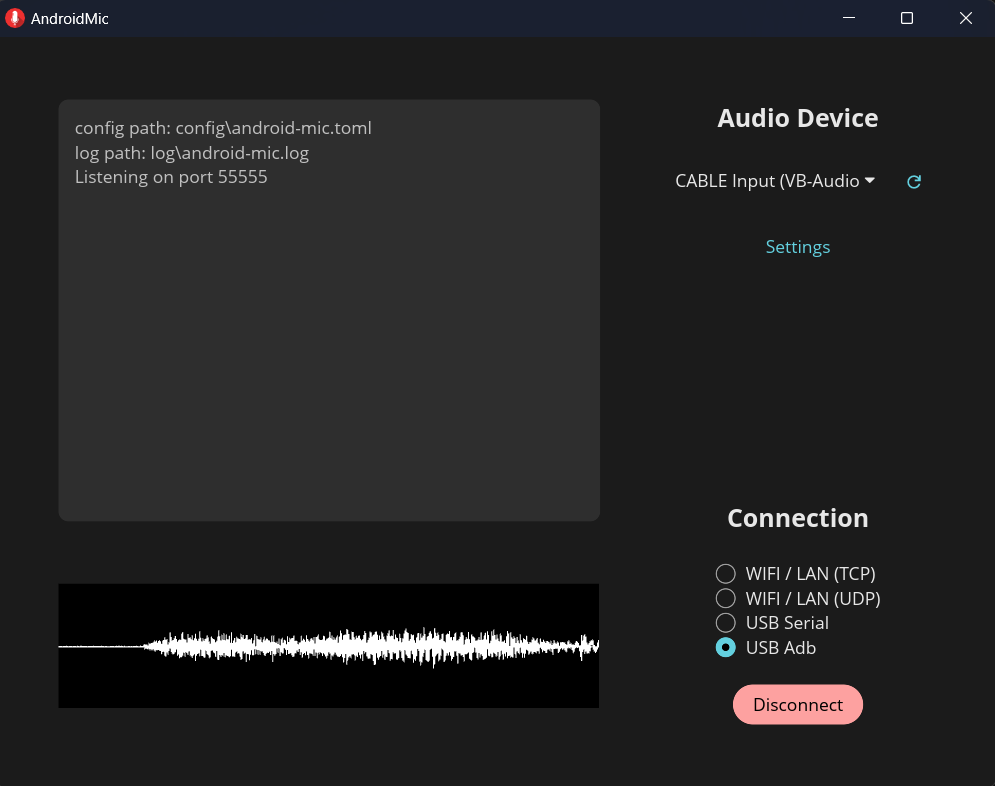
Select output audio device - Choose the virtual output device (e.g., "VB Cable Input" or "Virtual Audio Cable") from the dropdown - This is the playback device that's wired to your virtual microphone - Do NOT select your regular speakers or headphones - On Linux change channel count to "Mono" when you select PipeWire or PulseAudio
-
Choose connection method
-
TCP/UDP (WiFi):
- Connect your phone and PC to the same network
- No additional setup required
-
USB ADB:
- Install Android Debug Bridge (ADB)
- Enable USB debugging on your phone (Developer Options)
- Connect phone via USB cable
-
USB Serial:
- Connect phone via USB cable
- Set phone's USB mode to "Charging only"
- Windows:
- Close Android Studio and ensure ADB process is not running
- Your phone must use the WinUSB driver (required for all Android phones)
- Use Zadig to replace the current USB driver with WinUSB if needed
- On first connection attempt, the phone will switch to accessory mode - click Connect again to establish the connection
- Linux: Configure udev rules for USB permissions
- Configure audio settings (Advanced) - Click to open advanced settings - Choose format supported by your virtual audio device - Common settings: 44.1kHz or 48kHz sample rate, mono channel, 16-bit or 24-bit depth
Step 3: Android Application Setup
-
Install the app - Download the APK from releases or F-Droid - Install and open the app
-
Configure settings - Open the side drawer menu - Select the same connection method chosen on PC - Configure audio settings (sample rate, channels, bit depth) - these can be adjusted independently from PC settings
-
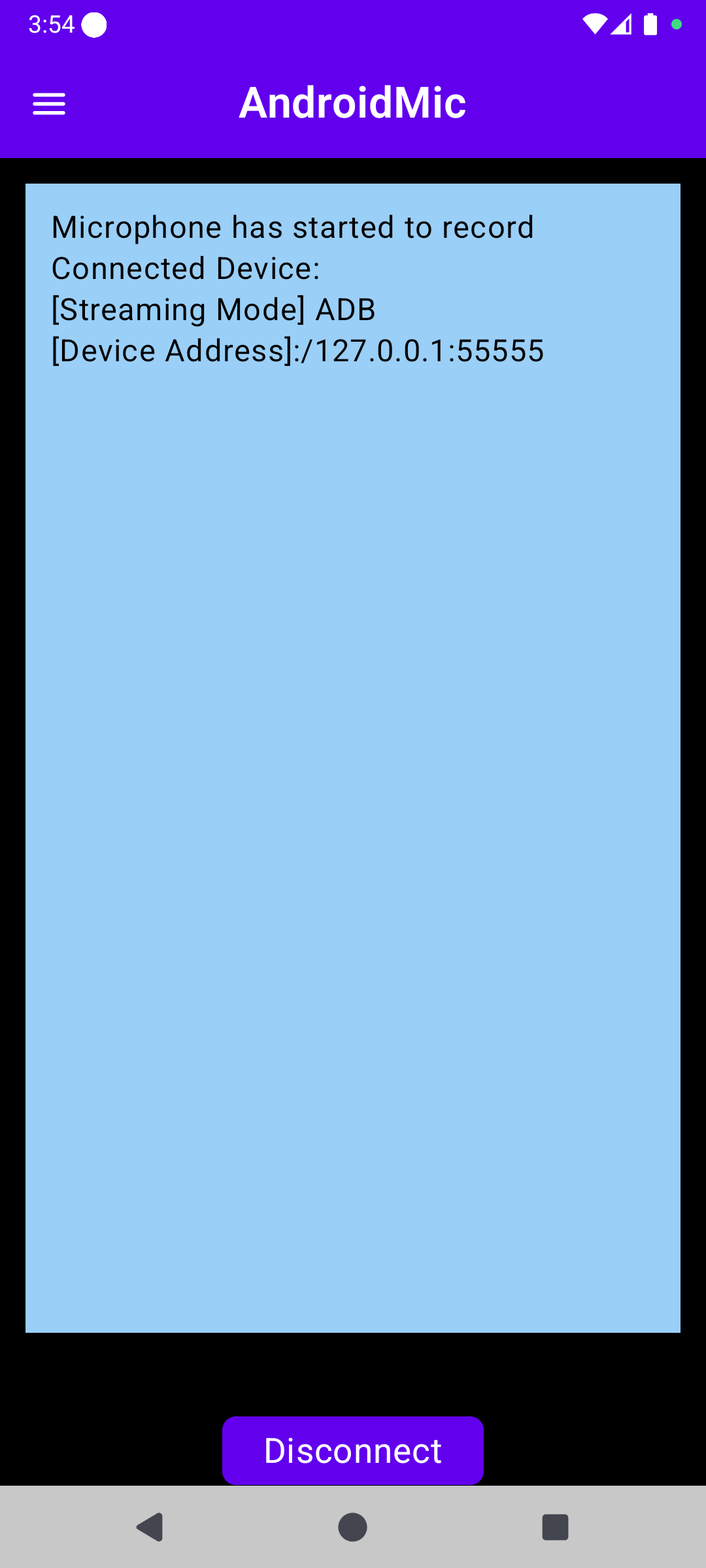
Connect and start - Grant required permissions:
- Microphone: To access your phone's mic
- Notification: To show recording status in background
- Start recording
- Connect to PC:
- TCP/UDP: Enter PC IP address and port (shown in PC app log)
- USB ADB: Enter port number (shown in PC app log)
- USB Serial: Allow accessory mode when prompted
Using AndroidMic in Other Apps
After setup, the virtual microphone will appear in your system's audio input devices. Select it in any application: - Discord, Teams, Zoom (voice chat) - OBS, Streamlabs (streaming) - Audacity, FL Studio (recording) - Any other app that accepts microphone input
Troubleshooting
Can't hear audio / No microphone detected
- Verify virtual audio cable is properly installed
- Ensure you selected the virtual output device in AndroidMic PC app
- Check that applications are using the virtual input device as microphone
- On Windows: Check that VAC/VB Cable devices are set as default in Sound Settings
Windows Defender flags the app as malware
- Usually this is a false positive due to Windows Defender's ML algorithm
- Please report to Microsoft to help get it fixed
USB connection not working
- USB ADB: Ensure USB debugging is enabled and ADB is installed
- USB Serial: May need Zadig to change USB driver to WinUSB
- USB Serial (Linux): Configure udev rules for USB permissions
Audio quality issues
- Match audio settings between PC and Android app exactly
- Try different sample rates (44.1kHz or 48kHz)
- Turn on/off noise cancellation in the app
Support & Contributing
- Questions / Feature Requests / Bug Reports: Submit an issue
- Discussions: GitHub Discussions
Project History
The PC app originally started as a WPF application written in C# for Windows only. Most features have been recreated in Rust (thanks to @wiiznokes) for cross-platform support. The WPF app branch is still available for reference.
Note: Bluetooth support was removed in favor of USB Serial connection, which provides better bandwidth.
📈 近 7 天 Star 趋势
🏆 排名变化趋势
📋 历史上榜记录
| 日期 | 榜单 | 排名 | 周期新增 | 总 STAR |
|---|