📄 仓库 README
在 GitHub 查看 ↗
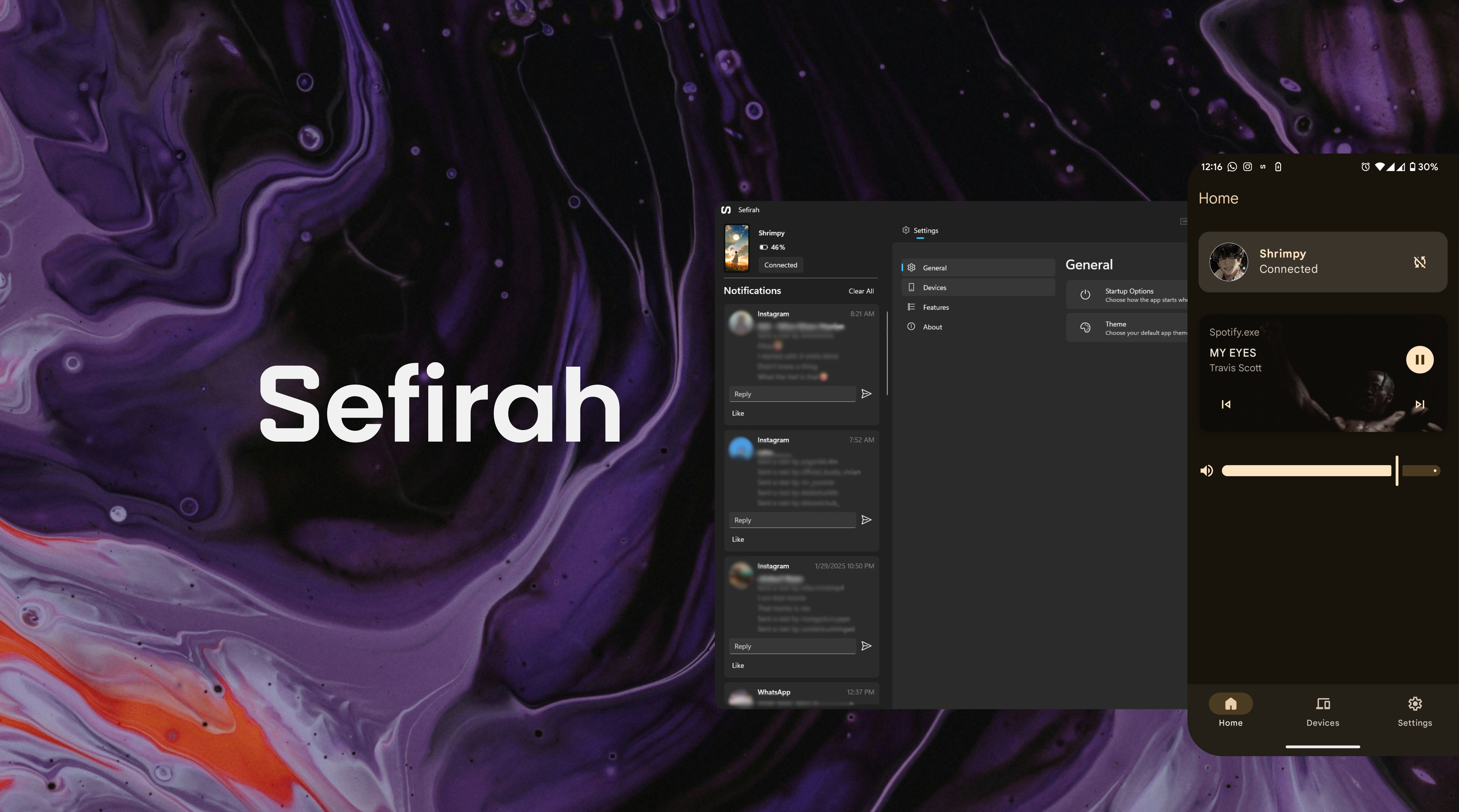



Sefirah is designed to enhance your workflow by enabling seamless clipboard and notification sharing between your Windows PC and Android device. It's an alternative to existing solutions, tailored for users who want a straightforward and efficient way to keep their devices in sync.
Features
- Clipboard Sharing: Seamlessly share clipboard content between your Android device and Windows PC, with automatic detection on Android 10+ via Shizuku or desktop ADB.
- Media Control: Control media playback and volume of your PC from android.
- File Sharing: Share files between your devices easily.
- Storage Integration: Integrate your Android storage into the Windows Explorer.
- Notification: Allows toasting the notifications from your android in desktop.
- Screen mirroring: Mirror and control the Android device via scrcpy.
- SMS Texting: Send and receive SMS texts from your Android device to your Windows PC.
- Phone Call: View and answer phone calls from your Android device on your Windows PC.
Linux Status
Support for linux is limited. Some features may not available on Linux that are on Windows.
Limitations
Notification Sync
- Due to Android's restrictions, sensitive notifications are no longer visible from Android 15 onwards.
- To work around this limitation, grant the necessary permission using ADB:
sh
  adb shell appops set com.castle.sefirah RECEIVE_SENSITIVE_NOTIFICATIONS allow
- On some devices (e.g. OnePlus), this may fail until you disable system optimization or Disable permission monitoring for apps in Developer options → Apps. After that, run the command again.
- If ADB is connected, the desktop app will attempt to grant this permission automatically when the device comes online.
Installation
Windows App
Android App


How to Use
-
Setting Up: - On the Android device, allow the necessary permissions on the onboarding page. (Note: Allow restricted settings from App Info after attempting to grant notification access or accessibility permission, as Android blocks side-loaded apps from requesting sensitive permissions.) For automatic clipboard sync on Android 10+, also grant Shizuku if you use it, or keep ADB connected from the desktop app. - Ensure both your Android device and Windows PC are connected to the same network. - Launch the app on your Windows PC and wait for the devices to show up on both. - Initiate the connection on your Android device using either manual connect or auto connect. Manual connect is faster, while auto connect takes a bit more time to determine which IP address works for you. - Once the connection is initiated, Windows will receive a pop-up to accept or decline the connection. Ensure that the keys match on both devices. - After the authentication is done, you should be navigated to the home screens on both devices, wait a bit for the notifications on Windows to load up for the first time.
Note: If the devices can't connect even though both discover each other, make sure to check your firewall settings and these ports are open; 5149 to 5169.
-
Clipboard Sharing: - When you copy content on your desktop, it will automatically sync with your Android device (provided you have enabled this feature in the device settings). If you have also enabled image syncing, images should be sent as well. Note: You must enable the 'Add received images to clipboard' option for received images to be placed on the Android clipboard. - To automatically share the clipboard from Android to desktop on Android 10+:
- Enable Clipboard sync preference in the device settings.
- Enable Auto-detect clipboard in the app Settings page.
- Prefer granting Shizuku access, or keep the device connected over ADB from the desktop app. The app prefers Shizuku when available and falls back to ADB.
- Accessibility remains a fallback when Shizuku/ADB are unavailable and you have granted accessibility permission, but it may not work in every scenario. - To manually share the clipboard, use the persistent device status notification, the Quick Settings tile, or the share sheet.
- File Transfer: - Use the share sheet on your Android or Windows device and select the app to share files between the devices.
- Android Storage: - You would need Android 11 or higher - Enable storage access permission in Android app's settings and the desktop app will create a link to the Android storage in the File Explorer. - Note: This feature is still a bit experimental and may not work on all Windows versions especially older versions of Windows 10 and other unofficial debloated Windows 11 versions. - WARNING: DO NOT set the remote storage location to a pre-existing folder as it will delete the contents of that folder.
-
SMS Texting:
- Grant all the permissions required from the permissions page in Android. After that, reconnect and the messages should appear in the Messages tab in the Desktop app. You can now view and send texts as sms. You can also switch sims if your device has dual sims. Attachments have not been implemented yet.
-
Bluetooth calling:
- Remove your Bluetooth device if you have already registered with another app
- Pair your Bluetooth device to PC either through the in-app Bluetooth pairing or through the Windows settings.
-
Screen Mirroring using Scrcpy: - You would need to download, extract and set the scrcpy location in App settings. - You can specify your preferences for the scrcpy to launch with in the screen mirroring section. - For initiating screen mirroring, the easiest way would be to plug your device through usb and start it by clicking on Phone frame. - Sefirah will try to connect to your device if the default tcpip port is open for subsequent connections. - If you have any doubts or problems in connecting scrcpy, refer scrcpy docs and Scrcpy FAQ. - If you like their project, please consider supporting the author rom1v
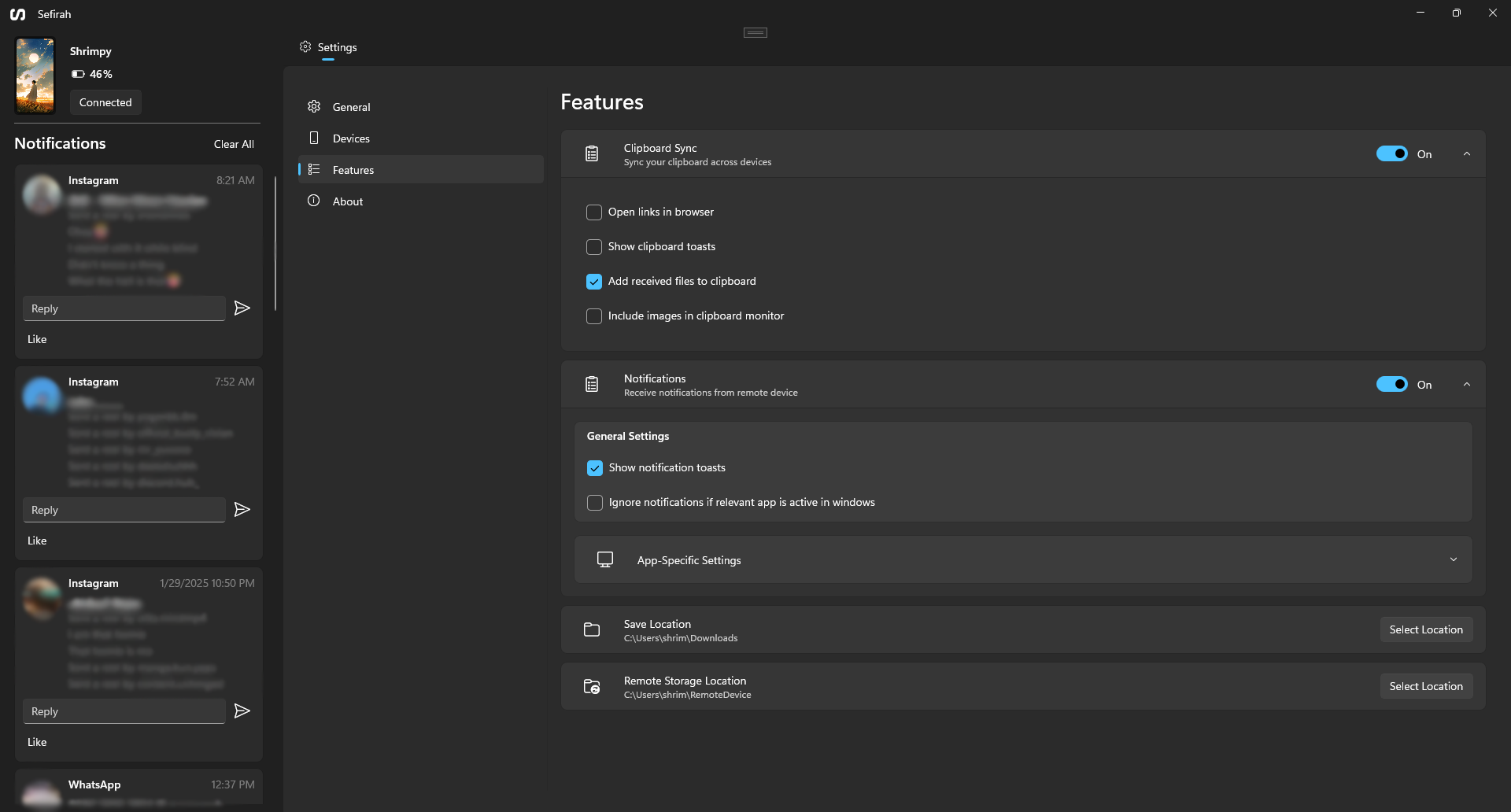
Screenshots
Support
Feel free to open an issue if you want to report a bug, provide feedback, or ask a question.
If you have any specific questions or need further details, please reach out to me on the Discord server or by email—I would be happy to help.
Thanks
I would like to express my thanks to @PrimalZed for his work on CloudSync and to @rom1v for developing Scrcpy. Without them Android storage and Screen mirroring features wouldn't be possible.
📈 近 7 天 Star 趋势
🏆 排名变化趋势
📋 历史上榜记录
| 日期 | 榜单 | 排名 | 周期新增 | 总 STAR |
|---|