📄 仓库 README
在 GitHub 查看 ↗Simple Python Version Management: pyenv

pyenv lets you easily switch between multiple versions of Python. It's simple, unobtrusive, and follows the UNIX tradition of single-purpose tools that do one thing well.
This project was forked from rbenv and ruby-build, and modified for Python.
What pyenv does...
- Lets you change the global Python version on a per-user basis.
- Provides support for per-project Python versions.
- Supports multiple Python distributions: CPython, PyPy, Stackless Python, Jython, and more. See the full list of available versions.
- Allows you to override the Python version with an environment variable.
- Searches for commands from multiple versions of Python at a time. This may be helpful to test across Python versions with tox.
In contrast with pythonbrew and pythonz, pyenv does not...
- Depend on Python itself. pyenv was made from pure shell scripts. There is no bootstrap problem of Python.
- Need to be loaded into your shell. Instead, pyenv's shim
approach works by adding a directory to your
PATH. - Manage virtualenv. Of course, you can create virtualenv yourself, or pyenv-virtualenv to automate the process.
Table of Contents
- Installation
- Getting Pyenv
- Set up your shell environment for Pyenv
- Restart your shell
- Install Python build dependencies
- Upgrade Notes
- Usage
- Install additional Python versions
- Switch between Python versions
- Uninstall Python versions
- Other operations
- Upgrading
- Upgrading with Homebrew
- Upgrading with Installer or Git checkout
- Uninstalling pyenv
- Pyenv plugins
- How It Works
- Understanding PATH
- Understanding Shims
- Understanding Python version selection
- Locating Pyenv-provided Python Installations
- Advanced Configuration
- Using Pyenv without shims
- Running nested shells from Python-based programs
- Environment variables
- Manual shell setup
- Development
- Contributing
- Version History
- License
Installation
A. Getting Pyenv
Linux/Unix
curl -fsSL https://pyenv.run | bash
MacOS
Windows
B. Set up your shell environment for Pyenv
The below setup should work for the vast majority of users for common use cases. See Advanced configuration and specifically Manual shell setup for details and more configuration options.
To add the suggested setup code to the startup files of the running shell,
run <path/to/pyenv> init --install.
Specifically:
- If you installed Pyenv with the installer script:
~/.pyenv/bin/pyenv init --install
- If you installed Pyenv with Homebrew:
pyenv init --install
For Bash, avoid the automatic --install path if your BASH_ENV points to
.bashrc; use the manual Bash instructions below so the eval "$(pyenv init - bash)"
line only goes in your login startup file.
C. Restart your shell
for the PATH changes to take effect.
sh
  exec "$SHELL"
D. Install Python build dependencies
Install Python build dependencies before attempting to install a new Python version.
You can now begin using Pyenv.
E. Upgrade Notes
if you have upgraded from pyenv version 2.0.x-2.2.x
Usage
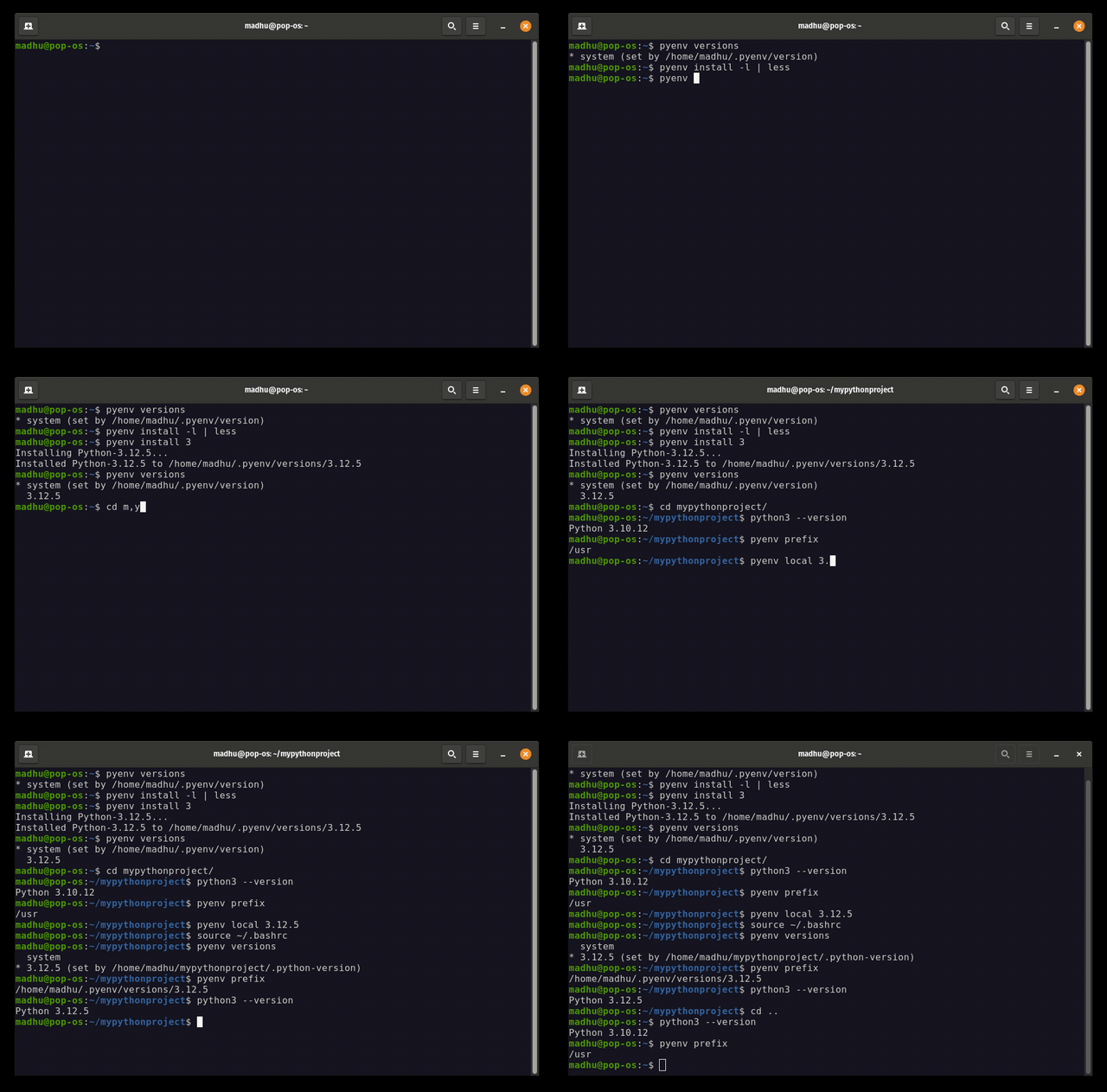
Install additional Python versions
To install additional Python versions, use pyenv install.
For example, to download and install Python 3.10.4, run:
pyenv install 3.10.4
Running pyenv install -l gives the list of all available versions.
Notes about python releases
**NOTE:** Most Pyenv-provided Python releases are source releases and are built from source as part of installation (that's why you need Python build dependencies preinstalled). You can pass options to Python's `configure` and compiler flags to customize the build, see [_Special environment variables_ in Python-Build's README](https://github.com/pyenv/pyenv/blob/HEAD/plugins/python-build/README.md#special-environment-variables) for details. **NOTE:** If you are having trouble installing a Python version, please visit the wiki page about [Common Build Problems](https://github.com/pyenv/pyenv/wiki/Common-build-problems). **NOTE:** If you want to use proxy for download, please set the `http_proxy` and `https_proxy` environment variables. **NOTE:** If you'd like a faster interpreter at the cost of longer build times, see [_Building for maximum performance_ in Python-Build's README](https://github.com/pyenv/pyenv/blob/HEAD/plugins/python-build/README.md#building-for-maximum-performance).Prefix auto-resolution to the latest version
All Pyenv subcommands except uninstall automatically resolve full prefixes to the latest version in the corresponding version line.
pyenv install picks the latest known version, while other subcommands pick the latest installed version.
E.g. to install and then switch to the latest 3.10 release:
pyenv install 3.10
pyenv global 3.10
You can run pyenv latest -k <prefix> to see how pyenv install would resolve a specific prefix, or [pyenv latest <prefix>](https://github.com/pyen
📈 近 7 天 Star 趋势
🏆 排名变化趋势
📋 历史上榜记录
| 日期 | 榜单 | 排名 | 周期新增 | 总 STAR |
|---|