📄 仓库 README
在 GitHub 查看 ↗Hermes Web UI
Hermes Agent is a sophisticated autonomous agent that lives on your server, accessed via a terminal or messaging apps, that remembers what it learns and gets more capable the longer it runs.
Hermes WebUI is a lightweight, dark-themed web app interface in your browser for Hermes Agent. Full parity with the CLI experience - everything you can do from a terminal, you can do from this UI. No build step, no framework, no bundler. Just Python and vanilla JS.
Layout: three-panel. Left sidebar for sessions and navigation, center for chat, right for workspace file browsing. Model, profile, and workspace controls live in the composer footer — always visible while composing. A circular context ring shows token usage at a glance. All settings and session tools are in the Hermes Control Center (launcher at the sidebar bottom).
Setup Hermes so you can access it natively on every device:
|
Light mode with full profile support |
Customize your settings, configure a password |
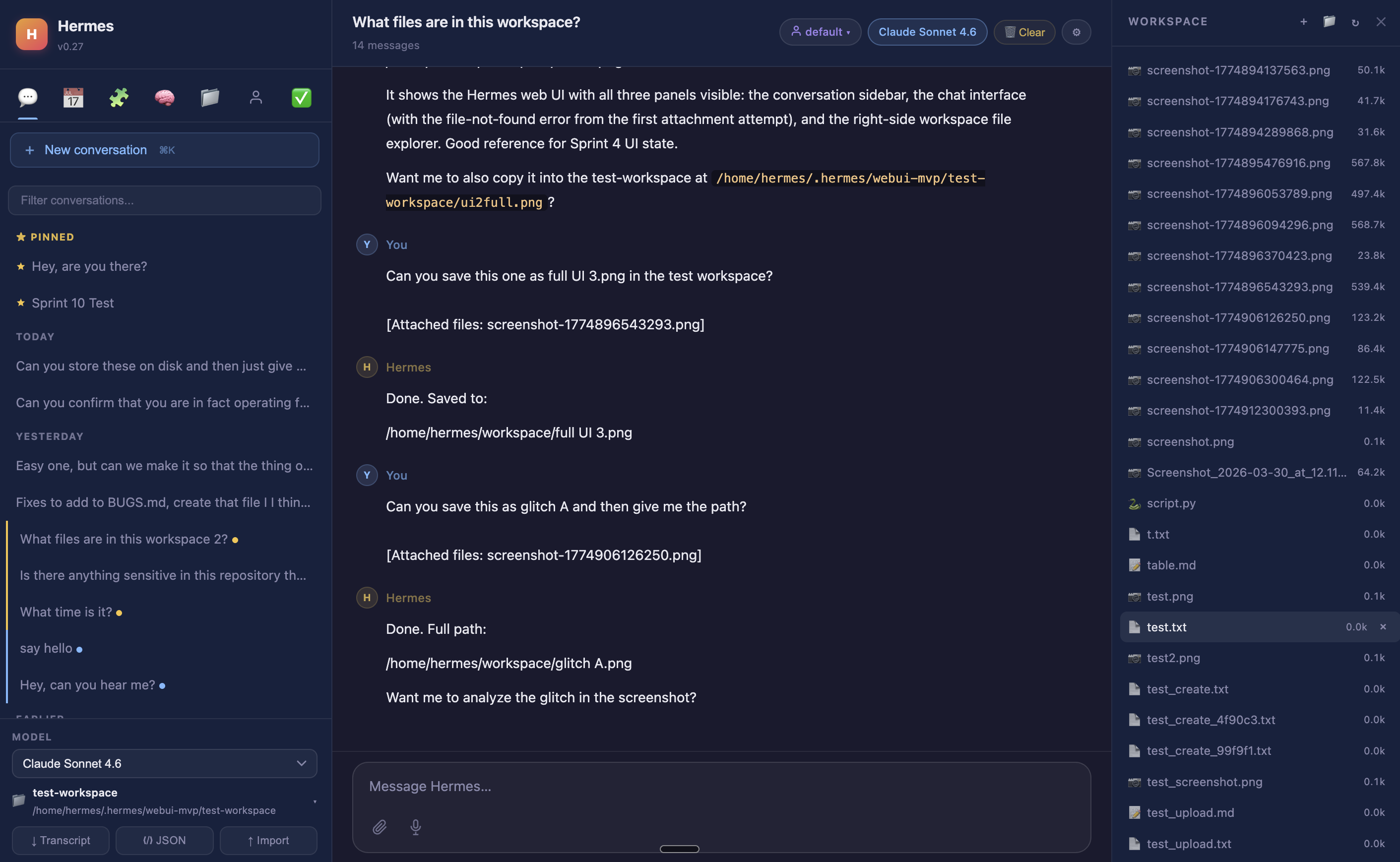
Workspace file browser with inline preview |
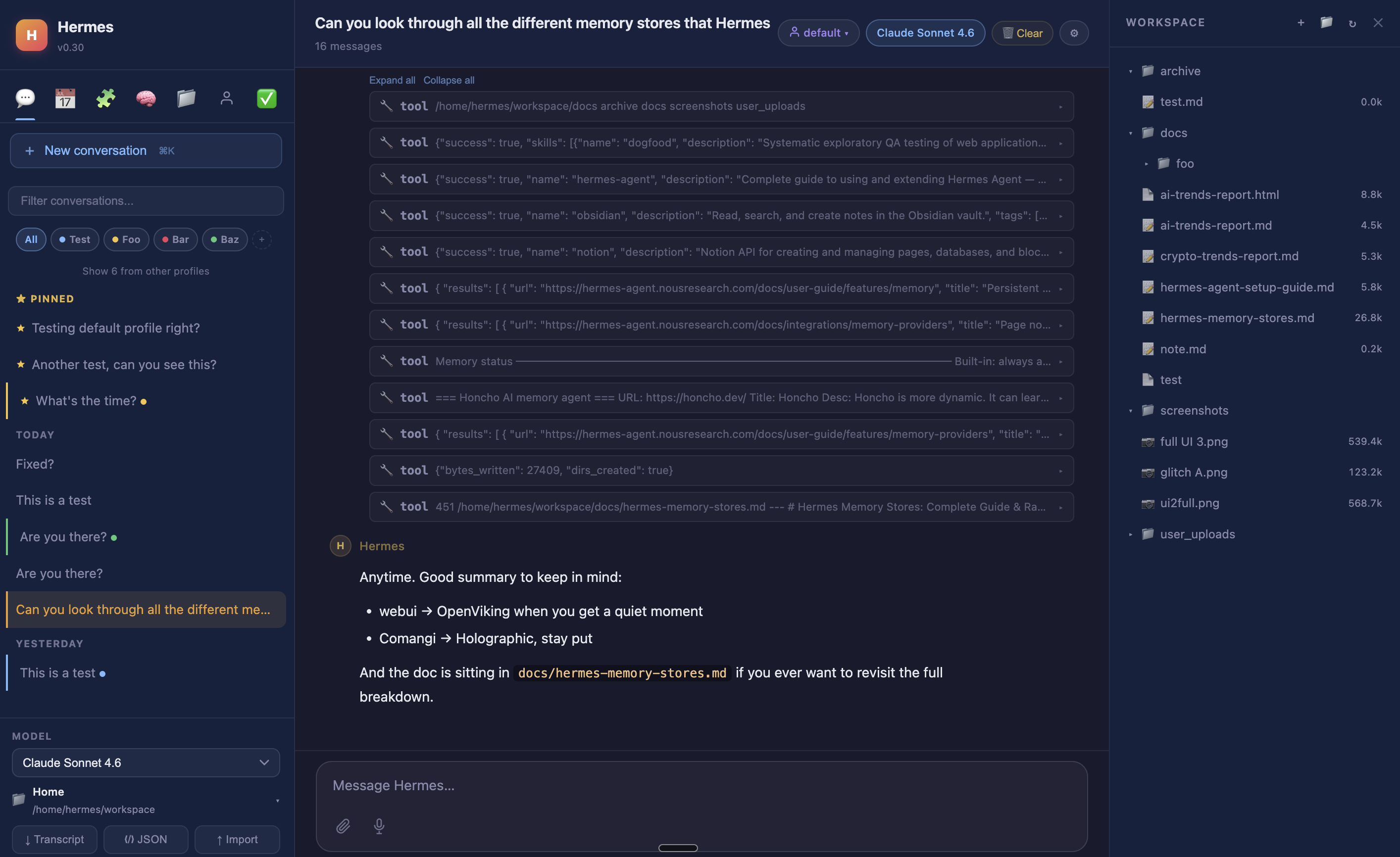
Session projects, tags, and tool call cards |
This gives you nearly 1:1 parity with Hermes CLI from a convenient web UI which you can access securely through an SSH tunnel from your Hermes setup. Single command to start this up, and a single command to SSH tunnel for access on your computer. Every single part of the web UI uses your existing Hermes agent and existing models, without requiring any additional setup.
Contents
- Why Hermes — what it is and how it compares
- Quick start — clone +
bootstrap.py/start.sh/ctl.sh - Features — chat, sessions, workspace, voice, profiles, security, themes, panels, mobile
- Configuration & access — auto-discovery, overrides, remote/Tailscale/phone, manual launch
- Nix flake/module — declarative install and service
- Docker — single- and multi-container deploys
- Running tests
- Architecture — backend/frontend layout, state dir
- Docs — the full documentation index
- Contributors
Why Hermes
Most AI tools reset every session. They don't know who you are, what you worked on, or what conventions your project follows. You re-explain yourself every time.
Hermes retains context across sessions, runs scheduled jobs while you're offline, and gets smarter about your environment the longer it runs. It uses your existing Hermes agent setup, your existing models, and requires no additional configuration to start.
What makes it different from other agentic tools:
- Persistent memory — user profile, agent notes, and a skills system that saves reusable procedures; Hermes learns your environment and does not have to relearn it
- Self-hosted scheduling — cron jobs that fire while you're offline and deliver results to Telegram, Discord, Slack, Signal, email, and more
- 10+ messaging platforms — the same agent available in the terminal is reachable from your phone
- Self-improving skills — Hermes writes and saves its own skills automatically from experience; no marketplace to browse, no plugins to install
- Provider-agnostic — OpenAI, Anthropic, Google, DeepSeek, OpenRouter, and more
- Orchestrates other agents — can spawn Claude Code or Codex for heavy coding tasks and bring the results back into its own memory
- Self-hosted — your conversations, your memory, your hardware
vs. the field (landscape is actively shifting — see docs/why-hermes.md for the full breakdown):
| OpenClaw | Claude Code | Codex CLI | OpenCode | Hermes | |
|---|---|---|---|---|---|
| Persistent memory (auto) | Yes | Partial† | Partial | Partial | Yes |
| Scheduled jobs (self-hosted) | Yes | No‡ | No | No | Yes |
| Messaging app access | Yes (15+ platforms) | Partial (Telegram/Discord preview) | No | No | Yes (10+) |
| Web UI (self-hosted) | Dashboard only | No | No | Yes | Yes |
| Self-improving skills | Partial | No | No | No | Yes |
| Python / ML ecosystem | No (Node.js) | No | No | No | Yes |
| Provider-agnostic | Yes | No (Claude only) | Yes | Yes | Yes |
| Open source | Yes (MIT) | No | Yes | Yes | Yes |
† Claude Code has CLAUDE.md / MEMORY.md project context and rolling auto-memory, but not full automatic cross-session recall
‡ Claude Code has cloud-managed scheduling (Anthropic infrastructure) and session-scoped /loop; no self-hosted cron
The closest competitor is OpenClaw — both are always-on, self-hosted, open-source agents with memory, cron, and messaging. The key differences: Hermes writes and saves its own skills automatically as a core behavior (OpenClaw's skill system centers on a community marketplace); Hermes is more stable across updates (OpenClaw has documented release regressions and ClawHub has had security incidents involving malicious skills); and Hermes runs natively in the Python ecosystem. See docs/why-hermes.md for the full side-by-side.
Quick start
Run the repo bootstrap:
git clone https://github.com/nesquena/hermes-webui.git hermes-webui
cd hermes-webui
python3 bootstrap.py
Or keep using the shell launcher:
./start.sh
For self-hosted VM or homelab installs, ctl.sh wraps the common daemon lifecycle commands without requiring fuser or pkill:
./ctl.sh start              # background daemon, PID at ~/.hermes/webui.pid
./ctl.sh status             # PID, uptime, bound host/port, log path, /health
./ctl.sh logs --lines 100   # tail ~/.hermes/webui.log
./ctl.sh restart
./ctl.sh stop
ctl.sh start runs the bootstrap in foreground/no-browser mode behind the daemon wrapper, writes logs to ~/.hermes/webui.log, and respects .env plus inline overrides such as HERMES_WEBUI_HOST=0.0.0.0 ./ctl.sh start.
Stopping the server. Each launch method has its own stop path because only
ctl.sh startwrites a PID file (~/.hermes/webui.pid):
Launch method How to stop python3 bootstrap.pyCtrl-C in the terminal (runs in the foreground) ./ctl.sh start./ctl.sh stop(sends SIGTERM, waits, then SIGKILL)Detached bootstrap.py(no--foreground) or./start.shFind the PID via lsof -i :8787(orss -tlnp) andkillit
./ctl.sh stopcannot stop a server launched bybootstrap.pyorstart.shdirectly — it only manages processes it started itself.How chat runs by default. WebUI runs the Hermes agent in-process, reading your
HERMES_HOMEconfig directly. It does not connect to an external Hermes/agent OpenAI-compatible API server to run chat.HERMES_API_URLis only read by the Tasks/cron health probe and does not route chat.Two options if you run an external endpoint:
- Use its models as a chat provider (supported today): add it in Settings → Providers as a custom OpenAI-compatible provider with
base_url = http://127.0.0.1:8642/v1and your bearer token.- Route chat through a Hermes Gateway API server (supported today via
HERMES_WEBUI_CHAT_BACKEND=gateway): seedocs/advanced-chat-setup.md. Full agent-loop delegation is not yet shipped; tracked in #1925.
Advanced: dynamic recall prefill & Gateway-backed chat
Two optional, self-hosted-deployment features — attaching dynamic session-recall prefill to browser turns (Joplin/Obsidian/Notion/llm-wiki routers), and routing browser chat through a running Hermes Gateway — are documented in docs/advanced-chat-setup.md. Most users need neither.
The bootstrap will:
- Detect Hermes Agent and, if missing, attempt the official installer (
curl -fsSL https://raw.githubusercontent.com/NousResearch/hermes-agent/main/scripts/install.sh | bash). - Find or create a Python environment with the WebUI dependencies.
- Start the web server and wait for
/health. - Open the browser unless you pass
--no-browser. - Drop you into a first-run onboarding wizard inside the WebUI.
Native Windows is not supported for this bootstrap yet. Use Linux, macOS, or WSL2. For Windows / WSL auto-start at login, see
docs/wsl-autostart.md.
A community-maintained native Windows setup is documented at @markwang2658/hermes-windows-native-guide (companion setup repo: @markwang2658/hermes-windows-native). Notes from the community report in #1952:
- Memory: community-measured ~330 MB native vs ~1080 MB with WSL2+Docker (varies by configuration).
- What works: chat, workspace browser, session management, all themes.
- Known limitations: some POSIX-style file paths surface in the workspace browser; bash-assuming agent tools may not work natively.
- Native Windows setup: install Python 3.11+, then from the hermes-agent root in PowerShell:
python -m venv venv→pip install -r requirements.txt→pwsh .\start.ps1(it auto-discoversvenv\Scripts\python.exe). - **WS
📈 近 7 天 Star 趋势
🏆 排名变化趋势
📋 历史上榜记录
| 日期 | 榜单 | 排名 | 周期新增 | 总 STAR |
|---|