📄 仓库 README
在 GitHub 查看 ↗Sysinternals Process Explorer for Mac
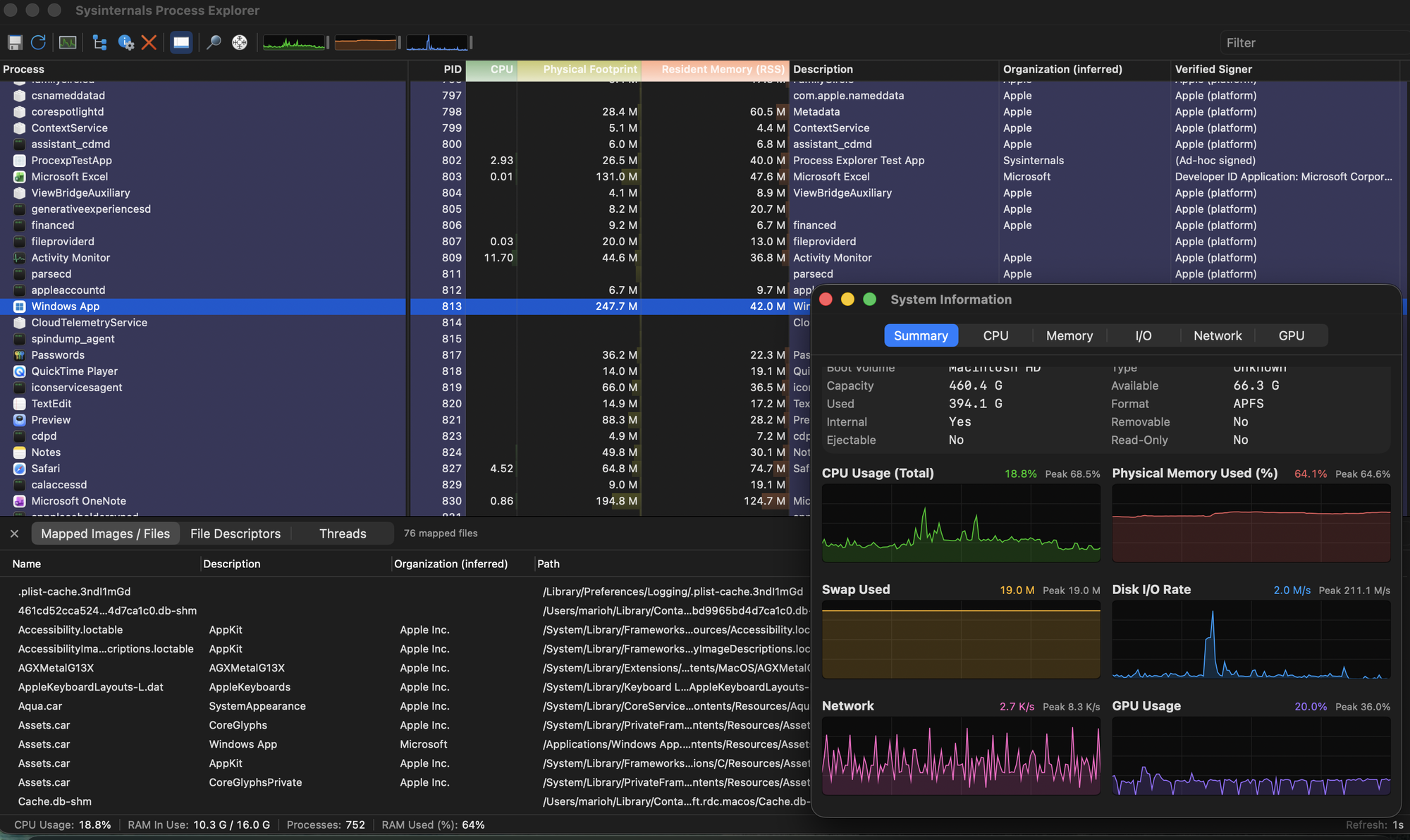
Sysinternals Process Explorer for Mac is a native macOS implementation of the core Process Explorer experience. It provides a live process tree, lower-pane module/handle/thread inspection, rich per-process properties, system-wide performance graphs, code-signing inspection, and macOS-specific equivalents for Process Explorer workflows.
The app is built with Swift, SwiftUI, and AppKit, with sampling backed by public macOS APIs such as libproc, sysctl, Mach host statistics, Security.framework, IOKit, Metal, and optional privileged helper support.
Features
- Live process tree with Process Explorer-style colors for services, own processes, new/deleted processes, suspended processes, sandboxed processes, and packed images.
- Frozen process-name pane with horizontally scrollable metric columns.
- Persisted process-list column widths, ordering, column sets, and selected columns.
- Type-to-select in process and lower-pane lists.
- Immediate tooltips for truncated cells and process path/command-line detail.
- Pause/resume refresh with the spacebar.
- Native menu bar with File, Options, View, Process, Find, Window, and Help commands.
- Toolbar actions for refresh, save, process properties, kill, lower pane, find handle/DLL, target-window picker, and System Information graphs.
- Lower pane modes for DLLs/images, handles/file descriptors, and threads.
- Lower-pane row highlighting for newly appeared and deleted items.
- Per-process Properties window with Image, Performance, Performance Graph, Threads, TCP/IP, Security, Environment, and Strings tabs.
- TCP/IP tab with local address, remote address, async reverse-DNS remote name lookup, TCP state, and column persistence.
- Security/signature detail with signer, publisher, certificate chain, Team ID, notarization status, platform/ad-hoc status, validation reason, SHA-256, and VirusTotal integration.
- Module/image detail windows with metadata, signature verification, VirusTotal, Reveal in Finder, and Search Online.
- Handle/file-descriptor detail windows.
- System Information window with Summary, CPU, Memory, I/O, Network, and GPU pages.
- System Information graphs for CPU, memory, swap, disk I/O, network I/O, GPU, and per-core CPU usage.
- Performance vs. efficiency core labeling and coloring on Apple Silicon.
- Hardware details for CPU topology/cache, memory/page information, storage, network interfaces, GPU device capabilities, and OS/machine data.
- Menu-bar CPU history item.
- Process actions: kill, kill tree, suspend/resume, set priority/nice, restart, bring to front, sample process, Search Online, Check VirusTotal.
- Optional privileged helper architecture for cross-user and privileged operations.
- Release scripts for DMG creation, signing, and notarization.
Requirements
- macOS 14 or later for the GUI app target.
- Xcode 26.6 or later recommended for the current project configuration.
- Swift 5.9 toolchain or later.
xcodegenfor regeneratingProcexpMac.xcodeprojfromproject.yml.
Install xcodegen if needed:
brew install xcodegen
Build
Generate the Xcode project and build the Debug app:
xcodegen generate
xcodebuild -scheme ProcexpMac -configuration Debug build
The Debug app is written under Xcode DerivedData. On this machine the path is typically:
~/Library/Developer/Xcode/DerivedData/ProcexpMac-czqddcuyalgzfgebjezrhssregtw/Build/Products/Debug/ProcExp\ \(Dev\).app
You can also open the generated project in Xcode:
xcodegen generate
open ProcexpMac.xcodeproj
Run
After a Debug build, launch the app with:
open "$HOME/Library/Developer/Xcode/DerivedData/ProcexpMac-czqddcuyalgzfgebjezrhssregtw/Build/Products/Debug/ProcExp (Dev).app"
If your DerivedData suffix differs, locate the product with:
find ~/Library/Developer/Xcode/DerivedData -path '*/Build/Products/Debug/ProcExp (Dev).app' -print
To relaunch a freshly built app from this workspace:
app="$HOME/Library/Developer/Xcode/DerivedData/ProcexpMac-czqddcuyalgzfgebjezrhssregtw/Build/Products/Debug/ProcExp (Dev).app"
pids=$(pgrep -f "$app/Contents/MacOS/ProcexpMac" || true)
if [[ -n "$pids" ]]; then kill $pids 2>/dev/null || true; fi
open -n "$app"
Bundle identity: development vs. official
Unqualified Xcode and local ad-hoc builds use ProcExp (Dev).app with bundle
ID com.sysinternals.procexpmac.dev. Its helper uses the separate launchd and
Mach service ID com.sysinternals.procexpmac.dev.helper. The development app,
helper approval, preferences, and LaunchServices registration therefore do not
replace an installed official copy.
The official identities are reserved for an explicit Developer ID build or the
Azure release pipeline: ProcExp.app, com.sysinternals.procexpmac, and
com.sysinternals.procexpmac.helper. The build and signing scripts validate the
entire tuple before signing or publishing it.
Validate
Run the full Swift package test suite:
swift test
Run the live smoke test:
swift run ProcexpSmoke
Run focused test suites:
swift test --filter ProcexpModelTests
swift test --filter ProcexpNetworkTests
swift test --filter ProcexpSigningTests
TCP/IP Test Fixture
The repository includes a small stateful TCP fixture for testing the TCP/IP tab:
swift build --product ProcexpTcpFixture
.build/debug/ProcexpTcpFixture --duration 3600 --remote-host github.com --remote-port 22
The fixture opens a loopback listener, creates a loopback established connection, and optionally opens a DNS-resolved remote TCP connection. Select the fixture process in Process Explorer and open Properties > TCP/IP to inspect the sockets and remote-name resolution.
Privileged Helper
The app can use an optional privileged root helper for operations that require
elevated privileges, such as richer cross-user process detail (full process
list, threads, modules, environment) and privileged process control. The helper
is a launchd daemon reached over XPC; the app registers it with SMAppService.
macOS gates SMAppService daemon registration on the app's code signature and
on an explicit user approval. The app must be signed with a stable, non-ad-hoc
identity — a Developer ID Application certificate for distribution, or a
self-signed identity for local development — and you approve the daemon once in
System Settings ▸ General ▸ Login Items & Extensions. The sections below
cover both the Developer ID install and a local self-signed test.
Testing with a Developer ID certificate (real install)
This is the same experience end users get.
DEV_SIGN_IDENTITY="Developer ID Application: NAME (TEAMID)" \
bash Scripts/dev_install_helper.sh
This builds a Release app, embeds the helper and its launchd plist at
Contents/Library/LaunchDaemons/, signs everything inside-out with the Hardened
Runtime and entitlements, installs /Applications/ProcExp.app, and launches
it. Then, in the app, choose ProcexpMac ▸ Install Privileged Helper… and
approve the daemon in System Settings ▸ General ▸ Login Items & Extensions.
After approval the app adopts the privileged provider and shows all processes.
Testing without a Developer ID certificate (local self-signed)
For local development you can exercise the same privileged code path with a
throwaway self-signed identity. On first run the script creates the identity in
a dedicated keychain (no login-keychain involvement), builds a signed,
helper-embedded app, installs it to /Applications, and launches it:
bash Scripts/dev_install_helper.sh
Then, one time only, choose ProcexpMac ▸ Install Privileged Helper… and approve the daemon in System Settings ▸ General ▸ Login Items & Extensions. After that, every subsequent run of the script rebuilds and relaunches the signed app with the helper already enabled, so the elevated path is available on each iteration:
bash Scripts/dev_install_helper.sh          # Debug (default), fast
CONFIGURATION=Release bash Scripts/dev_install_helper.sh
RESTART_HELPER=1 bash Scripts/dev_install_helper.sh   # after changing helper code
Notes:
- The script defaults to a Debug build signed with the "ProcexpMac Dev"
self-signed identity. It installs /Applications/ProcExp (Dev).app with the
.dev app and helper identifiers. SMAppService ties daemon registration to
the app's signature and location, so reinstalling the same-identity build
keeps the development helper registered.
- The app changes take effect on relaunch; the root helper keeps running its
already-loaded binary, so pass RESTART_HELPER=1 (prompts for sudo) when you
change the helper's own code.
- A corporate-managed Mac can prompt for a keychain password when codesign
touches your login keychain and reject your account password if the login
keychain drifted out of sync after a rotation. The dedicated keychain the
script creates avoids that entirely.
Verifying and cleaning up
Check whether the daemon is registered and running as root:
launchctl print system/com.sysinternals.procexpmac.dev.helper
For an explicit Developer ID install, inspect the official service instead:
launchctl print system/com.sysinternals.procexpmac.helper
If registration succeeded, the process list shows previously hidden cross-user and system processes. If the daemon is registered but not yet enabled, approve it in System Settings ▸ General ▸ Login Items & Extensions and it becomes active. Repeated reinstalls can clear a previously remembered approval, in which case macOS asks you to approve it again. If registration is refused outright (for example, an ad-hoc signature), the app reports that the helper could not be registered and continues in unprivileged mode.
Remove the installed app and unregister the helper:
bash Scripts/dev_uninstall_helper.sh
The cleanup script defaults to the development tuple. To remove an explicit Developer ID test install instead, run:
PROCEXP_LOCAL_FLAVOR=official bash Scripts/dev_uninstall_helper.sh
Remove the throwaway signing keychain when finished:
security delete-keychain "$HOME/Library/Keychains/procexp-dev.keychain-db"
See Helper/README.md and docs/RELEASE.md for the helper architecture and the full Developer ID signing/notarization pipeline.
Release Build
Build a release DMG:
bash Scripts/build_release.sh
This local ad-hoc command creates build/ProcExp-Dev.dmg containing
ProcExp (Dev).app. To prepare the canonical app for Developer ID signing:
PROCEXP_BUILD_FLAVOR=official PACKAGE_DMG=0 bash Scripts/build_release.sh
Sign and notarize a release build after configuring Developer ID credentials:
bash Scripts/sign_notarize.sh
See docs/RELEASE.md for the full release pipeline.
Project Layout
- App - SwiftUI/AppKit GUI application code.
- Sources/ProcexpModel - shared model types, providers, formatting, columns, and coloring rules.
- Sources/ProcexpSampling - unprivileged process sampling with
libprocandsysctl. - Sources/ProcexpNetwork - socket enumeration and system GPU utilization.
- Sources/ProcexpSigning - code-signing, SHA-256, Keychain, and VirusTotal support.
- Sources/ProcexpGraphs - AppKit graph views and SwiftUI wrappers.
- Sources/ProcexpActions - process actions and confirmation metadata.
- Sources/ProcexpAutostart - launchd/autostart detection.
- Sources/ProcexpPrivileged and Sources/ProcexpHelper - privileged helper client and daemon.
- Tests - Swift package tests.
- Scripts - build, icon, signing, notarization, and release scripts.
- docs - implementation, release, and project notes.
Notes
macOS does not expose every Process Explorer data source through public APIs. Where macOS denies access or a metric is not available through supported APIs, the UI leaves values blank rather than fabricating data. Some details become available only for same-user processes or when the privileged helper is active.
📈 近 7 天 Star 趋势
🏆 排名变化趋势
📋 历史上榜记录
| 日期 | 榜单 | 排名 | 周期新增 | 总 STAR |
|---|