📄 仓库 README
在 GitHub 查看 ↗
iTerm Color Schemes
- Intro
- Installation Instructions
- Contribute
- Screenshots
- Credits
- Extra
- Previewing color schemes
- X11 Installation
- Konsole color schemes
- Terminator color schemes
- Mac OS Terminal color schemes
- PuTTY color schemes
- Xfce Terminal color schemes
- FreeBSD vt(4) color schemes
- MobaXterm color schemes
- LXTerminal color schemes
- Visual Studio Code color schemes
- Windows Terminal color schemes
- Alacritty color schemes
- Ghostty color schemes
- Otty color schemes
- Termux color schemes
- Generic color schemes
- Vim color schemes
- Machine-readable schemes (JSONL)
Intro
This is a set of color schemes for iTerm (aka iTerm2). It also includes ports to Terminal, Konsole, PuTTY, Xresources, XRDB, Remmina, Termite, XFCE, Tilda, FreeBSD VT, Terminator, Kitty, Ghostty, Otty, MobaXterm, LXTerminal, Microsoft's Windows Terminal, Visual Studio, Alacritty, Vim
Screenshots below and in the screenshots directory.
Installation Instructions
There are 3 ways to install an iTerm theme:
-
Direct way via keyboard shortcut:
-
Launch iTerm 2. Get the latest version at iterm2.com
- Type CMD+i (⌘+i)
- Navigate to Colors tab
- Click on Color Presets
- Click on Import
- Click on the schemes folder
- Select the .itermcolors profiles you would like to import
-
Click on Color Presets and choose a color scheme
-
Via iTerm preferences (go to the same configuration location as above):
-
Launch iTerm 2. Get the latest version at iterm2.com
- Click on iTerm2 menu title
- Select Preferences... option
- Select Profiles
- Navigate to Colors tab
- Click on Color Presets
- Click on Import
-
Select the .itermcolors file(s) of the schemes you'd like to use * Click on Color Presets and choose a color scheme
-
Via Bash script
-
Launch iTerm 2. Get the latest version at iterm2.com
- Run the following command:
```sh # Import all color schemes tools/import-scheme.sh schemes/*
# Import all color schemes (verbose mode) tools/import-scheme.sh -v schemes/*
# Import specific color schemes (quotations are needed for schemes with spaces in name) tools/import-scheme.sh 'schemes/SpaceGray Eighties.itermcolors' # by file path tools/import-scheme.sh 'SpaceGray Eighties' # by scheme name tools/import-scheme.sh Molokai 'SpaceGray Eighties' # import multiple ```
- Restart iTerm 2. (Need to quit iTerm 2 to reload the configuration file.)
Contribute
Using Docker
If docker is installed, the script generate-all.sh will do most of the
steps described in Prerequisites, except for the instructions
related to pyenv as this is not required in a docker container dedicated to
generating the required files.
With docker, there is no need to install python and its dependencies on your computer.
The remaining manual tasks are to update README.md to include your theme and
screenshot, and to update CREDITS.md to credit yourself for your contribution.
Debugging using Docker
In cases where new tools have to be tested, ./generate-all.sh debug will start
an interactive terminal session inside the container.
Prerequisites
- For convenient work with generation scripts, it is recommended to install pyenv.
- Run
pyenv installinside project folder to install python version from.python-versionfile. - Run
pip install -r requirements.txtto install the project dependencies.
How to add new theme
Have a great theme? Send it to me via a Pull Request!
Theme naming
Name source files exactly as the theme should be displayed. Use the human-readable name — no slugification, no replacing spaces with underscores.
- iTerm2:
schemes/Your Theme Name.itermcolors - YAML:
yaml/Your Theme Name.yml(see yaml/README.md)
Quote names with spaces in shell commands: python3 tools/gen.py -s "Your Theme Name".
Have an iTerm theme?
- Get your theme's
.itermcolorsfile. - Launch iTerm 2 - Type CMD+i (⌘+i) - Navigate to Colors tab - Click on Color Presets - Click on Export - Save the .itermcolors file - Put your theme file into
/schemes/, named as you want it displayed. -mv <your-itermcolors-file> schemes/"Your Theme Name.itermcolors"
Have a theme in another format?
- Convert it to the YAML format specified in yaml/README.md.
This is an extension of the format supported by the Gogh project.
- If it helps, you can use
tools/kitty_to_yaml.pyandtools/ghostty_to_yaml.py. These tools accept configuration file streamed into stdin, and output a YAML fragment to stdout. - Put the YAML file in
yaml/asYour Theme Name.yml.
Test your theme
- Generate other formats for your theme using the
gen.pyscript. -python3 tools/gen.py -s "Your Theme Name" - Optionally check WCAG contrast (
.itermcolorsonly; YAML themes must be generated first). -python3 tools/wcag_check.py -s "Your Theme Name"- Failing checks are OK —gen.pymay adjust colors during generation to meet the minimum contrast threshold (1.75:1). - Generate a screenshot of your theme using the
screenshot_gentool. -pushd tools && python3 -m screenshot_gen && popd. This will generate new screenshots where they are missing. - If you haveoxipngorzopflipnginstalled, the screenshot will be optimized for you.
Add a licence entry
- Add an entry for your theme to
licenses.yml, under its display name:
yaml
   Your Theme Name:
     license: MIT
     source: https://github.com/you/your-theme
licenseis an SPDX identifier. Useunknownif there is no licence andnonfreeif the licence does not allow redistribution.sourcelinks to where the theme or its licence comes from (use''if there is none). An optionalnotecan explain anything unusual. 2. Check the file withpython3 tools/check_licenses.py. A pull request that adds a theme without an entry fails this check.
Scripts that add, rename or remove themes (such as the daily sync) can keep licenses.yml in step with tools/set_license.py, which leaves every other entry untouched and keeps the alphabetical order:
python3 tools/set_license.py set "Your Theme Name" --license MIT --source https://github.com/you/your-themepython3 tools/set_license.py rename "Old Name" "New Name"python3 tools/set_license.py remove "Old Name"
Update CREDITS.md (optional)
- Update
CREDITS.mdto credit yourself for your contribution.
Packaging only redistributable themes
licenses.yml records the licence of every theme. Packagers who can only ship themes with a known open licence can generate that subset into a directory of their choice, leaving out every theme marked unknown or nonfree:
cd tools/ && python3 gen.py --redistributable -o /path/to/output
Without --redistributable and -o, gen.py behaves as before and writes every theme into the repository.
How to add new template
Do you want to convert existing iTerm themes to themes for your favorite terminal/editor/etc?
- Get config file from your terminal/editor/etc.
- Change actual colors in config to template placeholders from the list below.
  {{ Background_Color }}
  {{ Bold_Color }}
  {{ Cursor_Color }}
  {{ Cursor_Text_Color }}
  {{ Foreground_Color }}
  {{ Selected_Text_Color }}
  {{ Selection_Color }}
  {{ Ansi_0_Color }} // black
  {{ Ansi_1_Color }} // red
  {{ Ansi_2_Color }} // green
  {{ Ansi_3_Color }} // yellow
  {{ Ansi_4_Color }} // blue
  {{ Ansi_5_Color }} // magenta
  {{ Ansi_6_Color }} // cyan
  {{ Ansi_7_Color }} // white
  {{ Ansi_8_Color }} // bright black
  {{ Ansi_9_Color }} // bright red
  {{ Ansi_10_Color }} // bright green
  {{ Ansi_11_Color }} // bright yellow
  {{ Ansi_12_Color }} // bright blue
  {{ Ansi_13_Color }} // bright magenta
  {{ Ansi_14_Color }} // bright cyan
  {{ Ansi_15_Color }} // bright white

  Each color has these fields:
 - {{ Background_Color.hex }} for hex representation
 - {{ Background_Color.rgb }} for rgb representation as a "(r, g, b)" string
 - {{ Backgroun_Color.guint16 }} for guint16 representation

  Also you have access to this metadata fields:
 - {{ Guint16_Palette }} with a string containing all ansi colors as guint16 values
 - {{ Dark_Theme }} which contains a sign that the theme is dark
- If you need a new value type for color, add it too
tools/converter.py - Put your template file into
tool/templates. A folder with schemas will be created based on the filename. And the file extension will remain with all generated ones. Example:editor.extfile will generate schemas aseditor/scheme_name.ext - Generate all existing themes for all templates
cd tools/ && ./gen.py. Or, if you only want to generate schemas for your template, you can use the-tflag.
./gen.py -t kitty
- If in the process you had to add new dependencies or update the version of python, do not forget to indicate this in
requirements.txtor.python-version.
Screenshots
The screenshots are categorized.
Dark Themes
0x96f
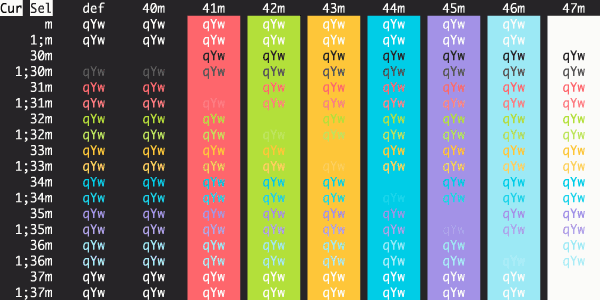
12-bit Rainbow
![Screenshot](https://raw.githubusercontent.com/mbadolato/iTerm2-Color-Schemes/HEAD/screenshots/12-bit-rainbow
📈 近 7 天 Star 趋势
🏆 排名变化趋势
📋 历史上榜记录
| 日期 | 榜单 | 排名 | 周期新增 | 总 STAR |
|---|