📄 仓库 README
在 GitHub 查看 ↗

English · 中文 · 日本語 · Documentation · Web · Android · iOS
Self-hosting
·
npm
·
Connect once. Ready whenever you are.
Continue using your DeepSeek Harness instance from a phone, computer, or browser.
Return to the same Harness session from whichever device is with you.
Harness keeps running on your work computer, with the same workspaces, tools, and project setup.
DS Harness Remote is simply another window into that environment.
The DeepSeek Harness desktop edition is supported. Install the latest release:
ds-harness-remote@0.6.0
Features
- Access your local Harness instance remotely from the web, a PC, or a mobile device: DSH first, with Codex, Cursor, and Antigravity support too.
- Use the native DeepSeek Harness interface without a separate desktop conversation UI.
- Create workspaces, configure models, and switch conversation models with the same smooth workflow as local use.
- Support DeepSeek Harness Desktop, ready to use after installation.
- Run a terminal-only dsh-TUI profile as a Host.
- No public listening port or public IP is required on the Harness Host. Connect from anywhere with internet access over a bidirectional end-to-end encrypted channel.
- Prefer P2P connections, use TURN relay nodes worldwide, and fall back to Server Relay when needed.
- Access workspace files, read-only previews, remote terminals, and authorized local development-service previews through the native Harness sidebar.
- CodeX and ACP terminals use the Host's default shell in the session directory and restore the terminal screen on reconnect.
- Android keeps per-conversation drafts and reading positions, offers backend-separated search and local favorites. Conversation text is loaded from the connected Host.
Contents
- Connect once. Ready whenever you are
- Features
- Supported clients
- Install
- Quick start
- Screenshots
- How it works
- Experimental ACP workspaces
- End-to-end encryption
- Network and transport
- Security
- FAQ
- Documentation
- Links
- Star History
- Project status and trademarks
- License
Supported clients
| Client | Form | Status | Notes |
|---|---|---|---|
| DSH Desktop plugin | Remote sidebar | Supported | Install ds-harness-remote@0.6.0; this computer can also be the Host |
| Web | Browser page | Supported | Open https://dsh.r2049.cn; reuses the native Harness interface |
| Android | Native app | Supported | Download the APK from Releases; see the Android guide |
| iOS | TestFlight beta | Beta | Not publicly released; see issue #20 |
| Browser extension | Chrome | Entry point only | Exchanges an already signed-in Web authorization for a separate device credential, lists online Hosts and opens the same-origin Remote Web; it does not host a conversation UI |
| dsh-TUI | Terminal-only CLI | Supported | Can act as a Host; see the dsh-TUI Remote guide. The installer never creates a Web service for it automatically |
Several clients can connect to the same Host at once; RPC calls and streams are isolated per connection.
Install
DeepSeek Harness Desktop support
Open Extensions / Plugin management in DeepSeek Harness Desktop, choose installation from npm, and enter this package:
ds-harness-remote@0.6.0
Restart Desktop afterward. Its official dsh launcher can also install the pinned package
with dsh plugin --profile desktop add -w ds-harness-remote@0.6.0.
dsh-TUI Host
For terminal Host setup with dsh-TUI, see the dsh-TUI Remote guide.
Command-line installation
Add the exact package version through DSH's plugin manager for the web profile:
dsh plugin --profile web add -w ds-harness-remote@0.6.0
Restart DeepSeek Harness after installation.
For CLI installation, use dsh plugin to install the npm package into the selected profile
and add its bundle configuration layer.
Plugin installer
The sole installer is scripts/install.sh:
- Linux: requires root; reuses an existing DSH or bootstraps private Node.js/DSH, accepts a one-time Host registration token, and enables/starts a systemd system service. The Host and remote tools run as root; grant access only to trusted accounts.
- macOS: run as a normal user; reuses Desktop's official launcher or an existing CLI, without installing DSH or creating services.
- Windows users use official Plugin management or existing Harness commands; no Windows installer is provided.
See the installation guide for private token input, updates, service controls and validation limits. Repository changes do not automatically deploy the hosted installer.
Recommended companion: Intelligent UI
Intelligent UI lets the model answer with cards, tables, charts and forms. The Android client renders them natively, and lists the plugin under Plugins → Remote ready, where you can switch it on or off and edit its live settings.
Install it on the computer, into the same profile as Remote (plugins cannot be installed from the phone):
| Host | Command |
|---|---|
| Desktop | Plugin management → install from npm → deepseek-harness-intelligent-ui |
CLI web profile |
dsh plugin --profile web add -w deepseek-harness-intelligent-ui |
scripts/install.sh |
INTELLIGENT_UI=1 (optionally INTELLIGENT_UI_VERSION=...) |
Restart that Harness instance afterward. Editing its settings from the phone needs Intelligent UI 0.2.10 or later.
Android client
Keep conversations connected across multiple workspaces at once, and use Bot mode, powered by Fei2411/DS-Bot.
Download the latest APK from GitHub Releases, sign in to the same account, and select a Host and workspace to continue your conversation.
iOS client
Quick start
- Open Remote from the Harness sidebar.
- Sign in using a Server-provided OAuth QR-code method, or use your account and password. The provider list is loaded dynamically; new Server integrations need no further plugin release.
- The Host starts with control of the current computer enabled. Remote terminal access is also enabled by default; you can turn it off in the detailed Remote settings.
- On another device, open the DeepSeek Harness desktop edition, Remote Web, or the Android client and sign in to the same account.
- Select the online Host, then choose an existing workspace or browse remote directories to open one.
By default, Remote uses this project's hosted Server at https://dsh.r2049.cn.
For self-hosting, use the repository's minimal Server; its Web page shows device status only.
Screenshots
Desktop
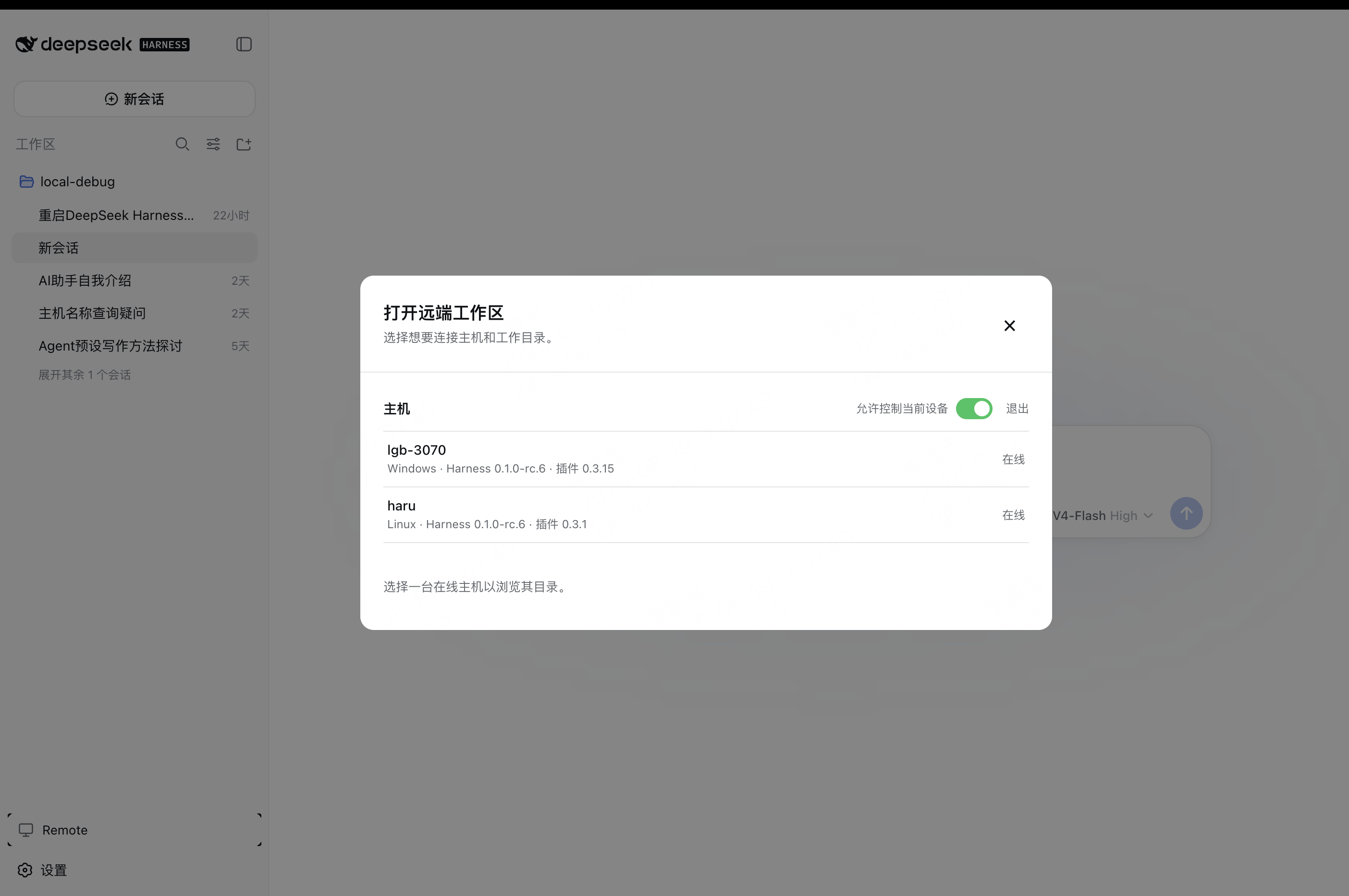
The current computer starts with Allow control of this device enabled and is available as a Host. Remote terminal access is also enabled by default and can be turned off in the Host's detailed Remote settings.
On another computer, select an online Host and open one of its workspaces.
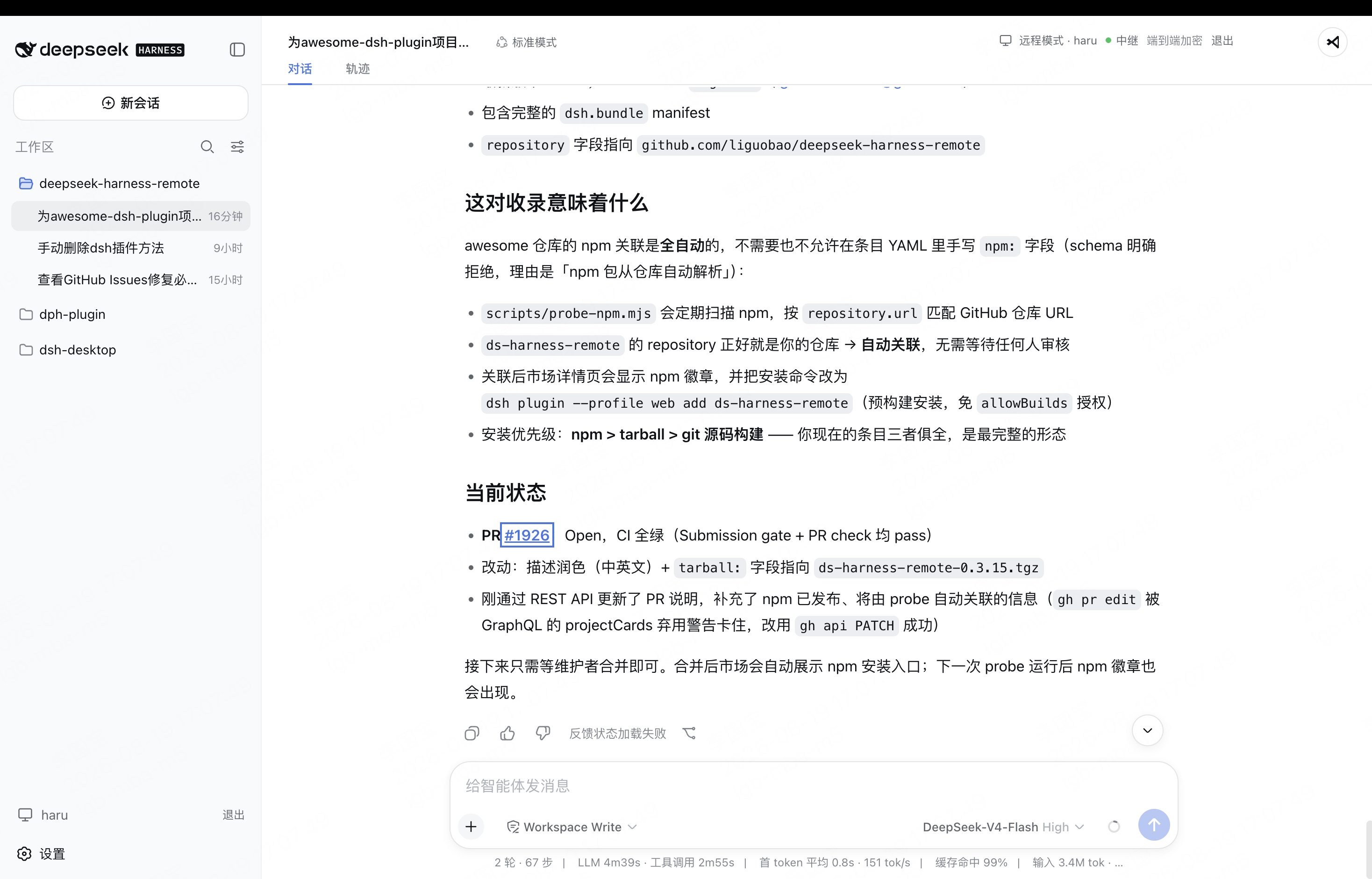
The workspace opens in the native Harness interface, with the active Host and encrypted connection status shown in the header.
Android
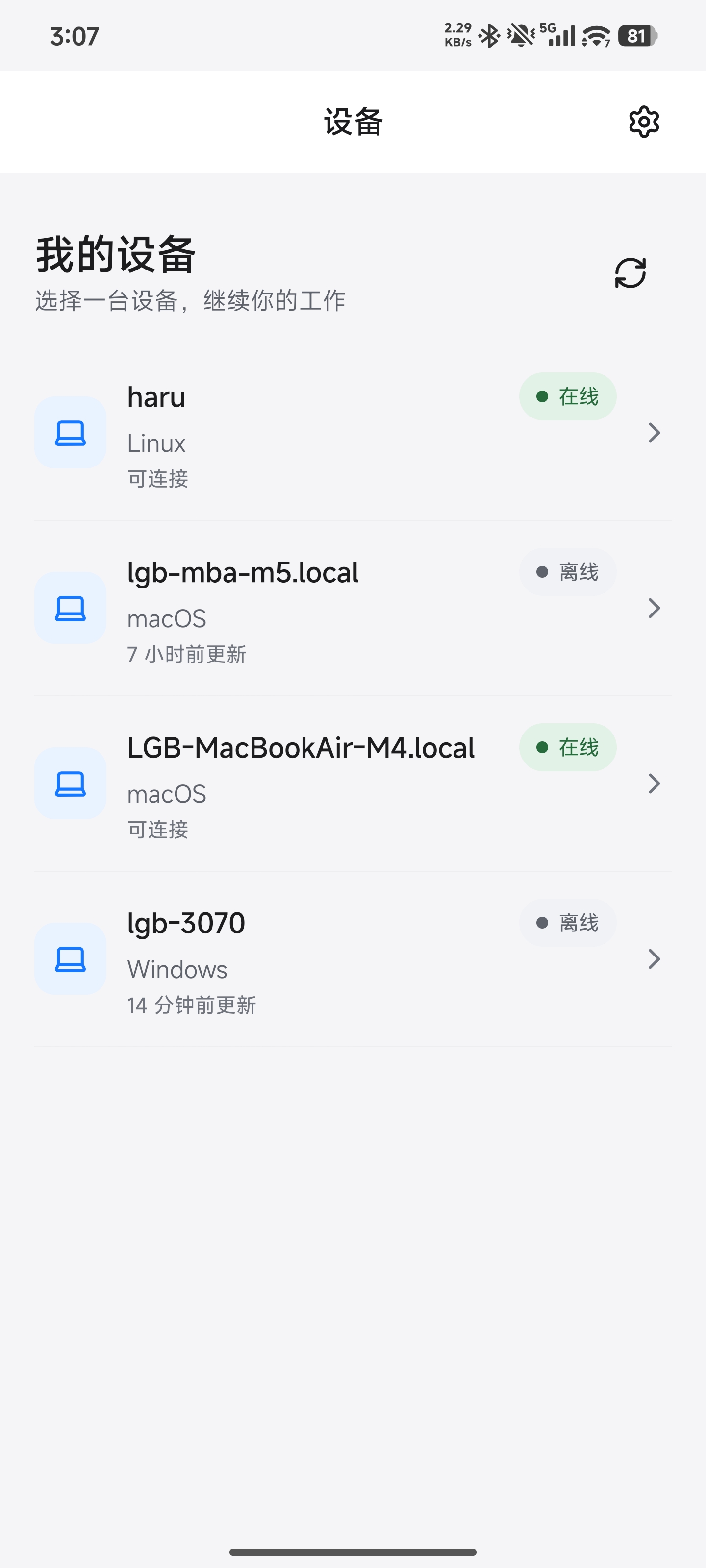
Use text or image prompts, switch models, and access supported workspace files and terminals. The interface follows the system language and supports English, Simplified and Traditional Chinese, Japanese, Spanish, German, and French. In language settings, tap “More ...” to show all languages. See the Android guide for details.
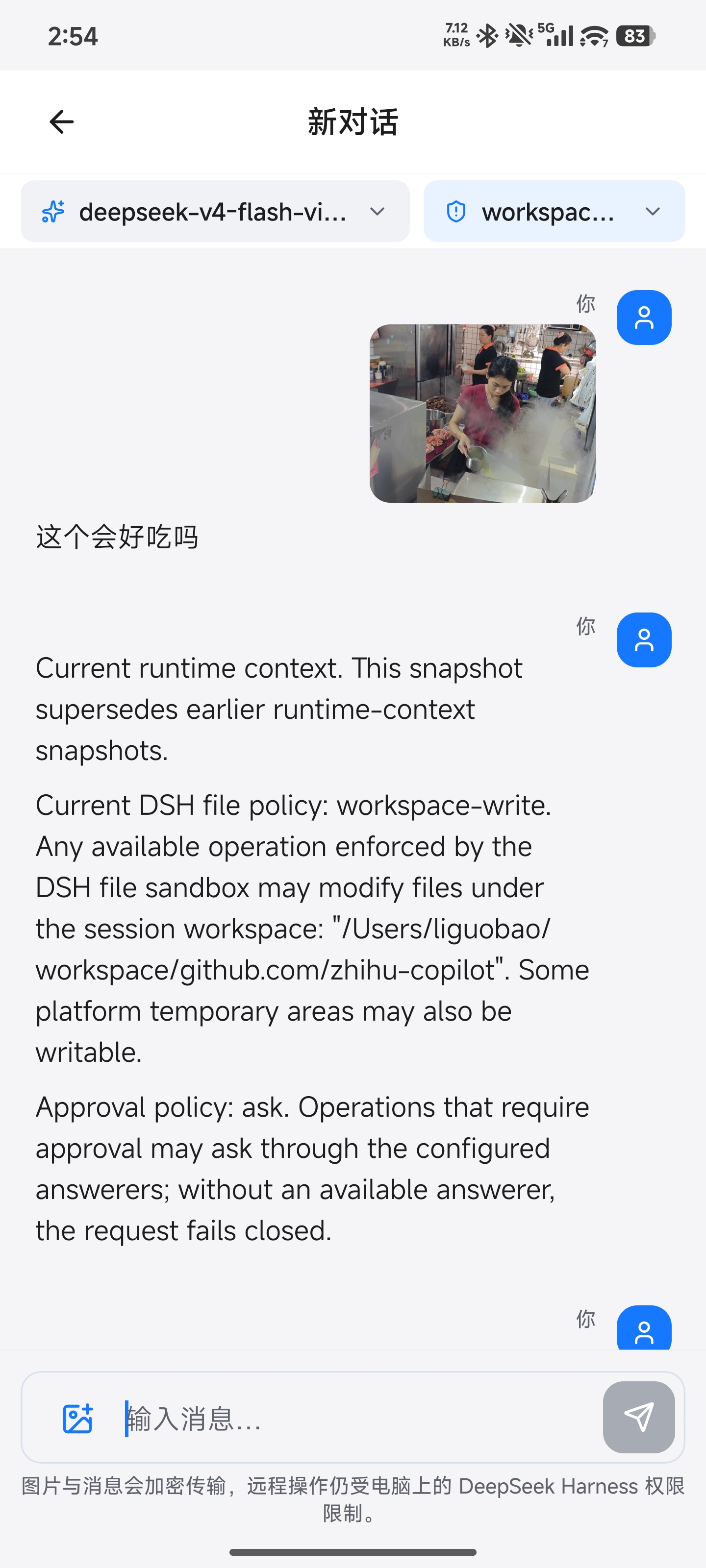
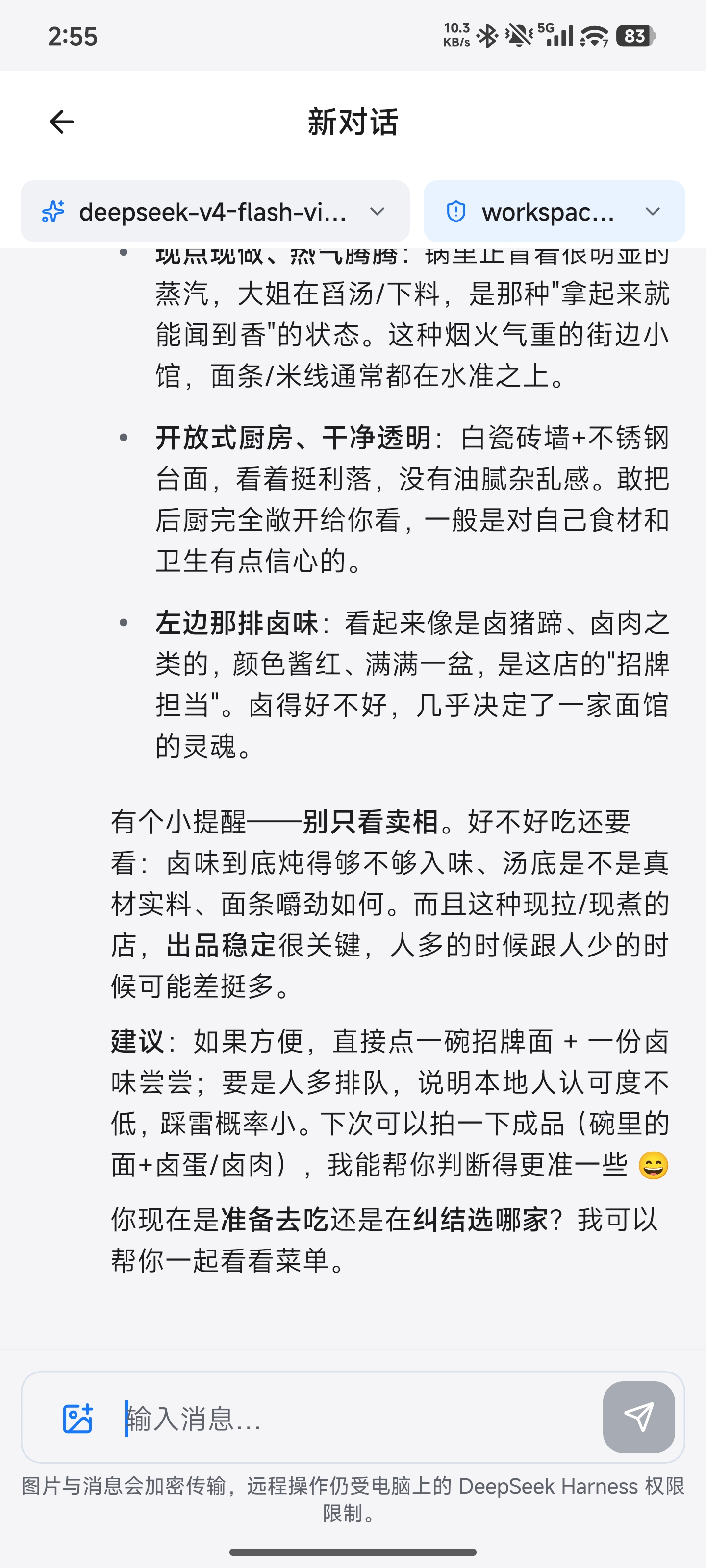
Mobile Settings includes a global Compact conversations switch, off by default and applied when a conversation is next opened.
Supporting Hosts reduce historical tool details while preserving messages and tool status. Turn the setting off and reopen the conversation to load full history.
How it works
DSH Desktop / Remote Web / Android
  ↔ authenticated, end-to-end encrypted channel
Remote Plugin on the Host
  ↔ supported Harness or optional Codex workspace support
Harness sessions/workspaces or Codex projects
The Harness Host does not need a public listening port. You can connect from anywhere with internet access.
Remote communicates over a bidirectional end-to-end encrypted channel and switches the client to the selected Host's native Harness API.
The original workspace, tools, and permission flow remain on that computer.
Every settings namespace currently registered by the Host can also be configured remotely through the official Harness settings API.
Credential values remain write-only, and Host-local document/open actions are never exposed.
Experimental ACP workspaces
The Host runs local AI backends and forwards prompts, streamed replies and approvals through the encrypted Remote channel.
Desktop and Android project their workspaces and sessions into the existing interface in memory, without writing them to Harness storage.
Supported backends:
- Codex — connected through its independent App Server interface, with the same workspace entry.
- Cursor — connected through the CLI's ACP interface.
- Antigravity (AGY) — its stream-json CLI is adapted to the ACP gateway.
-
Pi Agent (experimental) — install
@earendil-works/pi-coding-agentandpi-acpon the Host, configure Pi's provider locally; Remote automatically detects and initializes Pi unless explicitly disabled in Remote settings. The workspace is available only after ACP initialization succeeds. Uses the separate ACP data plane. Tools run with Host-user permissions; per-tool confirmation requires a Pi extension and is not enabled by default. -
OpenCode — connected through
opencode acp, with workspace discovery and history recovery. Host startup checks the CLI's supported options, accepting both native-listener and stdio-only ACP builds. Native session archiving on Desktop/Android requires the authenticated loopback API; builds without it report archiving unavailable. Archive state is saved by OpenCode; history is retained. Unarchive is not yet exposed. - Claude — uses a locally authorized
claude-agent-acpon the Host; enable it in Remote settings. Desktop/Android support workspaces, history, text prompts and approvals. Image input and direct Files/Terminal access are not available.
Setup and adapter development: Agent workspace integration guide.
Model selection for Cursor, Claude, Pi, OpenCode, and AGY on Desktop/Android uses the Host's actual model catalog and waits for backend confirmation.
Reasoning effort options depend on what the backend provides. Cursor uses a separate process per session, so model changes do not affect other conversations.
End-to-end encryption
Harness business traffic is encrypted on the Client and decrypted only by the selected Host using the fixed Noise_IK_25519_ChaChaPoly_SHA256 suite.
Connections must pass both same-account membership and locally pinned device identity key checks.
The service can coordinate connections and observe necessary network metadata, but it cannot read session messages, prompts, tool output, workspace paths, or remote file contents.
See End-to-end encryption for the handshake, key lifecycle, visible metadata, replay protection, and security limits.
Network and transport
The Host opens outbound connections only; it does not listen on a public port or require router port forwarding.
Remote negotiates paths in the order LAN -> P2P -> TURN -> Relay.
When WebRTC is unavailable or cannot connect, it falls back to the encrypted WebSocket Relay.
Every path carries the same Noise ciphertext and keeps the same Host/Client identity boundary.
See Network and transport for the topology, control and data planes, NAT behavior, fallback, reconnect semantics, and current validation status.
Security
- Session traffic is end-to-end encrypted. The service relays ciphertext without storing session plaintext or device private keys.
- Server membership and the Host's locally pinned peer identity must both authorize a connection.
-
Remote Tools injection — optional
remote_*session tools; disabled by default and enabled from detailed Remote settings. -
Interactive terminals use the Host-local
terminal.enabledswitch (on by default). They run as the Host user, independently of Agent approvals. - General tool RPC and remote desktop are not exposed.
- The workspace picker lists folders only and returns bounded, read-only directory metadata.
- Remote file preview cannot write, delete, upload, execute, or open a path in an external application.
- Codex Remote / Agent ACP is optional, can be disabled, and follows the same encrypted Host permission boundary as the rest of Remote.
- Removing a device revokes its credentials, membership, and active Remote connections.
FAQ
Do I need a public IP or port forwarding?
No. The Host only opens outbound connections and never listens on a public port.
Can the service read my conversations?
No. The service relays ciphertext only. Routing, authorization, presence and rate limiting require control metadata such as account and device ownership, online status, connection times and connectionId; prompts, conversation content, tool input and output, workspace paths and file preview contents stay unreadable.
Which machine can act as a Host?
Any Harness instance with the Remote plugin installed and signed in. The web, desktop and dsh-TUI profiles can all act as a Host, and command-line installation uses web by default. The installer never creates a Web service automatically for headless, SDK or dsh-TUI profiles, so a dsh-TUI Host manages its own process.
Can several devices connect to one Host at the same time?
Yes. Multiple clients can connect concurrently, with RPC calls and streams isolated per connection.
Which Harness versions are supported?
The current baseline is dsh-v0.2.1-rc.5, compatible with 0.2.0 rc.2 / rc.1. See the compatibility guide.
Harness 0.1.1-rc.2 ApiProxy support has been removed from the Host plugin, its bundled Remote client, and Android. Use a Host with the official Typert Remote carrier; Hosts that only provide ApiProxy or lack capability discovery are rejected, with no fallback.
CodeX/ACP keep their independent data planes, and Desktop projections use Typert in memory.
Why does the Linux installer require root?
It configures a systemd system service, so the Host, Agent tools and remote terminals run with root privileges. Only expose it to trusted accounts.
Can I install the iOS app directly?
It is in TestFlight beta today and not publicly released; see issue #20.
How is this different from frp, a tunnel, or remote desktop?
Conventional server-based TCP port forwarding routes traffic through a Server, making its bandwidth a potential bottleneck.
This project probes four connection modes in sequence to establish P2P connections even in complex network environments.
Remote desktop captures the entire computer screen and reproduces it on the client, placing demands on upload and download bandwidth as well as computer performance.
This project encrypts and transmits only the messages needed by the native Harness conversation interface. General tool RPC and desktop control are not exposed, and permissions and approvals remain on the Host.
Documentation
- Plugin guide
- Installation guide
- dsh-TUI Remote guide
- Codex Remote technical notes
- ACP Remote / Agent adapter notes
- Documentation index
- End-to-end encryption
- Network and transport
- Remote Protocol
- Development status and roadmap
- Changelog
- Privacy policy
- Android guide
- The current development baseline is
dsh-v0.2.1-rc.5; validation scope is documented in the compatibility guide.
Links
- Friendly link: dsh-TUI — Remote integration is available; see the dsh-TUI Remote guide.
- Friendly link: LINUX DO
- Friendly link: Cyber Liu Kanshan
Star History
Project status and trademarks
This is an independent community project and is not an official DeepSeek product. DeepSeek and related names and marks belong to their respective owners.
License
Remote Agent tools
After signing in through the local Remote panel, native Harness Agents can discover online Hosts and workspaces, create and message Harness sessions, read history, wait for execution, request interruption, download workspace files to the local plugin machine, and upload authorized local files to a Harness workspace. CodeX/ACP support workspace discovery only. See Remote Agent tools for operation receipts and delivery semantics.
📈 近 7 天 Star 趋势
🏆 排名变化趋势
📋 历史上榜记录
| 日期 | 榜单 | 排名 | 周期新增 | 总 STAR |
|---|