📄 仓库 README
在 GitHub 查看 ↗






Show your love for fzf -- T-shirts, mugs, and stickers now available!

fzf is a general-purpose command-line fuzzy finder and an interactive terminal toolkit.
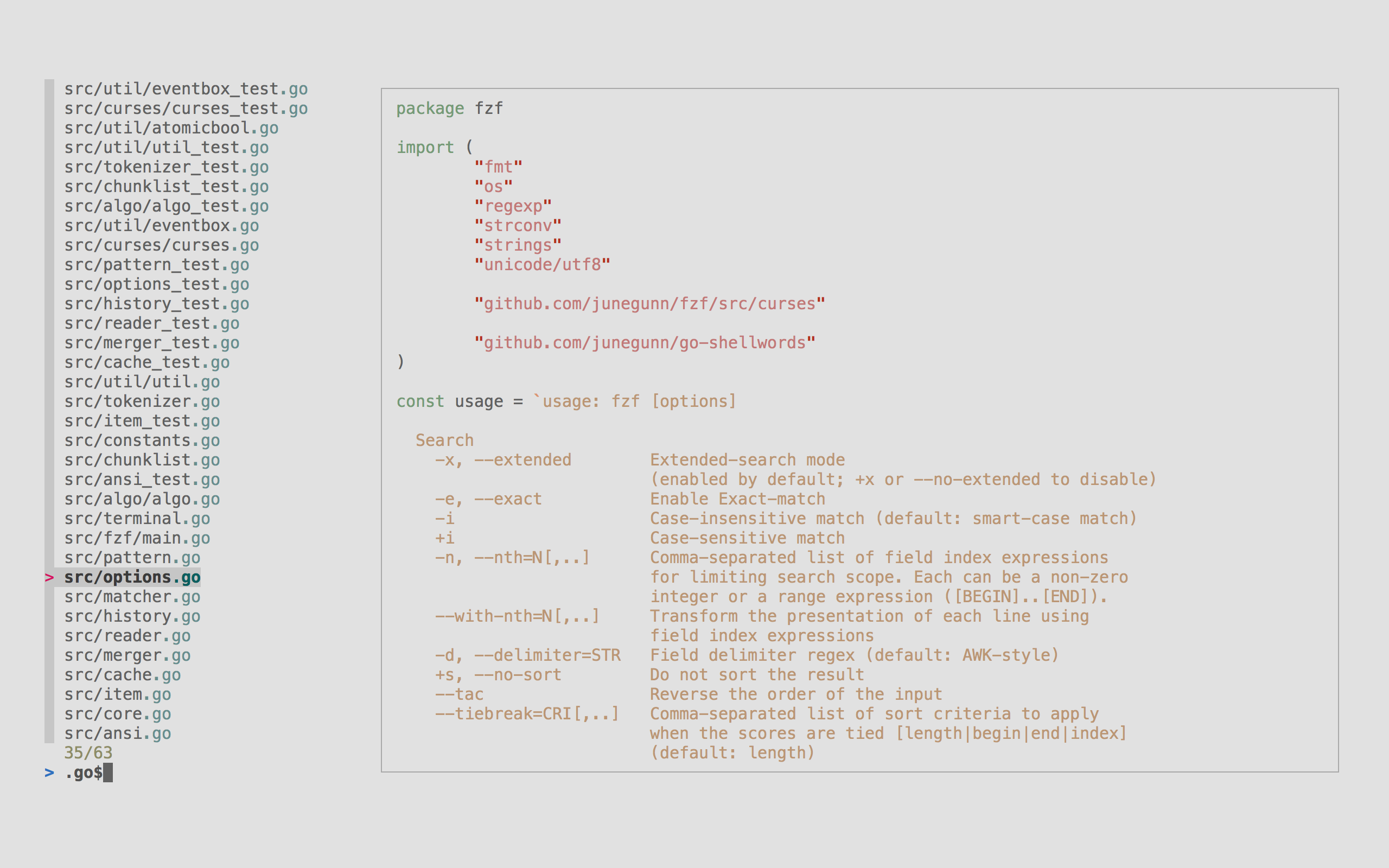
Whether you're selecting files, browsing command history, previewing data, navigating complex datasets with fuzzy matching, or creating custom menus and workflows, fzf provides the building blocks to turn shell scripts into rich terminal applications.
Highlights
- Portable // Distributed as a single binary for easy installation
- Fast // Optimized to process millions of items in milliseconds
- Programmable // Event-driven architecture for building custom terminal interfaces and workflows
- Batteries-included // Comes with integrations for Bash, Zsh, Fish, Nushell, Vim, and Neovim
Table of Contents
- Installation
- Upgrading fzf
- Building fzf
- Usage
- Examples
- Key bindings for command-line
- Fuzzy completion
- Vim plugin
- Advanced topics
- Tips
- Related projects
- License
- Goods
- Sponsors :heart:
Installation
Using Homebrew
You can use Homebrew (on macOS or Linux) to install fzf.
brew install fzf
[!IMPORTANT] To set up shell integration (key bindings and fuzzy completion), see the instructions below.
fzf is also available via MacPorts: sudo port install fzf
Using Mise
You can use mise to install fzf.
mise use -g fzf@latest
Linux packages
| Package Manager | Linux Distribution | Command |
|---|---|---|
| APK | Alpine Linux | sudo apk add fzf |
| APT | Debian 9+/Ubuntu 19.10+ | sudo apt install fzf |
| Conda | conda install -c conda-forge fzf |
|
| DNF | Fedora | sudo dnf install fzf |
| Nix | NixOS, etc. | nix-env -iA nixpkgs.fzf |
| Pacman | Arch Linux | sudo pacman -S fzf |
| pkg | FreeBSD | pkg install fzf |
| pkgin | NetBSD | pkgin install fzf |
| pkg_add | OpenBSD | pkg_add fzf |
| Portage | Gentoo | emerge --ask app-shells/fzf |
| Spack | spack install fzf |
|
| XBPS | Void Linux | sudo xbps-install -S fzf |
| Zypper | openSUSE | sudo zypper install fzf |
[!IMPORTANT] To set up shell integration (key bindings and fuzzy completion), see the instructions below.

Windows packages
On Windows, fzf is available via Chocolatey, Scoop, Winget, and MSYS2:
| Package manager | Command |
|---|---|
| Chocolatey | choco install fzf |
| Scoop | scoop install fzf |
| Winget | winget install fzf |
| MSYS2 (pacman) | pacman -S $MINGW_PACKAGE_PREFIX-fzf |
Using git
Alternatively, you can "git clone" this repository to any directory and run install script.
git clone --depth 1 https://github.com/junegunn/fzf.git ~/.fzf
~/.fzf/install
The install script will add lines to your shell configuration file to modify
$PATH and set up shell integration.
Binary releases
You can download the official fzf binaries from the releases page.
- https://github.com/junegunn/fzf/releases
Setting up shell integration
Add the following line to your shell configuration file.
- bash
sh # Set up fzf key bindings and fuzzy completion eval "$(fzf --bash)" - zsh
sh # Set up fzf key bindings and fuzzy completion source <(fzf --zsh) - fish
fish # Set up fzf key bindings fzf --fish | source - Nushell -- Nushell does not support piping into
source, so the install script generates a file in the autoload directory. If you didn't use the install script, you can manually set it up:nu # Generate the integration script mkdir ($nu.default-config-dir | path join "autoload") fzf --nushell | save -f ($nu.default-config-dir | path join "autoload" "_fzf_integration.nu")
[!NOTE]
--bash,--zsh,--fish, and--nushelloptions are only available in recent versions of fzf. If you have an older version of fzf, or want finer control, you can source individual script files in the /shell directory. The location of the files may vary depending on the package manager you use. Please refer to the package documentation for more information. (e.g.apt show fzf)[!TIP] You can disable CTRL-T, CTRL-R, or ALT-C bindings by setting the corresponding
*_COMMANDvariable to an empty string when sourcing the script. For example, to disable CTRL-R and ALT-C:
- bash:
FZF_CTRL_R_COMMAND= FZF_ALT_C_COMMAND= eval "$(fzf --bash)"- zsh:
FZF_CTRL_R_COMMAND= FZF_ALT_C_COMMAND= source <(fzf --zsh)- fish:
fzf --fish | FZF_CTRL_R_COMMAND= FZF_ALT_C_COMMAND= source- nushell: add to your
env.nu:$env.FZF_CTRL_R_COMMAND = ""; $env.FZF_ALT_C_COMMAND = ""Setting the variables after sourcing the script will have no effect.
Vim/Neovim plugin
If you use vim-plug, add this to your Vim configuration file:
Plug 'junegunn/fzf', { 'do': { -> fzf#install() } }
Plug 'junegunn/fzf.vim'
junegunn/fzfprovides the basic library fun
📈 近 7 天 Star 趋势
🏆 排名变化趋势
📋 历史上榜记录
| 日期 | 榜单 | 排名 | 周期新增 | 总 STAR |
|---|