📄 仓库 README
在 GitHub 查看 ↗

mise-en-place


Dev tools, env vars, and tasks in one CLI
Getting started • Docs • Dev tools • Environments • Tasks • Bootstrap
Sponsored by


View all sponsors
What is mise?
mise (pronounced "meez", short for mise-en-place) manages a project's dev
tools, environment variables, and tasks from one mise.toml that works across
your shell, editor, and CI:
[tools]
node = "24"
python = "3.14"
rust = "stable"
"cargo:cargo-nextest" = "0.9"
"github:BurntSushi/ripgrep" = "15"
"npm:prettier" = "3"

[env]
NODE_ENV = "development"
_.file = ".env"
_.path = "./node_modules/.bin"

[tasks.build]
description = "Build the application"
run = "npm run build"

[tasks.test]
description = "Run the test suite"
depends = ["build"]
run = "pytest && npm test"
- Install dev tools such as Node.js, Python, Go, Rust, and Terraform from a registry of 1,000+ tools or directly from backends like GitHub releases, Aqua, Cargo, npm, and PyPI, with separate versions per project.
- Load environment variables,
.envfiles,PATHentries, virtualenvs, and secrets automatically as you enter a directory. - Run tasks defined in
mise.tomlor as scripts inmise-tasks/, with dependencies, parallel execution, file watching, and the project's tools and environment already configured. - Set up a machine with
mise bootstrapandmise dot applyto apply system packages, dotfiles, Git repositories, macOS defaults, and background services.
Adopt only the parts you need. Start with a single tool or task, and keep any
existing .tool-versions files as they are; mise also reads .nvmrc,
.python-version, and other
idiomatic version files
once enabled.
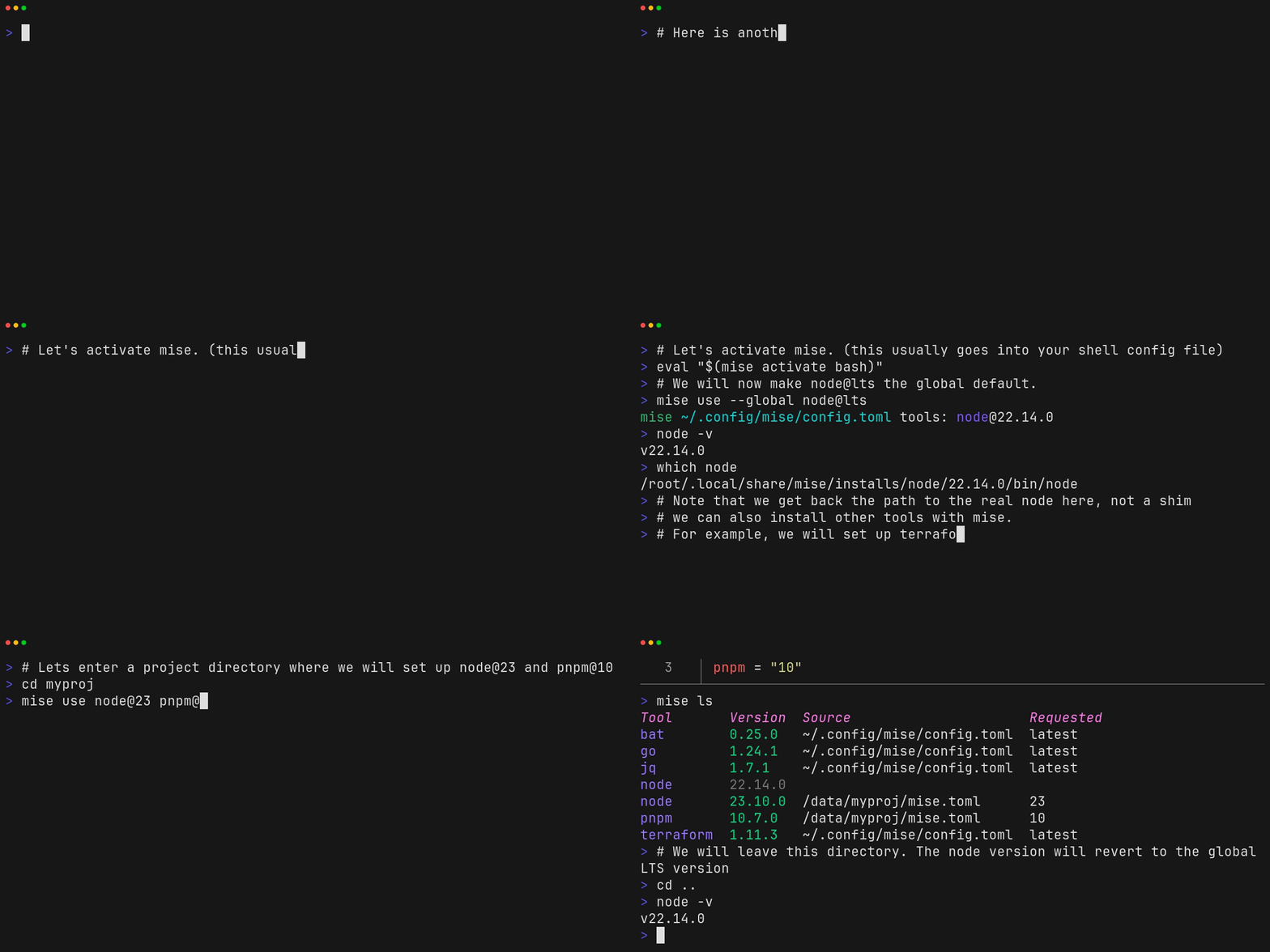
See the demo transcript for the commands shown above.
Quickstart
1. Install mise
On macOS or Linux:
curl -fsSL https://mise.run | sh
~/.local/bin/mise --version
On Windows, run winget install jdx.mise. For Homebrew, apt, dnf, Scoop, and
other package managers, see
Installing mise.
The installer places the binary at ~/.local/bin/mise. If ~/.local/bin is not
on your PATH yet, run ~/.local/bin/mise in place of mise until you
activate mise in step 4.
2. Run a tool without changing your shell
mise exec node@24 -- node --version
# v24.x.x
mise exec downloads Node.js 24 if
needed and runs the command after -- with that version on PATH. Your shell
and config files stay untouched.
3. Configure a project
Create a project directory, select Node.js 24, set an environment variable, and add a task:
mkdir my-project && cd my-project
mise use node@24
mise set NODE_ENV=development
mise tasks add hello -- node -e "console.log(process.version, process.env.NODE_ENV)"
These commands install Node.js 24 and write mise.toml:
[tools]
node = "24"

[env]
NODE_ENV = "development"

[tasks.hello]
run = 'node -e "console.log(process.version, process.env.NODE_ENV)"'
Run the task with mise run:
mise run hello
# [hello] $ node -e "console.log(process.version, process.env.NODE_ENV)"
# v24.x.x development
Commit mise.toml so teammates and CI get the same setup when they run
mise install or mise run. "24" requests the latest release in the Node.js
24 series; run mise lock to record exact versions and checksums in a
lockfile, or
mise use --global node@24 to set a personal default in
~/.config/mise/config.toml.
4. Activate mise in your shell (optional)
Shell activation updates PATH and project environment variables whenever you
change directories, so you can invoke node directly without mise exec. If
you installed with mise.run, run the command for your shell once, then open a
new terminal:
# bash
echo 'eval "$(~/.local/bin/mise activate bash)"' >> ~/.bashrc

# zsh
echo 'eval "$(~/.local/bin/mise activate zsh)"' >> "${ZDOTDIR:-$HOME}/.zshrc"

# fish
mkdir -p ~/.config/fish
echo '~/.local/bin/mise activate fish | source' >> ~/.config/fish/config.fish
If a package manager installed mise, use mise in place of ~/.local/bin/mise.
With Homebrew, fish activates mise without this step.
For PowerShell, Nushell, Elvish, Xonsh, and IDE or CI shims, see Shell setup and Shims.
Everyday commands
| Command | Action |
|---|---|
mise use node@24 |
Install a tool and record it in the current project's mise.toml |
mise use --global node@24 |
Install a tool and set it as your global default |
mise install |
Install all tools declared in the active config files |
mise exec -- <command> |
Run a command with the project's tools and environment |
mise run <task> |
Run a project task with its dependencies, tools, and environment |
mise set KEY=value |
Set an environment variable in mise.toml |
mise env |
Print the resolved environment variables and PATH changes |
mise ls --current |
List the tool versions active in the current directory |
mise outdated |
List tools with newer releases than the installed version |
mise upgrade |
Install those newer releases |
mise lock |
Write exact tool versions and checksums to mise.lock |
mise config ls |
Show the config files loaded for the current directory |
mise doctor |
Check your mise installation, shell activation, and configuration |
Set up a machine with mise bootstrap
Beyond project directories, ~/.config/mise/config.toml can declare the state
of your machine:
[bootstrap.packages]
"apt:build-essential" = "latest"
"brew:jq" = "latest"

[bootstrap.repos]
"~/src/app" = { url = "https://github.com/you/app.git" }

[dotfiles]
"~/.zshrc" = { mode = "track" }
Preview and apply the configuration, or bootstrap a new machine directly from a Git repository:
mise bootstrap --dry-run
mise bootstrap
mise bootstrap --adopt you/dotfiles
See Bootstrap and Dotfiles for supported package managers, dotfile tracking and templating, services, and remote SSH targets.
Documentation
| Topic | Guides |
|---|---|
| Onboarding | Getting started · Existing projects · Migrating from asdf |
| Dev tools | Dev tools · Registry · Backends · Lockfile |
| Environments and tasks | Environments · Secrets · Tasks · Task configuration |
| Machine setup | Bootstrap · Packages · Dotfiles · Services |
| Shells, editors, and CI | Shell setup · Shims · Editors and IDEs · Continuous integration |
| Reference and troubleshooting | mise.toml · Settings · CLI reference · Troubleshooting · FAQ |
| Contributing | Contributing · Writing docs |
Get help
- Report bugs in GitHub Issues. Check
Troubleshooting first, and
include the command you ran, a minimal
mise.toml, the expected and actual behavior, and yourmise doctoroutput after reviewing it for private details. - Ask questions and share ideas in GitHub Discussions.
- Chat with the community on Discord.
For security reports and other inquiries, see Contact. Before using AI to reply to an Issue or Discussion, read the AI reply policy.
Special thanks

Thanks to Namespace for providing CI services for mise.
Contributors
📈 近 7 天 Star 趋势
🏆 排名变化趋势
📋 历史上榜记录
| 日期 | 榜单 | 排名 | 周期新增 | 总 STAR |
|---|