📄 仓库 README
在 GitHub 查看 ↗open-computer-use




[!TIP] Interested in Browser Use? Check out open-browser-use.
open-computer-use is an open-source Computer Use service wrapped as MCP. Any AI agent or MCP client can use it to run Computer Use on macOS, Linux, and Windows.
This project was inspired by OpenAI's Codex Computer Use. It showed that non-intrusive CUA can be built on top of Accessibility, so I decided to build an open-source version.
I started this repo with my harness template, a template for quickly spinning up AI-first projects. It has been one of our most useful workflows lately, especially for nearly 100% AI-generated projects. I also wrote a post about the methodology behind it.
Demos
Codex App and Codex CLI
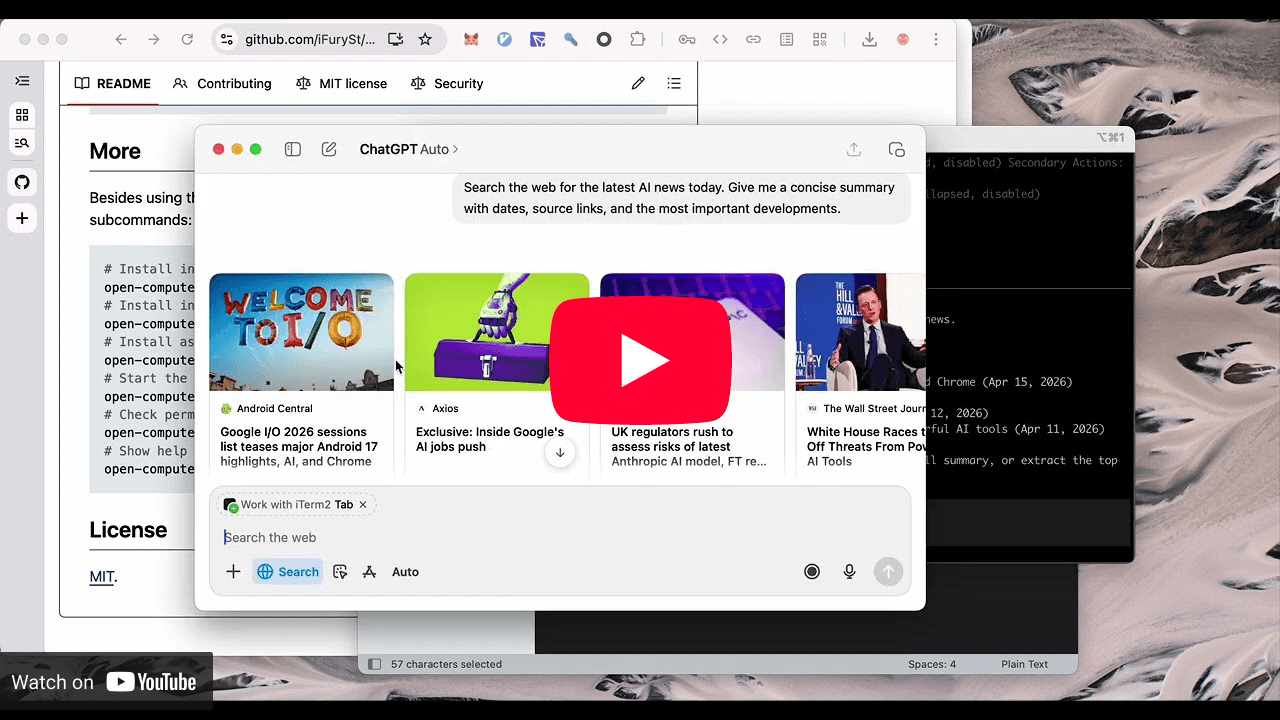
open-computer-use used as Computer Use in Codex App and Codex CLI, matching the official experience.
Gemini CLI
https://github.com/user-attachments/assets/eacb3b15-f939-46c7-b3b3-6f876977a58d
Gemini CLI connects to open-computer-use through MCP and runs full Computer Use actions.
Linux
https://github.com/user-attachments/assets/e036b1c8-2200-4896-abd4-19225915cf66
open-computer-use running on Linux.
Locked Use
Locked Use is now supported on macOS. OCU temporarily unlocks your Mac after it has been locked so the agent can continue working, with protective services such as a full-screen shield in place during use.
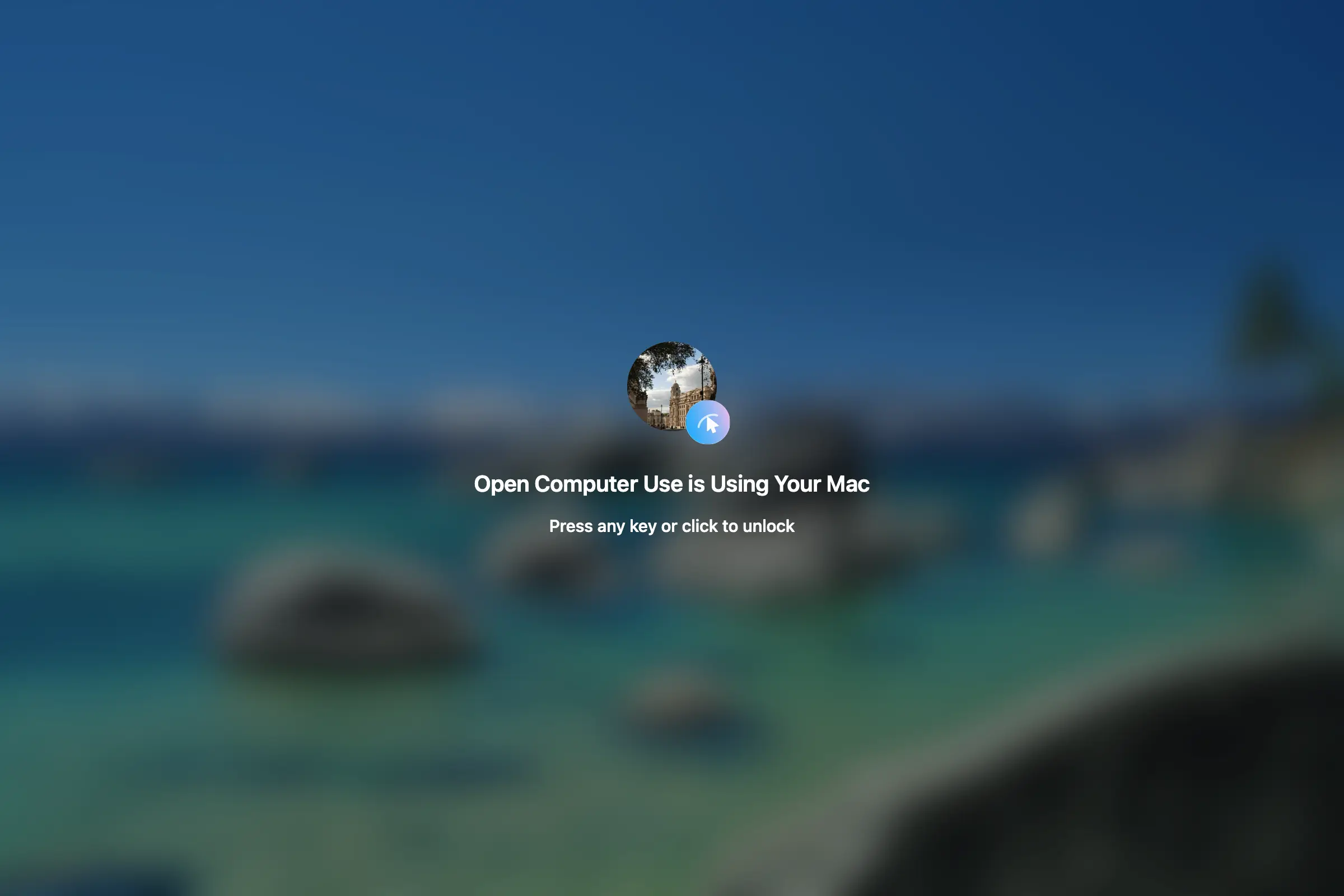
See the Locked Use guide for setup, installed components, and permissions
Quick Start
npm i -g open-computer-use
The npm package also exposes ocu as the short CLI alias.
[!IMPORTANT] The macOS runtime requires macOS 14.0 or later.
On macOS, run it once and grant Accessibility and Screen Recording. Windows and Linux do not need this step.
open-computer-use
# or
ocu
Before using it, install it into your agent:
# Install into Codex by writing to ~/.codex/config.toml
open-computer-use install-codex-mcp
ocu install-codex-mcp
Or add it to your own client manually:
{
  "mcpServers": {
    "open-computer-use": {
      "command": "open-computer-use",
      "args": ["mcp"]
    }
  }
}
Skill
Install the skill directly:
# Install for Codex
npx skills add iFurySt/open-computer-use -g -a codex --skill open-computer-use -y
npx skills ls -g -a codex | rg 'open-computer-use'
Install for Claude Code:
npx skills add iFurySt/open-computer-use -g -a claude-code --skill open-computer-use -y
Update an existing global install, including the Codex install created above:
npx skills update open-computer-use -g -y
You can also manually download and install the
open-computer-use skill.
More
Besides the MCP JSON config above, you can also use the built-in commands:
# Install into Codex by writing to ~/.codex/config.toml
open-computer-use install-codex-mcp

# Install as a Codex plugin, mainly for Codex App
open-computer-use install-codex-plugin

# Install into Claude Code by writing to ~/.claude.json
open-computer-use install-claude-mcp

# Install into Gemini CLI for the current project by writing to ./.gemini/settings.json
open-computer-use install-gemini-mcp

# Install into Gemini CLI user config instead
open-computer-use install-gemini-mcp --scope user

# Install into opencode by writing to ~/.config/opencode/opencode.json (or the active config file)
open-computer-use install-opencode-mcp

# Call a single Computer Use tool and print the MCP-style JSON result
open-computer-use call list_apps
ocu call list_apps
open-computer-use call get_app_state --args '{"app":"TextEdit"}'

# Run a sequence in one process so element_index state can be reused
# Sequence runs sleep 1s between successful operations by default
open-computer-use call --calls '[{"tool":"get_app_state","args":{"app":"TextEdit"}},{"tool":"press_key","args":{"app":"TextEdit","key":"Return"}}]'
open-computer-use call --calls-file examples/textedit-overlay-seq.json --sleep 0.5

# Check permissions; onboarding only opens when something is missing
open-computer-use doctor

# macOS: query permission JSON without opening onboarding
ocu doctor --json

# Show help
open-computer-use -h
ocu -h
Global Configuration
ocu supports global configuration starting with version 1.0.0 to accommodate different workflows and use cases. The default configuration file is ~/.config/ocu/config.json. You can edit the file directly or use the ocu config subcommands. See the configuration guide for details.
Star History
License
📈 近 7 天 Star 趋势
🏆 排名变化趋势
📋 历史上榜记录
| 日期 | 榜单 | 排名 | 周期新增 | 总 STAR |
|---|