📄 仓库 README
在 GitHub 查看 ↗

nao
The #1 Open-Source Analytics Agent
🌐 Website · 📚 Documentation · 💬 Slack
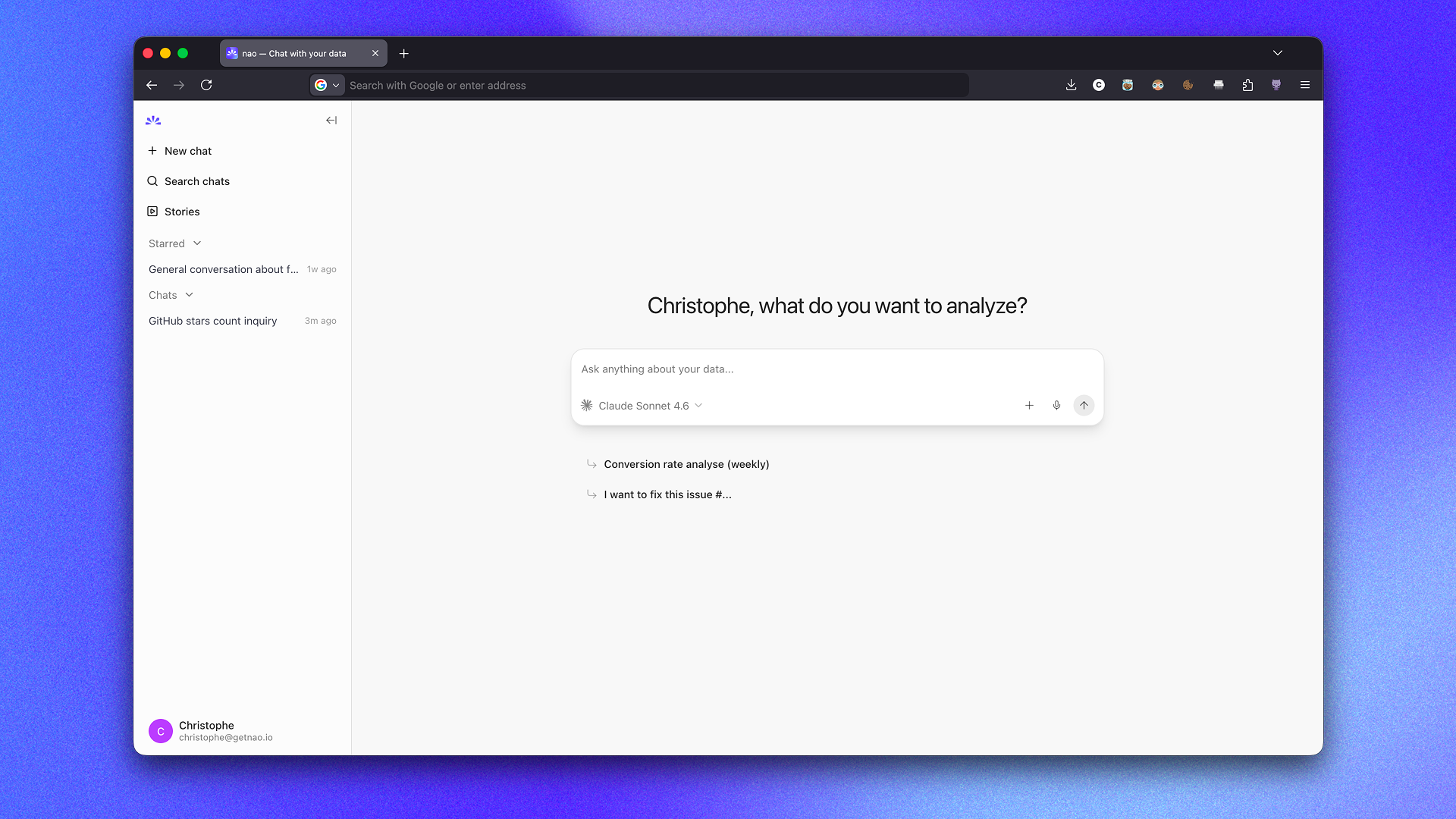
What is nao?
nao is a framework to build and deploy analytics agent.
Create the context of your analytics agent with nao-core cli: data, metadata, modeling, rules, etc.
Deploy a UI for anyone to chat with your agent and run analytics on your data.
Key Features
For data teams:
- 🧱 Open Context Builder — Create a file-system like context for your agent. Add anything you want in the context: data, metadata, docs, tools, MCPs. No limit.
- 🏳️ Data Stack Agnostic — Works with any data warehouse, stack, type of context, LLM.
- 🕵🏻♀️ Agent Reliability Visibility — Unit test your agent performance before deploying it to users. Version the context and track the performance of your agent over time. Get users feedbacks to improve the agent and track their usage.
- 🔒 Self-hosted & secure — Self-host your analytics agent and use your own LLM keys to guarantee maximum security for your data.
For business users:
- 🤖 Natural Language to Insights — Ask questions in plain English, get analytics straight away
- 📊 Native Data Visualization — Create and customize visualizations directly in the chat interface
- 🧊 Transparent Reasoning — See the agent reasoning and sources clearly
- 👍 Easy Feedback — Send feedback to the data team when a answer is right or wrong
⚡️ Quickstart your agent in 1 minute
-
Step 1: Install nao-core package
bash
pip install nao-core
-
Step 2: Initialize a nao project
bash
nao init
It will ask you: - To name your project - If you want to connect a database (optional) - If you want to add a repo in agent context (optional) - To add an LLM key (optional) - If you want to setup a Slack connection (optional)
💡 You can skip any optional question and configure them later in your
nao_config.yamlfile.This will create: - A new folder with your project name - An architecture for your context files - A
nao_config.yamlconfiguration file - ARULES.mdfile
-
Step 3: Verify your setup
cd to the project folder and run:
bash
nao debug
-
Step 4: Synchronize your context
bash
nao sync
This will populate your context folder with your context files (data, metadata, repos, etc.)
-
Step 5: Launch the chat and ask questions
bash
nao chat
This will start the nao chat UI. It will open the chat interface in your browser at
http://localhost:5005. From there, you can start asking questions to your agent.
Evaluation framework
Unit test your agent performance before deploying it to users. First, create a folder tests/ with questions and expected SQL in yaml.
Then, measure agent's performance on examples with nao test command:
nao test
View results in tests panel:
nao test server
Commands
nao --help
Usage: nao COMMAND

╭─ Commands ────────────────────────────────────────────────────────────────╮
│ chat         Start the nao chat UI.                                       │
│ init         Initialize a new nao project.                                │
│ sync         Sync context from your context sources (databases, repos)    │
│ test         Measure agent's performance on test examples.                │
│ debug        Debug and troubleshoot your nao setup.                       │
│ --help (-h)  Display this message and exit.                               │
│ --version    Display application version.                                 │
╰───────────────────────────────────────────────────────────────────────────╯
🐳 Docker
Pull the image from DockerHub:
docker pull getnao/nao:latest
Run nao chat with Docker using the example project bundled in the image:
docker run -d \
  --name nao \
  -p 5005:5005 \
  -e BETTER_AUTH_URL=http://localhost:5005 \
  getnao/nao:latest
Run nao chat with Docker using your local nao project:
docker run -d \
  --name nao \
  -p 5005:5005 \
  -e BETTER_AUTH_URL=http://localhost:5005 \
  -v /path/to/your/nao-project:/app/project \
  -e NAO_DEFAULT_PROJECT_PATH=/app/project \
  getnao/nao:latest
Access the UI at http://localhost:5005 (or at any URL you configured).
See the DockerHub page for more details.
For end-to-end self-hosted deployment (for example on Cloud Run with PostgreSQL), see the Deployment Guide.
🧩 Skills
Use nao skills to create your nao project and context with your favourite agent.
Install the nao skill pack:
npx skills add getnao/nao
Docs on nao skills: https://docs.getnao.io/nao-agent/context-engineering/skills
👩🏻💻 Development
See CONTRIBUTING.md for development setup, commands, and guidelines.
Start nao locally
Prerequisites:
- nvm
- bun
- uv
Run the following commands:
npm run npm:pin
npm install
npm run db:migrate -w apps/backend
Create a .env file at the root of the repository and input environment variables
Minimum variables necessary are:
BETTER_AUTH_SECRET=#run `openssl rand -base64 32` to generate
# Public URL of your app (used for authentication, trusted origins, and Slack redirects)
BETTER_AUTH_URL=http://localhost:3000

# LLM providers
OPENAI_API_KEY=12345678

NAO_DEFAULT_PROJECT_PATH=#path to example folder
Run the following command:
npm run dev
Go to http://localhost:3000 on your browser
📒 Stack
Backend
- Fastify: https://fastify.dev/docs/latest/
- Drizzle: https://orm.drizzle.team/docs/get-started
- tRPC router: https://trpc.io/docs/server/routers
Frontend
- tRPC client: https://trpc.io/docs/client/tanstack-react-query/usage
- Tanstack Query: https://tanstack.com/query/latest/docs/framework/react/overview
- Shadcn: https://ui.shadcn.com/docs/components
⛹️♀️ Join the Community
- Star the repo
- Subscribe to releases (Watch → Custom → Releases)
- Follow us on LinkedIn
- Join our Slack
- Contribute to the repo!
🫰🏻 Partners
nao Labs is a proud Y Combinator company!
📄 License
This project is licensed under the Apache 2.0 License - see the LICENSE file for details. Files marked with /* @license Enterprise */ are subject to the commercial terms in LICENSE-ENTERPRISE.
📈 近 7 天 Star 趋势
🏆 排名变化趋势
📋 历史上榜记录
| 日期 | 榜单 | 排名 | 周期新增 | 总 STAR |
|---|