📄 仓库 README
在 GitHub 查看 ↗

LinOffice - Microsoft Office launcher for Linux
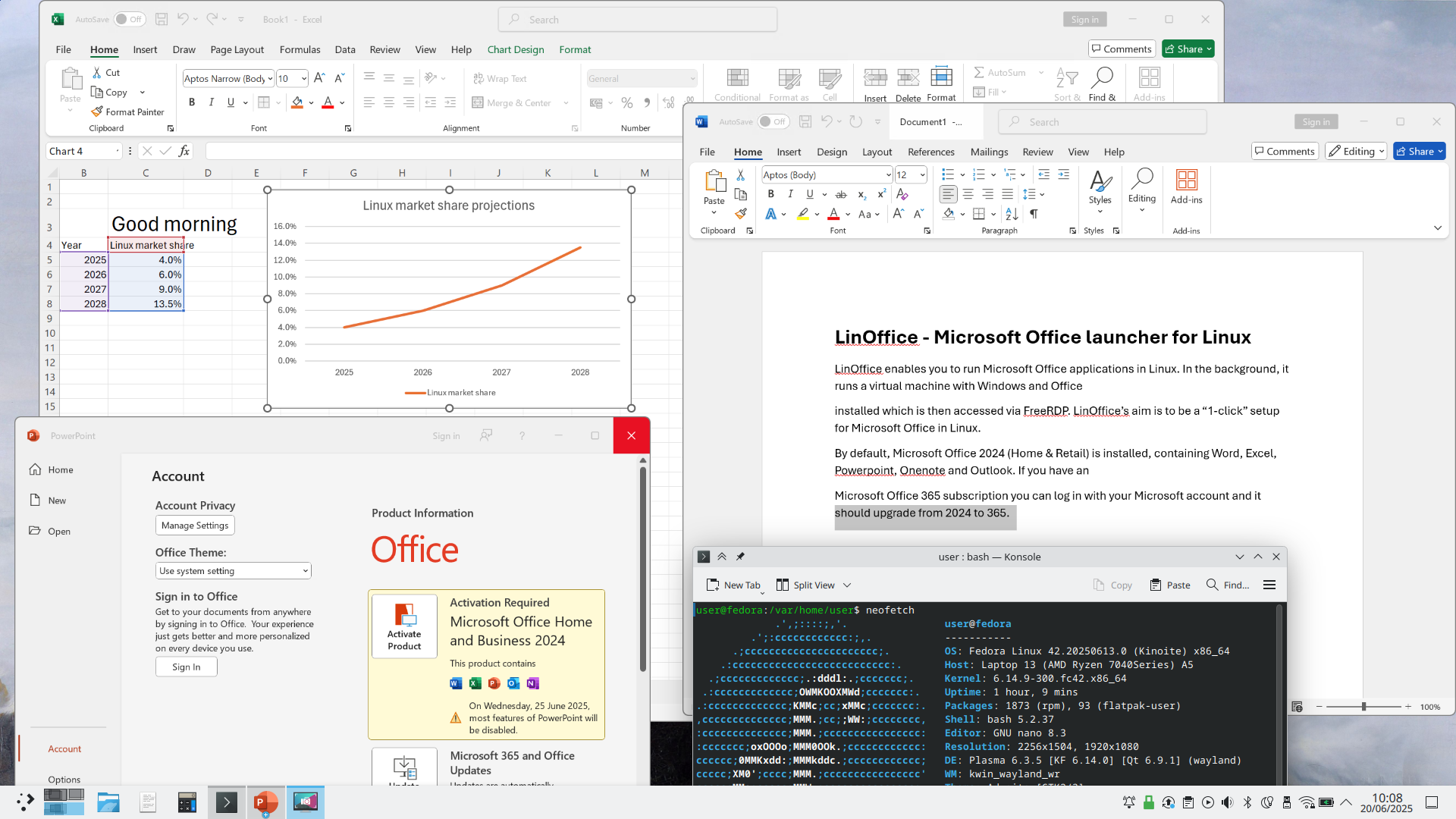
LinOffice enables you to run Microsoft Office applications in Linux. In the background, it runs a virtual machine with Windows and Office installed which is then accessed via FreeRDP. LinOffice's aim is to be a "1-click" setup for Microsoft Office in Linux.
By default, Microsoft Office 2024 (Home & Retail) is installed, containing Word, Excel, Powerpoint, Onenote and Outlook. If you have a Microsoft Office 365 subscription you can log in with your Microsoft account and it should upgrade from 2024 to 365.
The project utilises Winapps, Dockur/Windows, FreeRDP, Podman, and Qemu. You can run LinOffice alongside WinApps - all the names and RDP ports have been changed to avoid conflicts between the two.
Screenshot
 .
.
Features
- [x] Automatic non-interactive setup
- [x] Run Microsoft Office apps as if they were native Linux apps
- [x] Office apps have access to /home folder and Linux clipboard
- [x] Run Publisher or Access, if manually installed by user
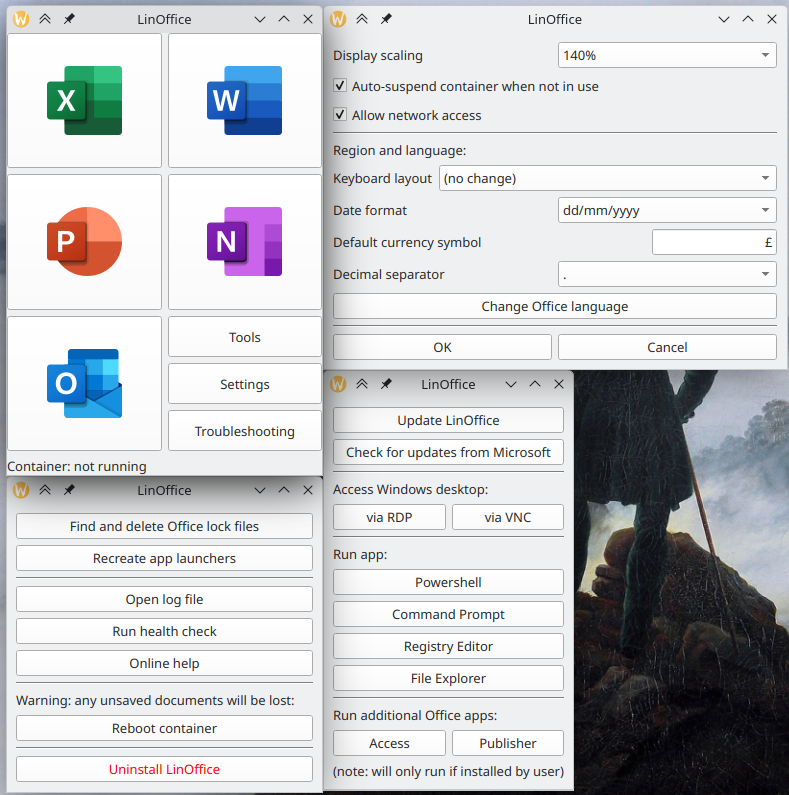
- [x] Quickly access useful tools such as Powershell, Command Prompt, Windows Explorer, Registry Editor, Office Language Settings
- [x] Run a full Windows session via RDP or VNC
- [x] Automatic suspension of the Windows container when inactive, resume when starting an Office app
- [x] Automatic deletion of Office lock files (like
~$file.docx) - [x] Force time sync in Windows after Linux host wakes up from sleep, to avoid time drift (time zone is always set to UTC for simplicity)
- [x] Automatic detection of language, date format, thousand and decimal separator, currency symbol, keyboard layout etc
- [x] Toggle settings such as display scaling, auto-suspend on/off, network on/off (to prevent Windows and Office from "phoning home")
- [x] Circumvent geo-blocking for the Office installation
- [x] Install updates for Windows and Office
- [x] Tidy Quick Access pane in Windows File Explorer
- [x] Automatically debloats Windows and disables telemetry and ads, using Win11Debloat
- [x] Troubleshooting functions e.g. force cleanup of Office lock files, recreate .desktop files for the Office apps, reboot the Windows container, container health check
- [x] Flatpak version. It bundles most dependencies. Only Podman needs to be installed separately. See Installation.
Planned features
### Planned features - [ ] Translations for the GUI - [ ] AppImage ### Nice to have but lower priority - [ ] ARM support (should be possible as both Windows and Office have ARM versions) - [ ] Better support for non-core Office apps (e.g. Access, Publisher, Visio) - [ ] Support for older Office versions (e.g. 2016, 2019, 2021)Comparison with other options to run Microsoft Office in Linux
Click here for a comparison of LinOffice with other options to run Microsoft Office in Linux, such as a plain Windows VM, WinApps, Winboat, Crossover, PlayOnLinux, and Bottles.
LinOffice is the best choice if you want a recent Microsoft Office (2024 or 365) that integrates well into Linux (app launchers, file associations, home folder access, clipboard sharing) while keeping setup simple.
It is a focused fork of WinApps that automates most of the VM setup and adds Office-specific improvements. Because the Office apps run on real Windows, they work as Microsoft intended - unlike Wine-based options (Crossover, PlayOnLinux, Bottles), which are limited to older Office versions and suffer from more bugs and crashes features.
Use LinOffice if you mainly need Office, have enough RAM/CPU/storage for a Windows VM running in the background, and prefer an easy automated setup over manual configuration.
Prefer alternatives if you also want to run other Windows apps the same way (in which case I would recommend WinApps or Winboat instead), cannot or do not want to run a resource-heavy VM in the background (try the Wine-based options), or need a completely bug-free experience (a plain Windows VM without FreeRDP integration may be more stable, though less integrated).
Installation
Hardware requirements: - Enough resources for the Windows virtual machine (up to 4 GB RAM, 64 GB storage, and 4 CPU cores). Setup checks for at least 8 GB RAM and 64 GB free storage before it continues. - Virtualization support (KVM) - An x86_64 CPU (ARM is not supported yet) - A fast Internet connection. Setup downloads several GB from Microsoft.
Option 1: Flatpak
This is the easiest way to install LinOffice, provided you have Flatpak installed on your system. If not, see here.
The Flatpak bundles various dependencies such as FreeRDP, podman-compose, Python, and PySide6. Two things still have to be installed on your system:
The first time you open LinOffice, it downloads Windows and Microsoft Office (about 8 GB) and installs them. You need your own Office license.
Click the button above, or open the install page. Your browser asks to open Discover or GNOME Software, which adds the LinOffice repository and installs LinOffice. If the browser only downloads a file, open io.github.eylenburg.LinOffice.flatpakref.
Alternatively, you can install the LinOffice flatpak with one command:
flatpak remote-add --if-not-exists --user linoffice https://eylenburg.github.io/linoffice/index.flatpakrepo && flatpak install --user linoffice io.github.eylenburg.LinOffice
Option 2: Manual installation
Do these steps in order. Step 3 is optional.
Step 1. Install the dependencies
You need:
- Podman
- podman-compose
- FreeRDP 3
- Python 3 and PySide6 (for the GUI)
[!WARNING] FreeRDP 3.23 does not work with LinOffice. If your distribution ships 3.23, downgrade to 3.22 or upgrade to a newer version.
Below are some distribution-specific commands to install the dependencies:
Debian 13 and newer, Ubuntu 24.10 and newer
sudo apt install podman podman-compose freerdp3-x11 python3 python3-pyside6 python3-pyside6.qtwidgets python3-pyside6.qtuitools
[!NOTE] Debian 12 and Ubuntu 24.04 users are advised to install the Flatpak version.
Fedora
sudo dnf install podman podman-compose freerdp python3 python3-pyside6
[!NOTE] On Fedora Atomic (Silverblue, Kinoite, and similar), installing the Flatpak version of LinOffice is easier.
openSUSE
sudo zypper install podman podman-compose freerdp python3 python3-pyside6
Arch Linux
sudo pacman -S --needed podman podman-compose freerdp python pyside6
OpenMandriva
sudo dnf install podman podman-compose freerdp python pyside6
Step 2. Download LinOffice
Download the zip from the releases page, unpack it, and put the contents into ~/.local/bin/linoffice.
Step 3. Optional: change settings before the first start
Skip this step to accept the defaults (Windows 11 Pro, 4 GB RAM, 4 CPU cores, 64 GB disk).
If you do want to change something, edit the templates before you run the LinOffice setup:
~/.local/bin/linoffice/config/compose.yaml.default— Windows version, RAM, CPU cores, disk size~/.local/bin/linoffice/config/linoffice.conf.default— display scaling, auto-suspend, extra FreeRDP flags
Don't want to use Windows 11?
Windows 11 Pro is the default. Windows 10 is a bit snappier. To install it, replace `VERSION: "11"` with `VERSION: "10"` in `config/compose.yaml.default` before the first start. Mainstream support for Windows 10 ended in October 2025. After installation you can use Microsoft Activation Scripts (MAS) to receive Extended Security Updates until 2028. Alternatively, Windows 10 LTSC 2021 still receives security updates until 2032. For that image, set `VERSION` to `https://archive.org/download/Windows10EnterpriseLTSC202164Bit/en-us_windows_10_enterprise_ltsc_2021_x64_dvd_d289cf96.iso`.Step 4. Start the LinOffice setup
cd "$HOME/.local/bin/linoffice" && python3 gui/linoffice.py
This opens the installer. It downloads about 8 GB and installs Windows, then Office. On a 2023 mid-range laptop with a 250 Mbps connection, that took about 15 minutes (about 3 minutes to download Windows, 8 minutes to install it, and 4 minutes to download and install Office).
When it finishes, Word, Excel, PowerPoint, OneNote, Outlook, and LinOffice should appear in your application menu.
If setup succeeds, please share your system setup. That helps show where LinOffice works without extra steps.
Option 3: Quickstart script (deprecated)
[!WARNING] This installation option is deprecated. Most users are advised to install the Flatpak version instead, or do a manual install if you want to customize your virtual machine.
If you don't want to install the Flatpak version, but also don't want to or know how to install the dependencies that LinOffice needs, you can use the LinOffice Quickstart script. This should automatically install all the required dependencies on you system download LinOffice, and start the setup.
[!WARNING] The quickstart script will fail if you are using NixOS, Guix System, Slackware, Gentoo, or Alpine. In this case you will need to do install the dependencies yourself (see above) or use the Flatpak version.
Simply this in a terminal:
```bash curl -sSL https://github.com/eylenburg/linoffice/raw/refs/heads/main/quickstart.sh -o quickstart.sh && chmod +x quickstart
📈 近 7 天 Star 趋势
🏆 排名变化趋势
📋 历史上榜记录
| 日期 | 榜单 | 排名 | 周期新增 | 总 STAR |
|---|