📄 仓库 README
在 GitHub 查看 ↗TTT Editor: Terminal Text Tool
The IDE that lives in your terminal. A TUI that feels like GUI. A real alternative to VS Code, Zed, and Sublime that happens to run in your terminal. Single Go binary, zero config.
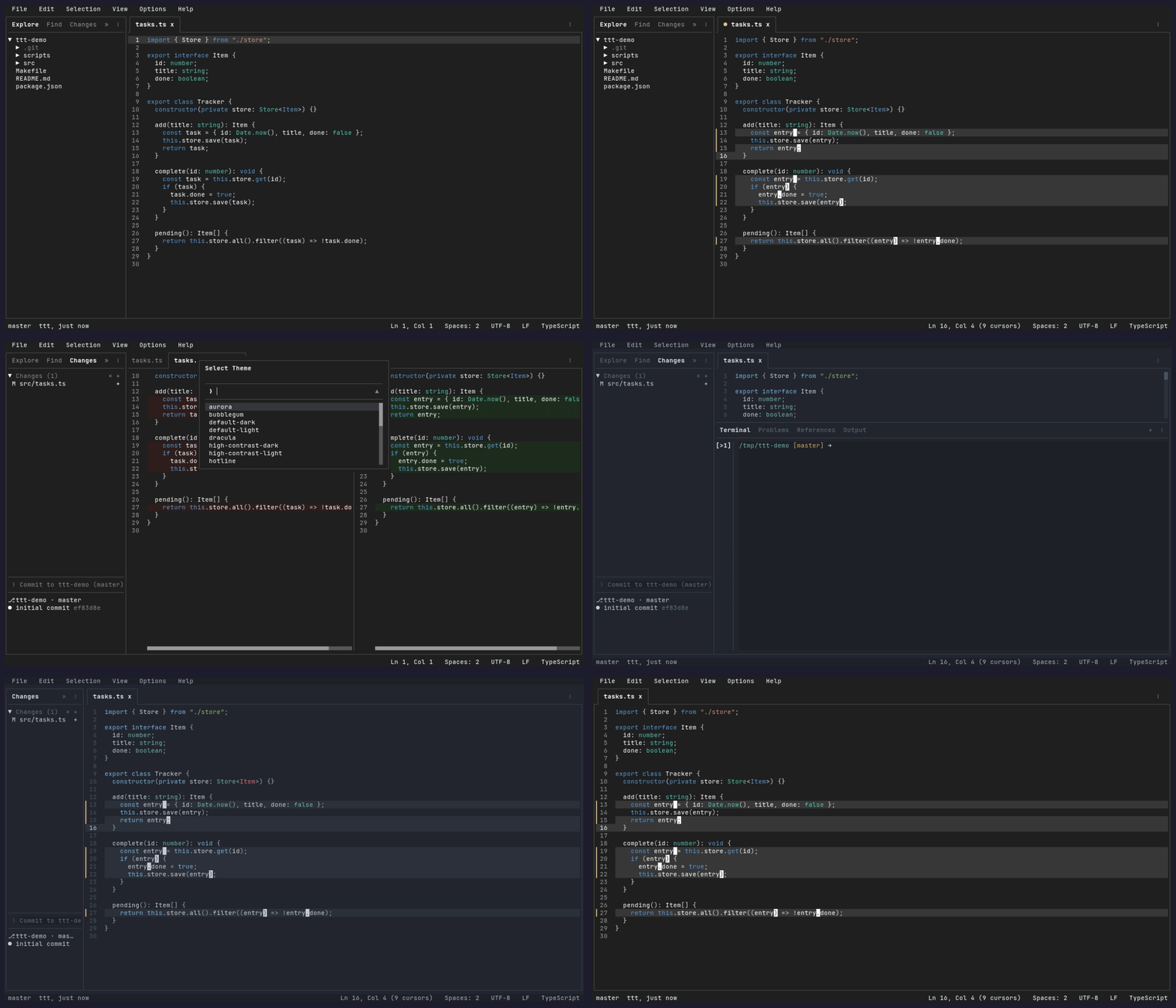
Full documentation lives in docs-web/src/content/docs/ (published at tttedit.dev).
Installation
Prerequisites
Quick Install MacOS (brew)
brew tap eugenioenko/ttt
brew trust eugenioenko/ttt
brew install ttt
Quick Install Linux, macOS, FreeBSD, & Android (Termux)
curl -sSfL https://raw.githubusercontent.com/eugenioenko/ttt/main/install.sh | sh
The script downloads the latest release binary for your OS/architecture and installs it to ~/.local/bin on Linux, /usr/local/bin on macOS and FreeBSD, or $PREFIX/bin in Android Termux (arm64). To install elsewhere:
curl -sSfL https://raw.githubusercontent.com/eugenioenko/ttt/main/install.sh | INSTALL_DIR="$HOME/bin" sh
Set INSTALL_DIR on sh so the installer receives it.
Arch Linux (AUR)
yay -S ttt
NixOS
Available in nixpkgs:
environment.systemPackages = [ pkgs.ttt ];
Or install directly from the repo flake (tracks the development branch):
nix run github:eugenioenko/ttt
Quick Install Windows (scoop)
scoop install ttt
Go Install
Requires Go 1.18 or newer:
go install github.com/eugenioenko/ttt/cmd/ttt@latest
This installs the ttt binary to your $GOPATH/bin (or $HOME/go/bin by default). Make sure that directory is in your PATH.
Download Binary
Pre-built binaries for Linux, macOS, FreeBSD, Android (arm64), and Windows are available on the Releases page. Windows downloads include ttt-windows-amd64.exe for Intel/AMD PCs and ttt-windows-arm64.exe for ARM PCs. Download the one for your platform, make it executable, and put it in your PATH.
From Source
Note: Building from source compiles the latest development code, which may include work-in-progress features and could be less stable than official releases.
git clone https://github.com/eugenioenko/ttt.git
cd ttt
make build
This produces an optimized binary at bin/ttt. Add it to your PATH or copy it somewhere convenient:
cp bin/ttt ~/.local/bin/
Herdr
TTT is available as a Herdr plugin, so you can open it as a pane inside your Herdr terminal workspace.
herdr plugin install eugenioenko/ttt/herdr-plugin
Once installed, bind it to a key (e.g. Ctrl+b e) to launch TTT in the active worktree with a single keystroke. See the Herdr plugin README for setup and configuration details.
Features
Editor
- Syntax highlighting powered by textmate-go, our pure Go port of VS Code's TextMate engine: 124 languages, with multi-line constructs handled correctly
- Bracket matching with highlighted pairs
- Find and Replace — inline find bar (Ctrl+F) with match navigation, replace bar (Ctrl+R) with replace-one and replace-all
- Go to Line (Ctrl+G)
- Selection, copy/cut/paste (Ctrl+C/X/V) with system clipboard support
- Undo/redo (Ctrl+Z/Y) via a command-pattern undo stack
- Code folding — toggle folds (Ctrl+K [), fold/unfold all, fold-aware search and navigation
- Line operations — toggle line comment, move/duplicate/delete line, join lines, sort lines, split selection into lines
- Multi-cursor editing — Ctrl+D to select next occurrence, Ctrl+K L to select all occurrences, Alt+Click to add cursors; typing, backspace, delete, and enter work at all positions simultaneously
.editorconfigsupport and indent detection — indentation is picked up automatically per file; manual override via the status bar indent picker- Mouse support — click to position cursor, click tabs, drag sidebar/panel dividers, right-click context menus
- Auto-completion — LSP-powered completions with live filtering, debounce, and auto-import support
- Signature help — parameter hints shown automatically on
(and, - Diagnostics — inline curly underline squiggles, problems panel, hover popup, and status bar counts
- Document formatting — format document, format selection, and format-on-save via LSP or external formatters
- Git blame — inline blame info for the current line shown in the status bar (author, relative time, summary)
- Line numbers with current-line highlighting
- Diff-based renderer for efficient terminal updates (double-buffered cell grid)
Multi-Folder Workspaces
Open multiple project directories in a single session. Each root appears as a collapsible group in the explorer, search, and changes panels.
ttt                             # opens the current directory
ttt .                           # also opens the current directory
ttt /path/to/dir                # opens that directory as the workspace
ttt /path/to/file.go            # opens just the file — no workspace folder
ttt /path/to/file.go:42:5       # opens the file at line 42, column 5
ttt /path/to/repo/subdir        # opens that folder; git features (changes,
                                # branch) use the enclosing git repo root
ttt dir1 dir2                   # opens multiple folders as a multi-root workspace
ttt --workspace project.ttt     # loads a saved workspace file
ttt https://github.com/owner/repo/pull/123 # opens pull request review
git diff | ttt                  # opens piped output in an unsaved tab (or: ttt -)
Set "reuseWindow": true in settings.json (off by default; restart required) to open command-line files in the newest reachable editor using the same config directory. If none answers, ttt starts normally. Use ttt --new-window file to start a separate editor. With reuse enabled, EDITOR=ttt returns immediately; use EDITOR="ttt --new-window" for commands that wait for editing.
Workspace files use the .ttt extension and store a list of folders as relative paths:
{
  "folders": [
    { "path": "." },
    { "path": "../other-project" }
  ]
}
- Save Workspace As... from the File menu to create a workspace file
- Add Folder to Workspace and Remove Folder from Workspace via the command palette
- The git branch in the status bar switches automatically based on which workspace folder the active file belongs to
See File Explorer & Workspaces.
File Explorer
Multi-root file tree in the sidebar (Ctrl+K E). When multiple folders are open, each root is shown as a collapsible group.
- Directories sorted before files, both alphabetically
- Expand/collapse with Enter or arrow keys
- Right-click context menu: New File, New Folder, Rename, Delete
- Sidebar actions button for Refresh and New File
- Explorer: Reveal Active File expands the tree to the active file and selects it; set
explorer.autoRevealto do it on every tab switch - File-type icons, colored by the theme (glyph mappings from nvim-web-devicons). They need a Nerd Font in your terminal, so they default off; turn them on with
"appearance": { "icons": "nerd-font" }or Options > Font Icons
Search
Sidebar search panel (Ctrl+K F) powered by ripgrep. Results are grouped by file with match counts.
- Smart-case matching by default
- Include/Exclude glob filters — click the toggle arrow to reveal filter inputs (e.g.
*.go,vendor/**) - Tab between search, include, and exclude inputs
- Searches across all workspace folders simultaneously
- Click a result to jump to the file and line
See Search.
Git Integration
Changes panel in the sidebar (Ctrl+K C) with full staging workflow.
Working-tree files and files under expanded commits can be shown as a compact directory Tree or a full-path List (the default). The choice persists in git.fileView. File-type icons sit between the status letter and the file name; like the Explorer's, they follow the shared appearance.icons setting, need a Nerd Font, and default off — Options > Font Icons toggles them. Changes, commit details, and Explorer expose safe Expand All and Collapse All actions in their relevant menus.
Staging:
- Spacebar — toggle stage/unstage on the selected file
- a — stage all unstaged files
- u — unstage all staged files
- + / - buttons on the section headers — stage/unstage all files in that section
Committing: - Inline commit message input below the file list (Tab from the tree to focus it) - Type a message and press Enter to commit all staged files - Commit History starts with the 10 most recent commits; activate Load older commits… to append bounded pages from the same HEAD snapshot
Remote operations: - Pull, Push, Sync (pull then push) from the sidebar actions button - Per-repo actions via the group header menu button in multi-root workspaces
Diff view: - Select a changed file to open a split or unified diff with syntax highlighting layered on diff backgrounds - Working-tree changes open in the file's own editor tab in diff mode, so you can edit and save there; the diff updates as you type. Git: Toggle Inline Diff turns diff mode on or off for any tracked file - Set the global view mode, context, wrapping, and high-contrast presentation under Options; the Changes panel menu provides the same contextual controls - Changes-only views show quiet collapsed-context rows that can be expanded in place; full-file context remains available globally or per diff - Untracked files open directly in the editor
Multi-root: - Changes are grouped by repository, each with its own collapsible Staged/Changes sections and commit input - File status badges: M (modified), A (added), D (deleted), R (renamed), U (untracked)
GitHub pull request review:
ttt https://github.com/owner/repo/pull/123      # review a PR
ttt . https://github.com/owner/repo/pull/123    # review a PR with the repo tree open
Opens the PR as a review surface — commit-by
📈 近 7 天 Star 趋势
🏆 排名变化趋势
📋 历史上榜记录
| 日期 | 榜单 | 排名 | 周期新增 | 总 STAR |
|---|