📄 仓库 README
在 GitHub 查看 ↗ # Open Android DeX
### Your phone is already a computer. This gives it a desktop
Plug your Android phone into your Windows PC, Mac or Linux machine and a real
desktop opens on your screen, with a taskbar, an app drawer, and windows you can
drag, resize and snap side by side
Unplug it and your phone goes back to being a phone
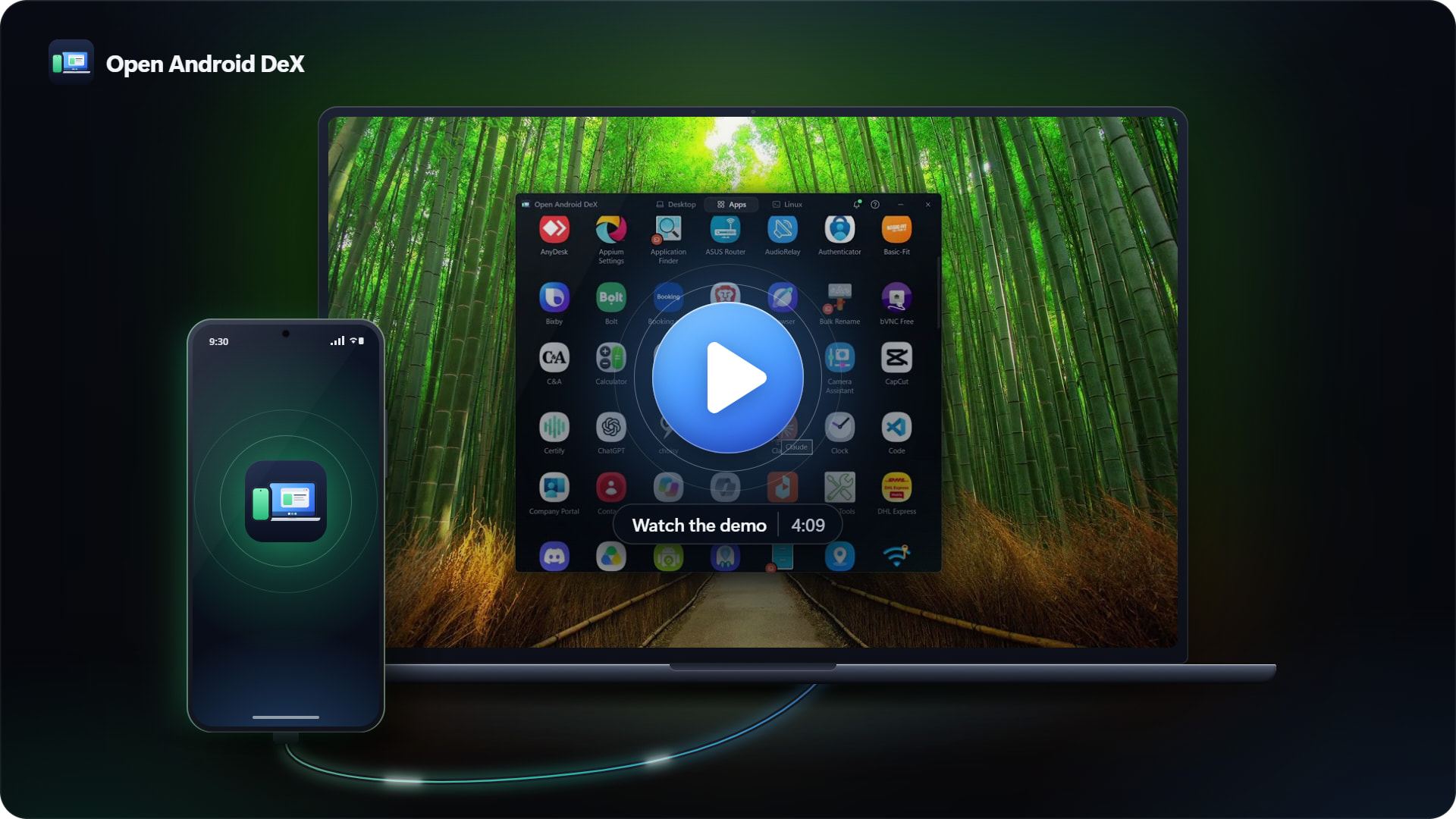
Or install **Open Android DeX directly on your phone** and use it without a PC.
Run the launcher on the phone itself, on a compatible external monitor, or
access it through the built-in Web viewer in a browser.
[](https://github.com/dotnetdreamer/open-android-dex/releases/latest)
[](LICENSE)
[](https://github.com/dotnetdreamer/open-android-dex/releases/latest)
**Free. Open source. No account. No subscription. No root**
Top features
- Your phone becomes a computer when you plug it into your PC or Mac
- Open apps side by side and move or resize them, just like on a laptop
- Use any phone app on your computer, like WhatsApp, without opening the whole desktop
- Get your messages and calls on your computer, and reply or answer without picking up your phone
- Copy and paste between your phone and computer, and drag files onto your phone
- Use your phone as a touchpad to move the mouse and click
- Pull out the cable and keep working over Wi-Fi
- Works without a computer too, right on your phone or on a monitor
- Run Ubuntu Linux on your phone with Firefox and VS Code, plus Docker
- Open your phone's desktop in a web browser on any computer, with nothing to install
- Make it yours with themes, wallpapers, nine languages and a Windows 11 look
- Works on almost any Android phone with Android 8 or newer, not just Samsung
- Your phone goes back to normal when you are done
- Free and open source, with no account, no subscription and no root
Get started
On a Windows PC, Mac or Linux computer
- Download the app for Windows, Mac or Linux and install it
- Turn on USB debugging on your phone. Go to Settings, then About phone, tap Build number seven times, go back, open Developer options and switch on USB debugging
- Plug the phone in and tap Allow when it asks
The desktop opens on its own and the app gets out of your way. The desktop app installs the phone-side launcher for you. Everything it needs comes inside the download.
The PC setup works with Android 8 or newer. You do not need a Samsung, a special cable, a monitor, or root.
On Android, without a PC
- Download
OpenAndroidDeX-Launcher-v<version>.apkfrom the latest release using your phone's browser - Open the APK and install it. If Android asks, allow your browser or file manager to install unknown apps
- Launch Open Android DeX from your phone's app list. You can use it on the phone's screen, or connect a compatible monitor and open it there, including inside Samsung DeX
The standalone launcher includes the app drawer, widgets, settings, Ubuntu, Docker and the Web viewer. No PC, USB debugging or root is needed. You can also choose it as your default home app when prompted, so the phone's Home button or gesture returns to Open Android DeX.
To keep the dock or taskbar visible over other apps, allow Display over other apps for Open Android DeX in Android settings. Tap the notification bell to enable notification access if you want notifications in the launcher. Enable the Open Android DeX accessibility service for the Mouse touchpad or browser control. The Web viewer asks for permission to share the screen when you start it.
Window support depends on your phone. On a monitor, standalone mode uses the phone's own desktop mode and window controls, such as Samsung DeX. An external monitor needs compatible video output and an adapter. On the phone's screen, apps may open fullscreen if Android does not support freeform windows. Open Android DeX's custom title bars require the PC app and Android 14 or newer.
For Ubuntu alone, install LinuxOnDroid-v<version>.apk instead. See
the Linux section below
for details.
What you get
A desktop that behaves like one
This is not a copy of your phone screen stretched out. It is a desktop, running at your monitor's size, sitting next to your other windows.
- A taskbar along the bottom with your open apps, a clock and calendar, a battery indicator, and quick switches for Wi-Fi, Bluetooth, mobile data, airplane mode, torch and rotation, plus one that turns the phone's own screen off while the desktop keeps running
- Your phone's notifications, on the desktop. They pop up in the bottom corner as they arrive, the way your computer's own do, and stay in a bell at the far right of the taskbar with a count on it. Each one carries the same buttons the phone would give you — reply, mark as read, whatever the app offers. A call comes in and a banner drops down across the top with Answer and Decline, so you never have to go and find the handset
- Volume and what's playing in the quick settings panel. Sliders for media and ringer, and play, pause and skip for whatever the phone is playing
- Your phone as a touchpad. While the desktop is open, a notification on the phone turns its screen into a touchpad for it: slide a finger to move the pointer, tap to click, two fingers to scroll or right-click, and three-finger swipes for the gestures you have chosen — show what is open, clear to the desktop, step through your windows. It is under Touchpad in quick settings too
- Proper windows. Every app gets a title bar with close, minimise, maximise and snap left or right. Drag them where you want. Resize them from a corner. Put two apps side by side and get something done
- Windows stay where you put them. Move an app or resize it, and that is where it opens next time. Every app remembers its own spot
- An app drawer you can search, and a desktop you can drop shortcuts onto
- Your home screen widgets, the real ones, live and working, on the desktop. Your calendar, your music, your weather. Click inside one and the app opens in a window instead of taking over the screen
- Drag files from your computer onto the phone. App files install themselves
- Two looks. A DeX style desktop, or a Windows 11 style one with a Start button. Switch between them in one click
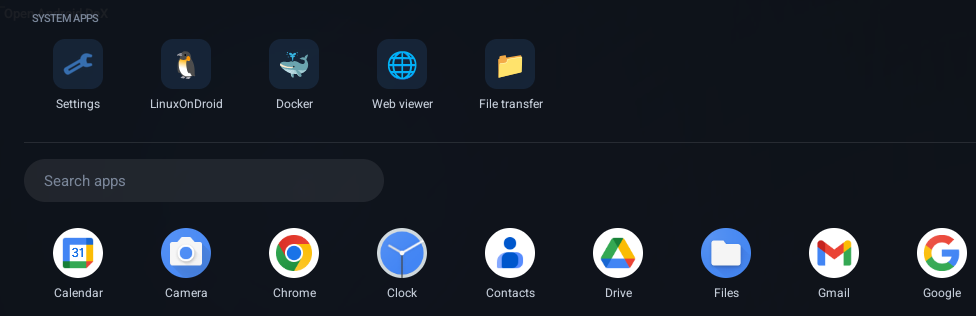
Open the app drawer and the five built in tools sit at the top, above everything else you have installed. One of them, File transfer, shows your computer's files next to your phone's so you can copy between them.
Or just your apps, each in its own window
Sometimes you only want WhatsApp or your calendar on the big screen, not a whole desktop. Open the Apps tab on your computer and you will see the apps on your phone, with their real names and icons. Click one and it opens in its own window, right next to your other programs. It is usually there in under half a second.
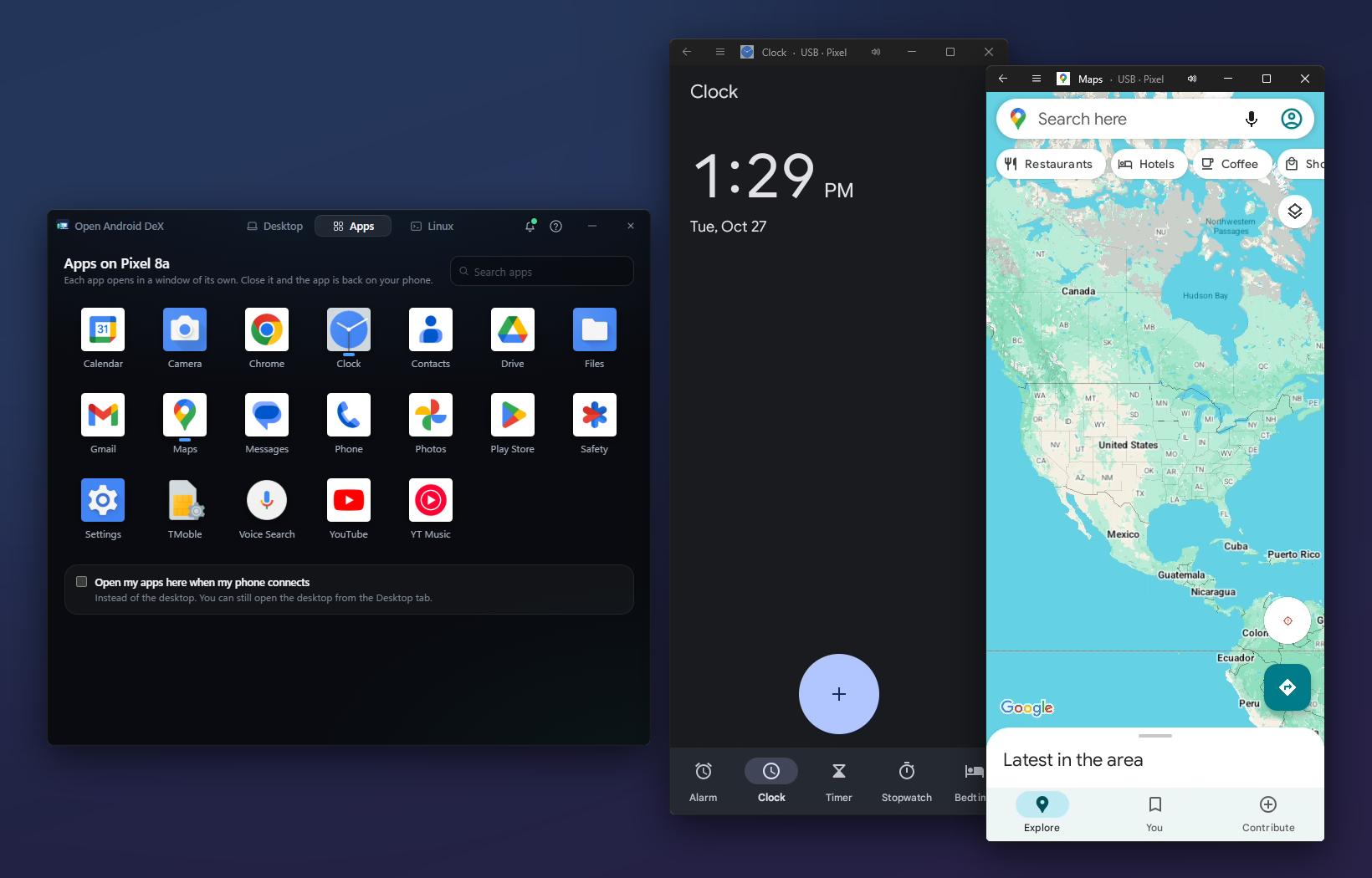
- They behave like your computer's own windows. Move them, resize them, snap them side by side, minimise them. Each app gets its own button on the taskbar
- Pin an app and it opens from there, like any other. Click it on your taskbar or in your Dock, even after a restart, even with Open Android DeX closed: it starts by itself and you get just that app's window. If your phone takes a moment to connect, Open Android DeX shows you what it is waiting for. Pins keep working when you move the portable version or swap it for a newer one: run the new copy once and they follow it
- Phone or tablet, you choose. A window opens the shape of a phone, and the app looks the way it does on your phone. Make the window bigger and an app that has a tablet look can change to it, with more room for what you are doing. Many apps change, some at their own sizes, and some never do. ☰ → Tablet size makes the window a tablet's size in one click, and ☰ → Phone size goes back. Each app opens at the size you last left it, or as big as fits if your screen is smaller. Your phone's own screen is not changed
- Use your mouse and keyboard. Click, scroll and type, in your own keyboard layout. Copy something on your computer and paste it into the phone app, or the other way round
- One clipboard, both ways. What you copy on your computer is on your phone the moment you copy it, so it is in your phone keyboard's clipboard history too, and what you copy in a phone app is in your computer's (Win+V on Windows). A password your password manager copies stays on your computer, unless you paste it into the app yourself
- Choose where the sound plays. The speaker in each window's title bar sends it to your computer, to your computer and your phone, or keeps it on your phone — its speaker or your earbuds, where the phone lets us choose — just like the sound menu on the desktop
- Drop files on a window to put them in your phone's Downloads folder, or
drop an app's APK to install it. A file is never overwritten: a second
report.pdfarrives asreport (2).pdf - Full screen when you want it. The ☰ button next to Back has Full screen (F11 on Windows). Move the mouse to the top of the screen and a small bar comes down with Back, the way out of full screen, and close. Press Esc to get your window back
- Your phone as the touchpad. ☰ → **Use phone a
📈 近 7 天 Star 趋势
🏆 排名变化趋势
📋 历史上榜记录
| 日期 | 榜单 | 排名 | 周期新增 | 总 STAR |
|---|