darkreader / darkreader
← 返回首页
Dark Reader Chrome and Firefox extension
📄 仓库 README
在 GitHub 查看 ↗来自 GitHub 仓库自述文件 · 版权归原作者所有
Dark Reader analyzes web pages and aims to reduce eyestrain while browsing the web.



Dark Reader
Dark Reader is an open-source MIT-licensed browser extension designed to analyze web pages. Dark Reader will generate a dark mode that aims to reduce the eyestrain of the user. Dark Reader is feature-rich and is customizable in many ways throughout the UI.
## Questions Most questions can be answered by reading the [help page](https://darkreader.org/help/). If the help page doesn't answer your question, open up a new [discussion](https://github.com/darkreader/darkreader/discussions). ## How to contribute Read more about contributing to Dark Reader in [CONTRIBUTING.md](https://github.com/darkreader/darkreader/blob/main/CONTRIBUTING.md). ## Building for use Dark Reader build script requires a JavaScript runtime, either Node.js or Deno. We recommend using Node.js, Deno support is experimental. ### Building with Node.js You can install the extension from a file. Install [Node.js](https://nodejs.org/) (we recommend LTS or higher, but any version at or above 15 will work). Download the source code (or check out from git). Open the terminal in the root folder and run: - `npm install` - `npm run build` or `npm run build [-- flags]` This will create a `build/release/darkreader-chrome.zip` file for use in a Chromium-based browser and a `build/release/darkreader-firefox.xpi` file for use in Firefox. You can customize the build process by passing flags to build script. To see all flags, run `npm run build -- --help`. ### Building with Deno You can build Dark Reader with an alternative runtime called [Deno](https://deno.land/). For this run `deno:bootstrap` script (e.g., via `npm run deno:bootstrap` or manually copy the command from `package.json`). Then run the same commands described above. Please note that if you encounter the error `Too many open files (os error 24)`, then you should use the newer version of Deno (preferably built from source or canary). ### Bundling with official Firefox store signatures (experimental) Before publication, extension stores provide digital signatures for extensions. These digital signatures certify the integrity of the archive (that the extension bundle did not get corrupted or bit-rotted) and that the extension store performed very basic extension validation. Dark Reader repository contains these digital signatures and you can add them to the extension bundle. The following will build Dark Reader for Firefox version 4.9.63:
npm run build -- --firefox --version=4.9.63
DarkReader.enable({
    brightness: 100,
    contrast: 90,
    sepia: 10
});

DarkReader.disable();

// Enable when the system color scheme is dark.
DarkReader.auto({
    brightness: 100,
    contrast: 90,
    sepia: 10
});

// Stop watching for the system color scheme.
DarkReader.auto(false);

// Get the generated CSS of Dark Reader returned as a string.
const CSS = await DarkReader.exportGeneratedCSS();

// Check if Dark Reader is enabled.
const isEnabled = DarkReader.isEnabled();
import {
    enable as enableDarkMode,
    disable as disableDarkMode,
    auto as followSystemColorScheme,
    exportGeneratedCSS as collectCSS,
    isEnabled as isDarkReaderEnabled
} from 'darkreader';

enableDarkMode({
    brightness: 100,
    contrast: 90,
    sepia: 10,
});

disableDarkMode();

followSystemColorScheme();

const CSS = await collectCSS();

const isEnabled = isDarkReaderEnabled();
Quarantined domains and Dark Reader — an explanation
The option "Run on sites with restrictions", present for some extensions, is only related to quarantined domains and is not needed for Dark Reader to work on restricted websites. In the context of Firefox's source code, "restricted domains" and "quarantined domains" are two separate things. **The "restricted domains" list** (controlled by the preference `extensions.webextensions.restrictedDomains`) is the same for all users. It will restrict *all* user-installed extensions (without exceptions) from running on the specified websites. The list is controlled by Mozilla, and, as of December 2024, the list only contains Mozilla-owned domains. Sites that are not on that list will not be affected by those restrictions (meaning that the extensions will be able to run normally). **The "quarantined domains" list** (controlled by the preferences `extensions.quarantinedDomains.enabled` and `extensions.quarantinedDomains.list`) contains domains that will run extensions normally, but if Firefox detects suspicious activity from a particular extension it will block that extension on those specific websites. The list is controlled by Mozilla, and, as of December 2024, the list only contains domains related to Internet banking in Brazil. For more information about quarantined domains, see "[Why are some add-ons not allowed on sites restricted by Mozilla?](https://support.mozilla.org/en-US/kb/quarantined-domains)". For Dark Reader, the option "Run on sites with restrictions" is not shown because Dark Reader is a [Recommended](https://support.mozilla.org/en-US/kb/recommended-extensions-program) extension by Mozilla. (The "Recommended" status is only relevant for "quarantined domains", and does not affect "restricted domains".) The fact that it is a Recommended extension means that it meets the "highest standards of security, functionality, and user experience". The quarantined domains are only related to extension security. Because Dark Reader is considered secure by Mozilla, that option is not shown, meaning **it will always run even on quarantined domains** (but will still obey the "restricted domains" list if it is not empty). Regarding quarantined domains specifically, there is this [comment from Firefox's source code](https://searchfox.org/mozilla-central/rev/1838f847aa3bf909c3d34a94a8f0cd7e37fca086/toolkit/components/extensions/Extension.sys.mjs#3470-3471):// Privileged extensions and any extensions with a recommendation state are
// exempt from the quarantined domains.
Contributors
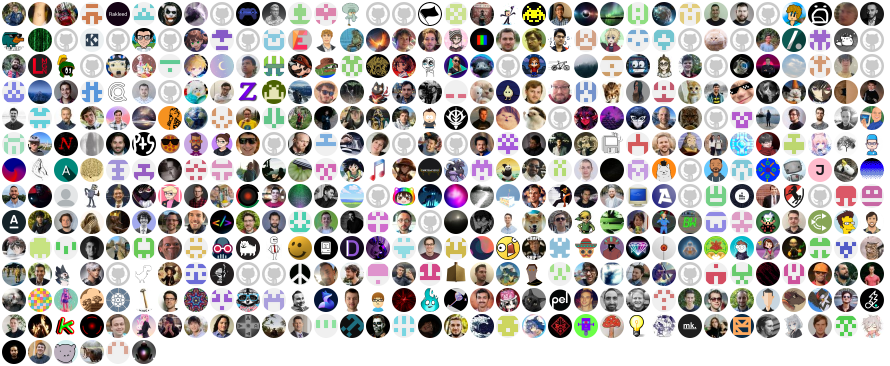
Thank you to all our contributors! Dark Reader exists thanks to you.
Backers
Thank you to all our generous backers! Support Dark Reader by becoming a backer.
Sponsors
Does your company use Dark Reader? Please ask your manager or the marketing team if your company would be interested in supporting our project. Your support will allow the maintainers to dedicate more time to maintenance and creating new features for everyone. Also, your company's logo will show on GitHub. Who doesn't want a little extra exposure? Here's the info.
Thank you to all our wonderful sponsors!











📈 近 7 天 Star 趋势
每日新增 Star(柱)与累计 Star(线)· 数据来自 GitHub
🏆 排名变化趋势
在各榜单中的排名历史(数字越小越靠前)
📋 历史上榜记录
每次快照的详细数据
| 日期 | 榜单 | 排名 | 周期新增 | 总 STAR |
|---|