📄 仓库 README
在 GitHub 查看 ↗





SMS Gateway for Android™
Turns your smartphone into an SMS gateway for sending and receiving messages via API.
Explore the docs »
Report Bug
·
Request Feature
- About The Project
- Features
- Ideal For
- Built With
- Installation
- Build Variants
- Prerequisites
- Installation from APK
- Build from Source
- Getting Started
- Local Server
- Cloud Server
- Webhooks
- Roadmap
- Contributing
- License
- Contact
- Links
About The Project
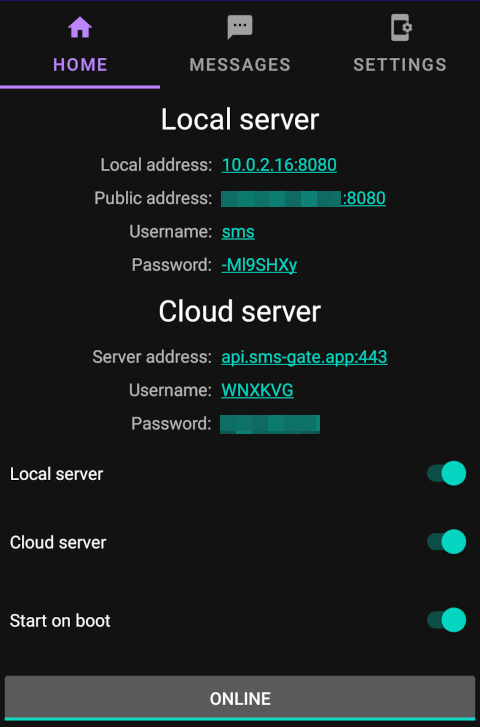
SMS Gateway turns your Android smartphone into an SMS gateway. It's a lightweight application that allows you to send SMS messages programmatically via an API or CLI tool and receive webhooks on incoming SMS. This makes it ideal for integrating SMS functionality into your own applications or services.
Features
📱 Core Functionality:
- 📝 No personal information required: Creating an account needs no email or personal details. In cloud mode the device is registered only after you sign up or sign in; in local mode you don't need an account at all!
- 📨 Send and Receive SMS via API: Use our API to send messages directly from your applications or services.
- 🤖 Support for Android 5.0 and above: Compatible with Android 5.0 and later versions. See Android 15 Note
- 👤 Explicit device registration: The device never registers itself in the background — in cloud mode you always sign up or sign in first.
- 🗑️ Unregister device: Remove the cloud registration from the device at any time, and sign up or sign in again whenever you need the cloud server.
💬 Message Handling:
- 📜 Multipart messages: Send long messages with auto-partitioning.
- 📊 Message status tracking: Monitor the status of sent messages in real-time.
- 📥 Incoming messages viewer: View all received SMS, Data SMS, and MMS messages directly in the app with organized tabs and statistics.
- 🔔 Real-time incoming message notifications: Receive instant SMS and MMS notifications via webhooks.
- 📖 Read received messages: Access previously received messages via the same webhooks used for real-time notifications.
- 📎 MMS download notifications: Receive webhook notifications when MMS messages are fully downloaded, including message body and attachments.
- 📤 Send MMS messages via API: Send multimedia messages (images, audio, video, files) as Base64-encoded attachments, with an optional subject and text body.
- 🖼️ Received MMS attachments: Attachments of received MMS messages are stored on the device and can be fetched through the inbox API.
- 📦 Batch webhook events: Receive batched webhook deliveries when multiple messages arrive at once, reducing the number of requests.
- 🛑 Cancel pending messages: Cancel queued messages before they are sent.
- 🔍 Message filtering: Filter the messages list by state (pending, sent, delivered, failed) and type (SMS, MMS, Data SMS) to find messages quickly.
- ⏳ Send rate limiting: Restrict the number of messages sent per period (e.g., per 30 minutes) to avoid operator throttling.
- ⏰ Message scheduling: Schedule messages for future delivery using the optional
scheduleAtfield (it must be a future timestamp).
🔒 Security and Privacy:
- 🔐 End-to-end encryption: Encrypts message content and recipients' phone numbers before sending them to the API and decrypts them on the device.
- 🏢 Private server support: Use a backend server in your own infrastructure for enhanced security.
🔧 Advanced Features:
- 💳 Multiple SIM card support: Supports devices with multiple SIM cards.
- 📱📱 Multiple device support: Connect multiple devices to the same account with Cloud or Private server. Messages sent via the server are distributed across all connected devices.
- 💾 Data SMS support: Send and receive binary data payloads via SMS for IoT commands, encrypted messages, and other specialized use cases.
- 🕐 Working hours scheduling: Restrict message delivery to configurable time windows, automatically pausing the queue outside of them.
- 🔄 Reliable background capture: SMS, data SMS, and MMS receivers are declared in the manifest and enabled while the gateway runs, so incoming messages are still delivered if the system kills the app process.
🔌 Integration:
- 🪝 Webhooks: Set up webhooks to be triggered on specified events.
- 📊 Webhook queue diagnostics: Inspect the webhook delivery queue in-app to see pending deliveries, retries, and their status.
Ideal For
- 🔐 Authentication & Verification: Secure user accounts and transactions with SMS-based two-factor authentication, minimizing the risk of unauthorized access.
- 📩 Transactional Messages: Send confirmation messages for user actions, enhancing the reliability and perception of your brand.
- ⏰ SMS Reminders: Prompt users about upcoming events or appointments to ensure engagement and reduce missed opportunities.
- 🔔 SMS Notifications: Deliver immediate notifications to users for important updates, offers, and service enhancements.
- 📊 User Feedback: Solicit and collect user feedback through SMS, providing valuable insights for improving your services.
Note: It is not recommended to use this for batch sending due to potential mobile operator restrictions.
Built With



Installation
You can install app to your device from prebuilt APK.
Build Variants
The project provides two pre-built variants:
- Secure (release) build: Production-ready with strict security configurations. This is the recommended build for production deployments.
- Insecure build: For development and testing with cleartext traffic allowed. This build should never be used in public environments.
Prerequisites
You need an Android device with Android 5.0 (Lollipop) or above for using the application.
Permissions
To use the application, you need to grant the following permissions:
- SEND_SMS: This permission is required to send SMS messages.
- READ_PHONE_STATE: This permission is optional. If you want to select the SIM card, you can grant this permission.
- READ_SMS: This permission is optional. If you want to read previous SMS messages, you need to grant this permission.
- RECEIVE_SMS: This permission is optional. If you want to receive webhooks on incoming SMS, you need to grant this permission.
- RECEIVE_MMS, RECEIVE_WAP_PUSH: This permissions are optional. If you want to receive webhooks on incoming MMS messages, you need to grant these permissions.
Installation from APK
- Navigate to the Releases page.
- Download the latest APK file from the list of available releases.
- Transfer the APK file to your Android device.
- On your Android device, go to Settings > Security (or Privacy on some devices).
- Enable the Unknown sources option to allow installation of apps from sources other than the Play Store.
- Use a file manager app to navigate to the location of the downloaded APK file.
- Tap on the APK file to start the installation process.
- Follow the on-screen prompts to complete the installation.
Build from Source
Prerequisites:
- JDK 17 (required by Android Gradle Plugin 8.1.2) and the Android SDK — the project compiles against SDK 33. The Gradle wrapper (Gradle 8.0) is included in the repository.
- The SDK location is read from
local.properties(created automatically by Android Studio) or theANDROID_HOMEenvironment variable. app/google-services.json— Firebase configuration required by the Google Services plugin. The file is gitignored, so provide your own copy (CI generates it from a repository secret).
The release and insecure variants are signed with your own keystore, which the build expects at app/keystore.jks (also gitignored). Gradle reads the signing variables from the process environment, not from a .env file, and they are listed in .env.example:
| Variable | Purpose | Format | Example |
|---|---|---|---|
SIGNING_STORE_PASSWORD |
Password for the keystore file used to sign release builds | String | your-keystore-password |
SIGNING_KEY_ALIAS |
Alias of the key inside the keystore that signs release builds | String | your-key-alias |
SIGNING_KEY_PASSWORD |
Password for that key alias | String | your-key-password |
ANDROID_HOME |
Path to the Android SDK, used when local.properties has no sdk.dir |
Absolute path | /Users/username/Library/Android/sdk |
The three signing variables are read by signingConfigs.release in app/build.gradle. The debug and debugInsecure variants are signed with the default Android debug keystore and need none of them.
Export the variables and build:
cp .env.example .env
# fill in your values, then:
set -a; source .env; set +a

./gradlew test             # run unit tests
./gradlew assembleDebug    # debug build, signed with the default debug keystore
./gradlew assembleInsecure # insecure development build, signed with the release keystore
./gradlew assembleRelease  # secure release build, signed with the release keystore
./gradlew bundleRelease    # release App Bundle (.aab)
app/build.gradle defines four build variants:
| Variant | Signing | Network traffic | Use |
|---|---|---|---|
release |
Release keystore | TLS only (cleartext allowed to 127.0.0.1) |
Production |
insecure |
Release keystore | Cleartext allowed | Development and testing |
debug |
Debug keystore | TLS only (cleartext allowed to 127.0.0.1) |
Local debugging |
debugInsecure |
Debug keystore | Cleartext allowed | Local debugging |
Getting Started
For integration examples, please refer to the CLI Tool Documentation and API Documentation
The SMS Gateway for Android can work in two modes: with a Local Server started on the device or with a Cloud Server. The basic API is the same for both modes and is documented on the SMS Gateway for Android API Documentation page.
Local Server
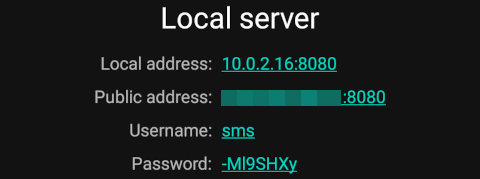
This mode is ideal for sending messages from a local network.
- Launch the app on your device.
- Toggle the
Local Serverswitch to the "on" position. - Tap the
Start Servicebutton at the bottom of the screen to start the gateway. Switch changes take effect after the service is restarted. - In the
Local Serversection, your device's local and public IP addresses will be displayed, along with the credentials for basic authentication. Note that the public IP address is only accessible if you have a public (or "white") IP and your firewall is configured correctly. -
To send a message from within the local network, execute a
curlcommand like the one below. Replace<username>,<password>, and<device_local_ip>with the actual values provided in the previous step:sh curl -X POST -u <username>:<password> \ -H "Content-Type: application/json" \ -d '{ "textMessage": { "text": "Hello, doctors!" }, "phoneNumbers": ["+19162255887", "+19162255888"] }' \ http://<device_local_ip>:8080/messageAlternatively, you can use the CLI Tool:
sh
smsgate -e 'http://<device_local_ip>:8080/message' -u <username> -p <password> \
  send --phones '+19162255887,+19162255888' 'Hello, doctors!'
To send an MMS message, use the
mmsMessagefield with one or more Base64-encoded attachments:sh curl -X POST -u <username>:<password> \ -H "Content-Type: application/json" \ -d '{ "mmsMessage": { "subject": "Hello", "text": "See the photo", "attachments": [ { "contentType": "image/jpeg", "name": "photo.jpg", "data": "<base64-encoded-bytes>" } ] }, "phoneNumbers": ["+19162255887"] }' \ http://<device_local_ip>:8080/messageNote: The
datafield must contain Base64-encoded bytes. The app must be set as the device's default SMS app for reliable MMS sending on most carriers.
The full API reference is available as interactive Swagger documentation at http://<device_local_ip>:8080/docs.
The same Swagger page is published at https://capcom6.github.io/android-sms-gateway/, where the local-server entry resolves against the GitHub Pages origin. Use the device-hosted page above to exercise the local API.
Cloud Server
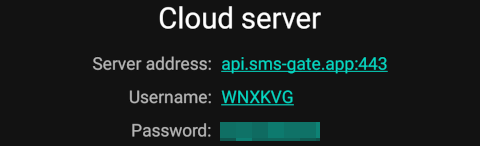
Use the cloud server mode when dealing with dynamic or shared device IP addresses.
- Launch the app on your device.
- Toggle the
Cloud Serverswitch to the "on" position. - Tap the
Start Servicebutton located at the bottom of the screen to start the gateway and connect to the cloud server. The device has to be registered first, see Device Registration. Switch changes take effect after the service is restarted. - In the
Cloud Serversection, the credentials for basic authentication will be displayed. -
To send a message via the cloud server, perform a
curlrequest with a command similar to the following, substituting<username>and<password>with the actual values obtained in step 4:sh curl -X POST -u <username>:<password> \ -H "Content-Type: application/json" \ -d '{ "textMessage": { "text": "Hello, doctors!" }, "phoneNumbers": ["+19162255887", "+19162255888"] }' \ https://api.sms-gate.app/3rdparty/v1/messageOr with CLI:
sh
smsgate -u <username> -p <password> \
  send --phones '+19162255887,+19162255888' 'Hello, doctors!'
For further privacy, you can deploy your own private server. See the Private Server section for more details.
When connected to the cloud server, received messages (SMS, Data SMS, and MMS) are automatically uploaded to the server for centralized access.
Device Registration
The device has to be registered with the cloud server before it can be used in cloud mode. The first time you tap the Start Service button, the app asks how to register:
- Sign Up — creates a new account. No email or personal information is required.
- Sign In — adds the device to an existing account with its login and password.
- By Code — adds the device to an existing account with the login code shown in the app on the other device.
The gateway starts as soon as the registration succeeds. The start button stays disabled while the registration is running, so a double tap cannot create two accounts or two devices.
Unregister Device
The Unregister device action in Settings → Cloud server → Credentials clears the registration on the device and stops the cloud session. The device has to sign up or sign in again before the cloud server can be used.
Note: This only clears the registration on the device — the cloud server keeps its own record of it, so commands for the previous registration can still be pushed to the device. The app ignores them while the device is unregistered.
Webhooks
Use webhooks to receive notifications for messaging events (e.g., incoming SMS and MMS).
Supported Events
| Event | Description |
|---|---|
sms:received |
Triggered when an SMS message is received |
sms:batch:received |
Triggered when multiple SMS messages are received at once (batched) |
sms:sent |
Triggered when an SMS message is sent |
sms:delivered |
Triggered when an SMS message is delivered |
sms:failed |
Triggered when an SMS message fails to send |
sms:cancelled |
Triggered when a pending SMS message is cancelled |
sms:data-received |
Triggered when a data SMS is received |
sms:batch:data-received |
Triggered when multiple data SMS messages are received at once (batched) |
mms:received |
Triggered when an MMS notification is received (before download) |
mms:batch:received |
Triggered when multiple MMS notifications are received at once (batched) |
mms:downloaded |
Triggered when an MMS message is fully downloaded with body and attachments |
mms:batch:downloaded |
Triggered when multiple MMS messages are fully downloaded (batched) |
app:started |
Triggered when the app is started, with the list of active SIM cards |
system:ping |
Periodic heartbeat event |
Setting Up Webhooks
Follow these steps to set up webhooks:
- Set up your own HTTP server with a valid SSL certificate to receive webhooks. For testing purposes, webhook.site can be useful.
-
Register your webhook with an API request:
sh
curl -X POST -u <username>:<password> \
  -H "Content-Type: application/json" \
  -d '{ "id": "unique-id", "url": "https://webhook.site/<your-uuid>", "event": "sms:received" }' \
  http://<device_local_ip>:8080/webhooks
3. Send an SMS to the device. 4. The application will dispatch POST request to the specified URL with a payload such as:json { "event": "sms:received", "payload": { "messageId": "msg_12345abcde", "message": "Received SMS text", "phoneNumber": "+19162255887", "simNumber": 1, "receivedAt": "2024-06-07T11:41:31.000+07:00" } } -
To deregister a webhook, execute a
curlrequest using the following pattern:sh curl -X DELETE -u <username>:<password> \ http://<device_local_ip>:8080/webhooks/unique-id
For cloud mode the process is similar, simply change the URL to https://api.sms-gate.app/3rdparty/v1/webhooks. Webhooks in Local and Cloud mode are independent.
Note: Webhooks are transmitted directly from the device; therefore, the device must have an outgoing internet connection. As the requests originate from the device, incoming messages remain inaccessible to us.
Roadmap
- [x] Add functionality to modify user credentials.
- [x] Introduce option to adjust the local server port.
- [x] Send notifications to an external server when the status of a message changes.
- [x] Incorporate scheduling capabilities for dispatching messages at specific times.
- [ ] Implement region-based restrictions to prevent international SMS.
- [x] Provide an API endpoint to retrieve the list of available SIM cards on the device.
- [x] Include detailed error messages in responses and logs.
- [x] Send MMS messages via the API.
See the open issues for a full list of proposed features (and known issues).
Contributing
Contributions are what make the open source community such an amazing place to learn, inspire, and create. Any contributions you make are greatly appreciated.
If you have a suggestion that would make this better, please fork the repo and create a pull request. You can also simply open an issue with the tag "enhancement". Don't forget to give the project a star! Thanks again!
- Fork the Project
- Create your Feature Branch (
git checkout -b feature/AmazingFeature) - Commit your Changes (
git commit -m 'Add some AmazingFeature') - Push to the Branch (
git push origin feature/AmazingFeature) - Open a Pull Request
License
Distributed under the Apache-2.0 license. See LICENSE for more information.
Contact
If you have any questions or suggestions, feel free to reach out through the following channels:
- Issue Tracker: https://github.com/capcom6/android-sms-gateway/issues
- Email: support@sms-gate.app
- Discord: Join our Discord server
Links
- Website: https://sms-gate.app
- Documentation: https://docs.sms-gate.app
- Status Page: https://status.sms-gate.app
- Project: https://github.com/android-sms-gateway
- Android App Repository: https://github.com/capcom6/android-sms-gateway
- Author GitHub: capcom6
📈 近 7 天 Star 趋势
🏆 排名变化趋势
📋 历史上榜记录
| 日期 | 榜单 | 排名 | 周期新增 | 总 STAR |
|---|