📄 仓库 README
在 GitHub 查看 ↗ai-usagebar
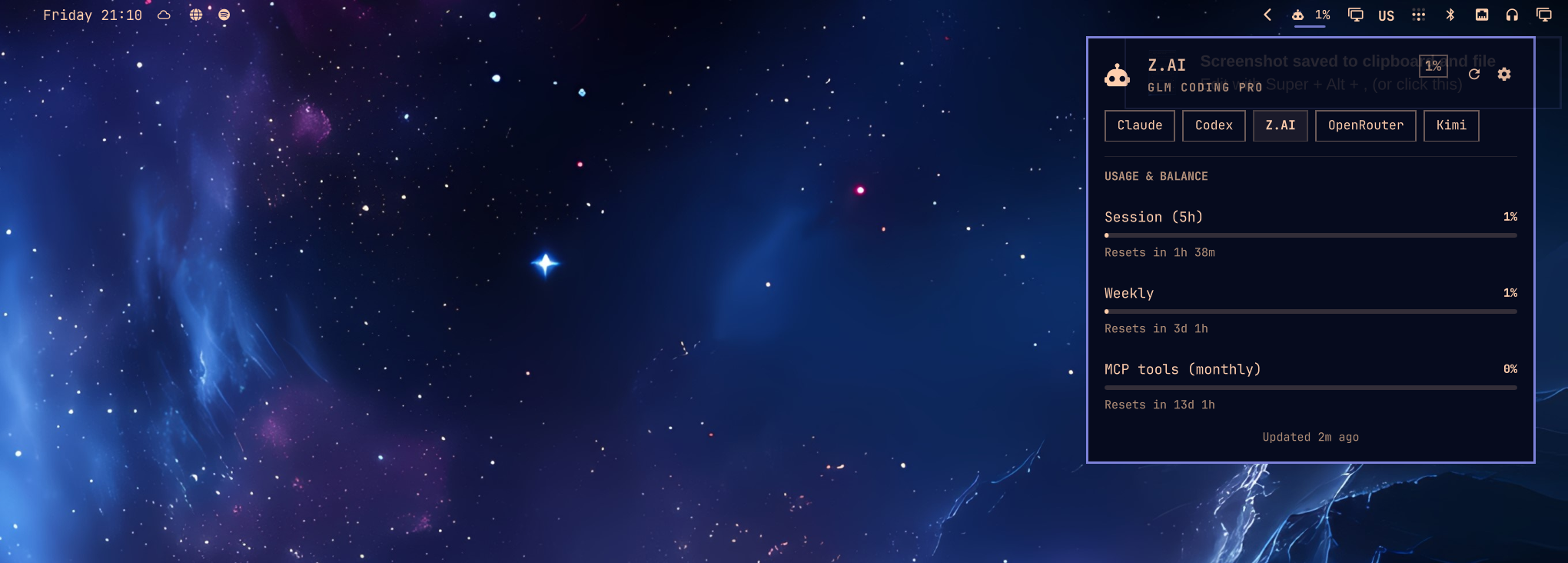
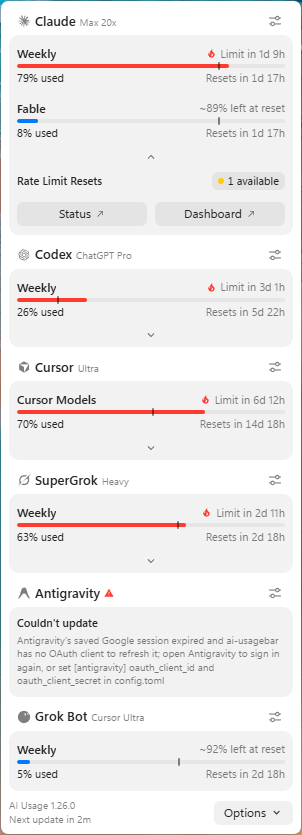
Native Omarchy Quattro panel, Waybar widget, and tabbed TUI for AI plan usage across Claude, Codex/ChatGPT, GitHub Copilot, Z.AI (GLM), OpenRouter, DeepSeek, DeepInfra, Kimi, Nous Research, OpenCode Go, Command Code, Devin, Cline, Muse Code, Droid, Synthetic, and other supported AI coding services.
ai-usagebar began as a Rust port of
claudebar and remains drop-in
compatible. It keeps claudebar's Pango tooltip, Omarchy theme detection, and
flock-protected OAuth refresh while adding more providers and a testable Rust
codebase.
Features
- Per-provider Waybar modules use the same JSON shape and flags as claudebar.
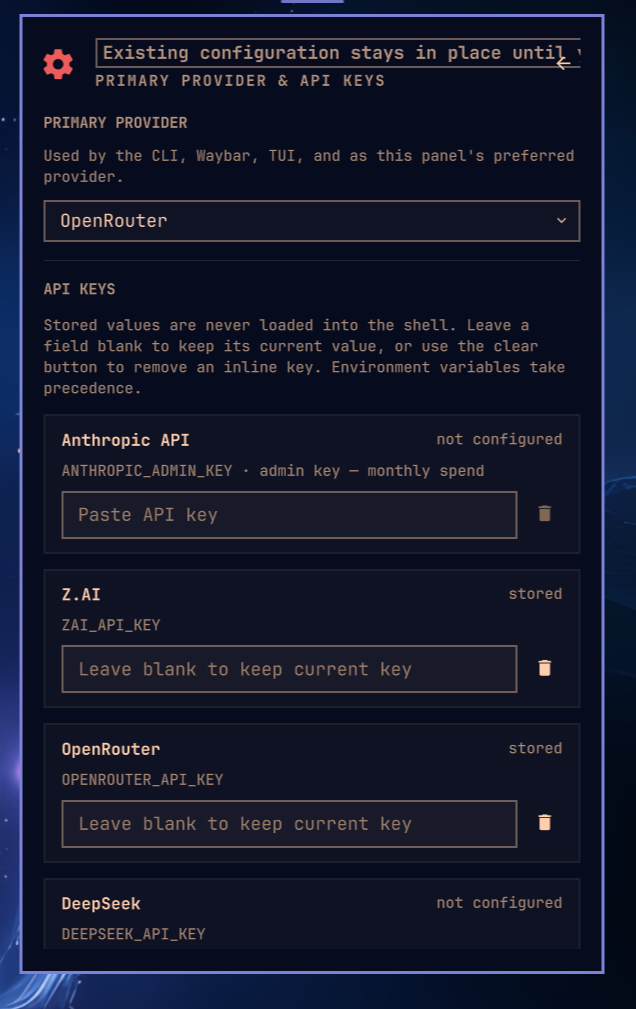
- The native Omarchy Quattro plugin follows the shell theme and supports keyboard navigation, provider switching, live reset timers, and stale/error states.
ai-usagebar-tuiopens with a compact provider overview and refreshes every 60 seconds. Its navigation can use a sidebar, navbar, or no vendor box.- An optional Claude Code context view reads recent local session usage without scanning entire histories.
- Native integrations are available for Omarchy, GNOME Shell, KDE Plasma 6,
and a macOS/Windows system-tray popover (
ai-usagebar-tray). An experimental GTK tray frontend for Linux Mint is inlinux-mint/. - One bar item can cycle through enabled providers.
[ui] primarycontrols the initial provider in both the widget and TUI. - Atomic caches and file locking prevent duplicate requests from multi-monitor Waybar setups.
- Quota-threshold desktop notifications are on by default: a window crossing
97% (configurable in
[notifications]or macOS Preferences) raises one system alert per crossing on Linux and macOS. At 100% the limit is critical, and banked Codex/SuperGrok reset credits warn 48h before expiring. Setenabled = falseunder[notifications]to turn them off — see the configuration reference. - Network failures keep the previous data visible; HTTP errors appear in the tooltip.
- A vendor that answers HTTP 429 is left alone for five minutes: the last good snapshot keeps showing marked as stale, or the entry reads "rate limited; next attempt in 4m" and no request is made until then (every vendor on the shared cache; Nous Research has its own path).
--pretty,--watch N, andmake smokehelp with local testing and API response changes.
Reference guides
- Configuration
- Development guide
- TUI mouse support
- Windows build guide
- Ollama Cloud integration
- Claude accounts
- Format placeholders
- Provider endpoints and live tests
- KDE Plasma 6 plasmoid
Install
Nix
Run either application directly from GitHub:
nix run github:akitaonrails/ai-usagebar
nix run github:akitaonrails/ai-usagebar#tui
Install both ai-usagebar and ai-usagebar-tui into your user profile:
nix profile install github:akitaonrails/ai-usagebar
For a flake-based NixOS or Home Manager configuration, add the input in your
root flake.nix:
inputs.ai-usagebar.url = "github:akitaonrails/ai-usagebar";
Pass inputs to your NixOS modules with specialArgs:
nixpkgs.lib.nixosSystem {
  system = "x86_64-linux";
  specialArgs = { inherit inputs; };
  modules = [ ./configuration.nix ];
}
For standalone Home Manager, use extraSpecialArgs:
let
  system = "x86_64-linux";
in
home-manager.lib.homeManagerConfiguration {
  pkgs = nixpkgs.legacyPackages.${system};
  extraSpecialArgs = { inherit inputs; };
  modules = [ ./home.nix ];
}
If your configuration already passes inputs through these arguments, you do
not need to add it again. Then consume the package in a NixOS module:
{ inputs, pkgs, ... }:
{
  environment.systemPackages = [
    inputs.ai-usagebar.packages.${pkgs.stdenv.hostPlatform.system}.default
  ];
}
The equivalent Home Manager module is:
{ inputs, pkgs, ... }:
{
  home.packages = [
    inputs.ai-usagebar.packages.${pkgs.stdenv.hostPlatform.system}.default
  ];
}
Alternatively, apply the overlay when you want the package available as
pkgs.ai-usagebar:
{ inputs, pkgs, ... }:
{
  nixpkgs.overlays = [ inputs.ai-usagebar.overlays.default ];
  environment.systemPackages = [ pkgs.ai-usagebar ];
}
Omarchy Quattro
The native plugin is a display frontend and does not bundle the
ai-usagebar executable. Both are needed, and they install through different
managers — the binary is a system package, the plugin is per-user shell config
under ~/.config/omarchy/plugins/ — so this is one paste rather than one
command:
omarchy pkg aur add ai-usagebar-bin &&
  omarchy plugin add https://github.com/akitaonrails/ai-usagebar.git --enable
If you found the plugin through plugins.omarchy.org,
its Install button copies the omarchy plugin add line on its own. That
installs the widget but not the binary it reads, and the bar will say
ai-usagebar is not installed until you run the omarchy pkg aur add half too.
Quattro enables its own omarchy.agents status widget by default. Disable it
if you want AI Usage to be the only agent status item in the bar:
omarchy plugin disable omarchy.agents
Once enabled, left-click the AI Usage widget to open the native Quattro
usage panel. From that panel, click the gear or press s to open the native
QML settings page. Right-click intentionally opens ai-usagebar-tui in a
terminal; it is not the settings shortcut. Middle-click or use the mouse
wheel to switch providers. In QML settings, turn off Show usage value in the
top bar for an icon-only widget; the panel and tooltip keep the full details.
Turn on Show provider name in the top bar to prefix the entry with the same
three-letter code Waybar's {vendor_short} prints, so a bar cycling several
providers says which one it is showing. Use Top bar usage window to pin the
bar to one quota window — auto (highest), 5-hour, weekly, or monthly — instead
of always showing the highest percent; the tooltip and panel hero echo the
pinned value while panel rows list every window. Show usage as reads
percentages as what is used (the default) or what is left of the same window.
Show provider logos draws each provider's own mark; turn it off for the
generic robot icon. The Metrics section expands per provider and switches
each metric on or off; a switched-off metric disappears from the panel, the bar
and the tooltip, and is left out of the highest percent that sets the bar value
and the alert state, which follows the used share in either reading. The
settings page is an accordion: one section open at a time, the first open by
default.
The source-built ai-usagebar AUR package can replace ai-usagebar-bin in
the first command.
Arch (AUR)
Two packages. Pick one:
yay -S ai-usagebar-bin    # prebuilt binary from GitHub Releases (fast, ~5s install)
yay -S ai-usagebar        # compiles from source (~30-60s, hermetic)
The -bin variant downloads the same x86_64 ELF that CI built and tested. The source variant compiles locally with your toolchain. Both install identical binaries to /usr/bin/. If you already have one installed, switch with yay -S the other package; pacman handles the swap through conflicts/provides.
Other Linux / macOS (crates.io)
cargo install ai-usagebar                # compile from source (needs rustup)
cargo binstall ai-usagebar               # download prebuilt binary (needs cargo-binstall, no rustup)
cargo binstall fetches the same x86_64 / aarch64 Linux tarball the AUR -bin package uses. Both install ai-usagebar + ai-usagebar-tui to ~/.cargo/bin/.
From source
cargo build --release
sudo make install                  # → /usr/local/bin
# or
make install PREFIX=$HOME/.local   # → ~/.local/bin
Windows
The Waybar widget is Wayland-only and does not apply to Windows. Use the
system-tray popover (ai-usagebar-tray) or ai-usagebar-tui. The tray
reads the same usage --json report as the KDE plasmoid, in-process — no
console window. ai-usagebar --json / --pretty still work for scripting.
Install with Scoop from the official bucket:
scoop bucket add akitaonrails https://github.com/akitaonrails/scoop-bucket
scoop install ai-usagebar
Scoop-installed trays update themselves through Scoop: Install Update (and
Automatic) runs scoop update ai-usagebar, then the tray quits while Scoop
replaces it — usually 10–60 seconds — and relaunches from Scoop's current
path. The Scoop transcript is written to
%LOCALAPPDATA%\ai-usagebar\updates\scoop.log; if Scoop does not deliver the
requested version, the tray reports that log path and Automatic does not retry
it in the background. A global Scoop install without the scoop.ps1 shim
keeps the release-page fallback. The tray's built-in updater applies to
standalone ZIP installs.
Build with a standard R
📈 近 7 天 Star 趋势
🏆 排名变化趋势
📋 历史上榜记录
| 日期 | 榜单 | 排名 | 周期新增 | 总 STAR |
|---|