📄 仓库 README
在 GitHub 查看 ↗
LiveCaptions Translator
Real-time audio/speech translation tool based on Windows LiveCaptions





English | 中文
Overview
✨ LiveCaptions Translator = Windows LiveCaptions + Translate API ✨
This is a lightweight tool that seamlessly integrates translation APIs with Windows Live Captions, enabling real-time speech translation without requiring a Copilot+ PC.
Windows' built-in LiveCaptions is easy to use, uses few resources, and has extremely high recognition accuracy. If empowering it with the awesome translation capabilities of LLMs, you will get... possibly the best real-time translator available to date!
🚀 Quick Start: Download from Releases and start with a single click!
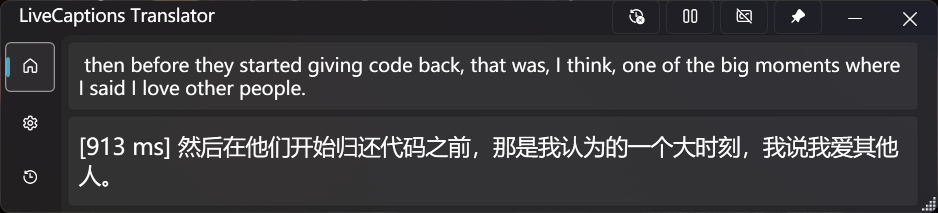
Preview of LiveCaptions Translator
Features
- 🔄 Seamless Integration
Automatically invokes Windows LiveCaptions without opening separate windows. Provides a unified experience for real-time audio/speech translation.
After your first use, Windows LiveCaptions will be hidden by default. You can show it again in the settings.
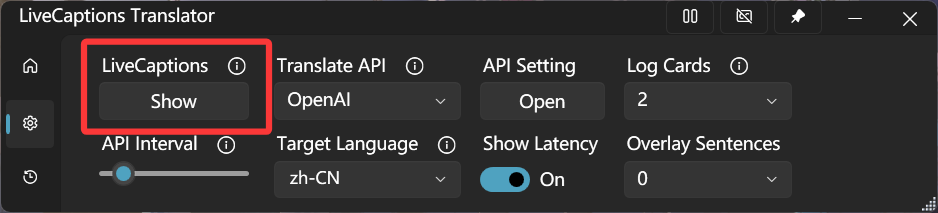
LiveCaptions Show/Hide button
By enabling the Include microphone audio option in the setting of Windows LiveCaptions, you can achieve real-time speech translation!
⚠️ IMPORTANT: You must change the source language in Windows LiveCaptions!
- 🎨 Modern Interface
Easy-to-use and clean Fluent UI aligned with modern Windows aesthetics.
It can automatically switches between light and dark themes 🌓 based on the system setting.
- 🌐 Multiple Translation Services
Supports various translation engines, including 2 out-of-the-box Google Translate.
Implemented translation engines are shown in the table below:
It's strongly recommended using LLM-based translation engines, as LLMs excel at handling incomplete sentences and are adept at understanding context.
- 🪟 Overlay Window
Open a borderless, transparent overlay window to display subtitles, providing the most immersive experience. This is very useful for scenarios like gaming, videos, and live streams!
You can even make it completely embedded into the screen, becoming part of it. This means it won't affect any of your operations at all! This is perfect for gamers.

Overlay window
You can open the Overlay Window on the taskbar and adjust its parameters such as the window background and subtitle color, font size, and transparency. Extremely high configurability allows it to completely match your preferences!
You can adjust the number of sentences displayed simultaneously in the Overlay Sentences section of the setting page.
- ⚙️ Flexible Controls
Supports Always-on-top window and convenient translation pause/resume, and you can copy text with a single click for quick share or saving.
- 📒 History Management
Records original and translated text, perfect for meetings, lectures, and important discussions.
You can export all records as a CSV file.
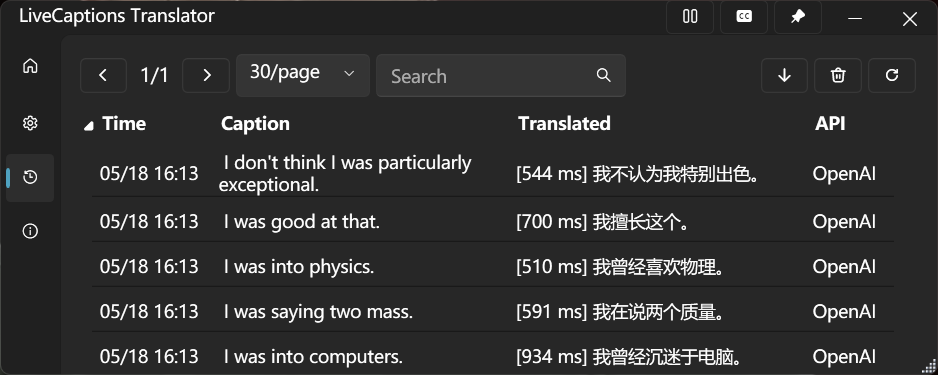
Translation history
- 🎞️ Log Cards
Recent transcription records can be displayed as Log Cards, which helps you better grasp the context.
You can enable it on the taskbar of the main page and change the number of cards in the Log Cards section of the setting page.
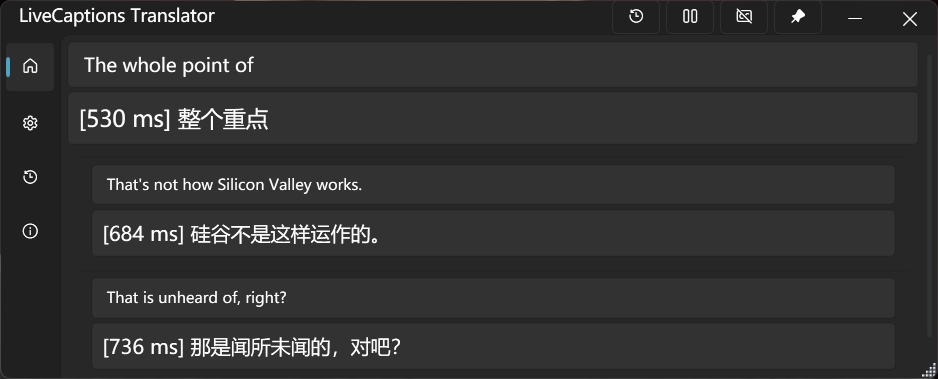
Log Cards
Prerequisites
-0078D6?style=for-the-badge&logo=windows&logoColor=white) | With LiveCaptions support. |
|
| With LiveCaptions support. |
|  | Recommended. Not test in previous versions. |
This tool is based on Windows LiveCaptions, which is available since Windows 11 22H2.
We suggest you have .NET runtime 8.0 or higher installed. If you are not available to install one, you can download the with runtime version but its size is bigger.

Getting Started
⚠️ IMPORTANT: You must complete the following steps before running LiveCaptions Translator for the first time.
For detailed information, see Microsoft's guide on Using live captions.
Step 1: Verify Windows LiveCaptions Availability
Confirm LiveCaptions is available on your system using any of these methods:
- Toggle Live captions in the quick settings
- Press Win + Ctrl + L
- Access via Quick settings > Accessibility > Live captions
- Open Start > All apps > Accessibility > Live captions
- Navigate to Settings > Accessibility > Captions and enable Live captions
Step 2: Configure LiveCaptions
When you first start, Windows LiveCaptions will ask for your consent to process voice data on your device and prompt you to download language files to be used by on-device speech recognition.
After launching Windows LiveCaptions, click the ⚙️ gear icon to open the setting menu, then select Position > Overlaid on screen.
⚠️ VERY IMPORTANT! Otherwise, a display bug will occur on the screen after hiding Windows LiveCaptions.
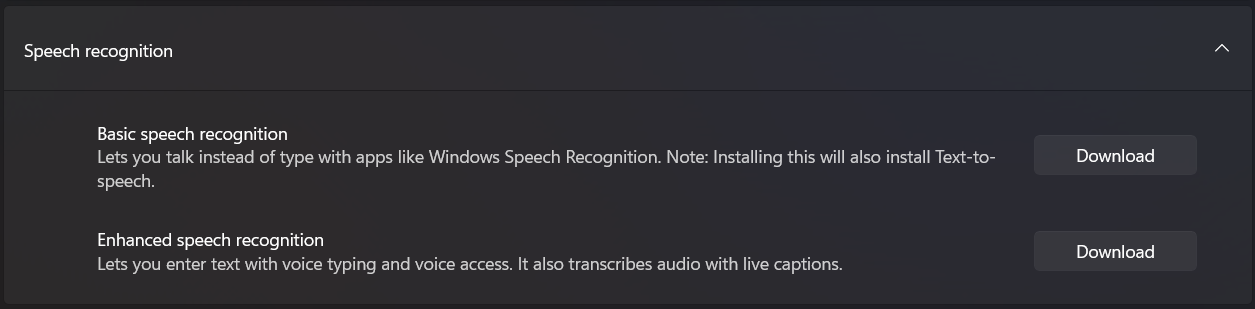
Required speech recognition downloads
After configuration, close Windows LiveCaptions and launch LiveCaptions Translator to start using it! 🎉
Project Stats
Activity


Contributors

Star History
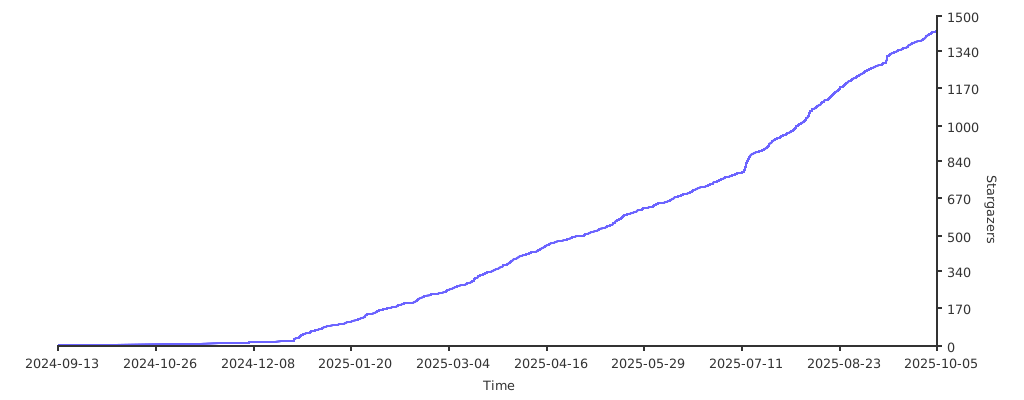
📈 近 7 天 Star 趋势
🏆 排名变化趋势
📋 历史上榜记录
| 日期 | 榜单 | 排名 | 周期新增 | 总 STAR |
|---|