📄 仓库 README
在 GitHub 查看 ↗NVIDIA Personal AI Router (PAIR)


NVIDIA Personal AI Router (PAIR), shown as NVIDIA PAIR once installed, is a local inference router for a group of compatible computers on the same network. It discovers participating nodes, manages supported inference engines, and presents local proxy endpoints for Ollama-compatible, OpenAI-compatible, and Anthropic Messages API requests. Independent requests can be routed to eligible nodes according to engine availability, model availability, and current workload.
PAIR is useful for concurrent local workloads such as multi-agent applications. Prompts and responses are intended to remain on the local network when every configured client, model source, engine, and node is local.
PAIR routes each independent request to one node. It does not pool GPU memory, combine GPUs into a larger logical GPU, shard one model across machines, or split an in-flight inference request between nodes.
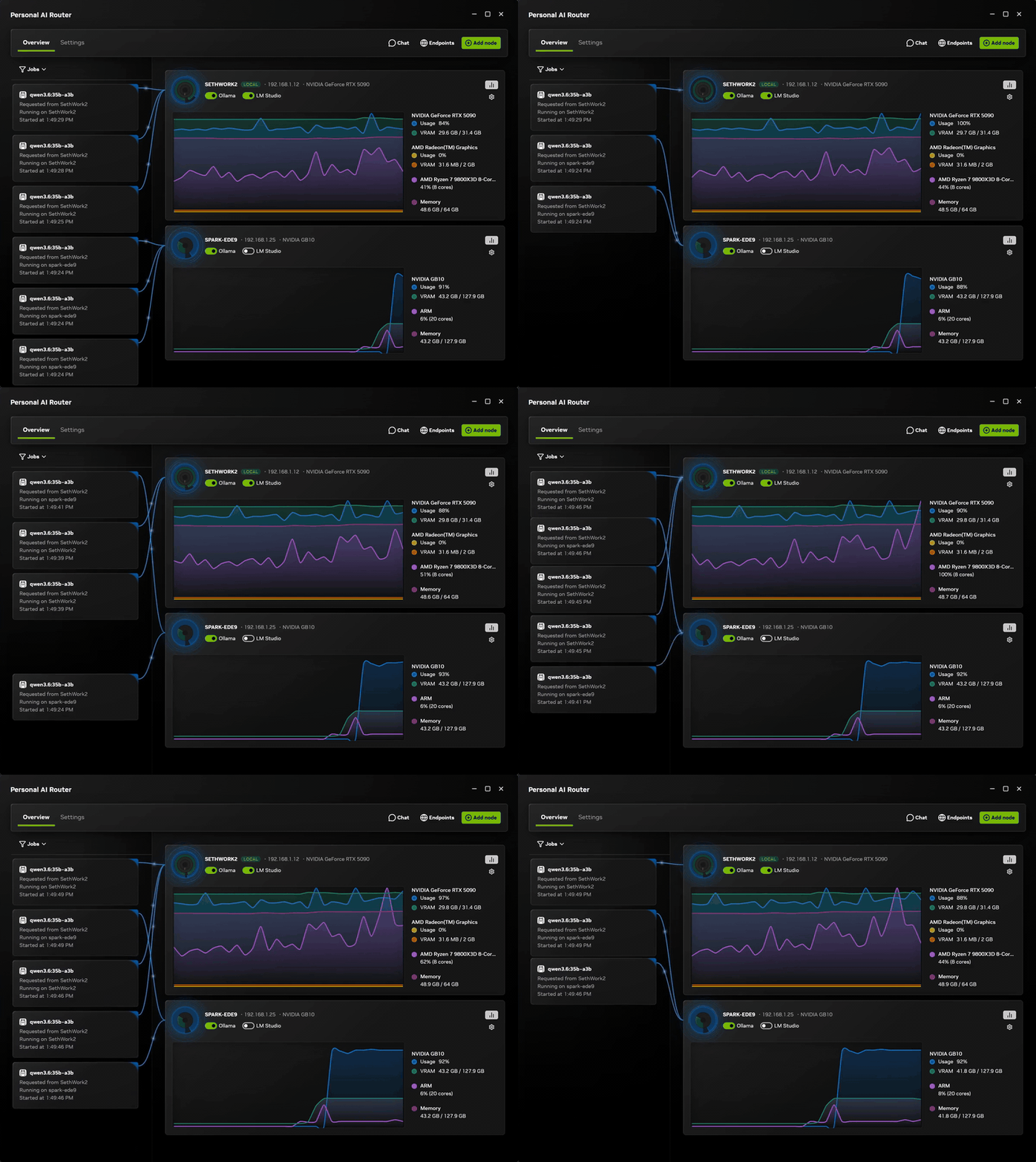
Two paired machines: requests arrive on one, run on whichever node suits each one, and both report live GPU and memory use throughout. Watch the full clip.
What is supported
| Operating systems | Windows 11; Linux; macOS |
| Architectures | x64 and arm64 on all three. Windows on ARM is experimental. |
| Installers | Windows .exe; Linux .deb; macOS .dmg. On other Linux distributions, build from source. |
| Mixing nodes | Windows, Linux, and macOS nodes can all be paired with each other |
| Inference engines | Ollama, LM Studio, and llama.cpp |
PAIR running on a machine does not mean an engine will. PAIR itself runs on any supported Windows, Linux, or macOS machine. Each engine sets its own requirements for the operating system, GPU, and drivers, and each model needs enough memory to load. Whether a particular engine and model work on a particular machine is between that engine and that machine, so check the engine's own documentation before assuming a node can serve a model. A node only becomes a candidate for a request once it is actually running a compatible engine, and PAIR prefers the nodes it already knows hold the model.
Quick start
Download a released build and use the desktop application. That is the path we recommend and the one the rest of this guide assumes. Building from source and the terminal interface both exist for good reasons — changing PAIR, and machines with no desktop — but neither is the ordinary way in. Those are covered in Building and running PAIR from source and Terminal interface.
Download a release
A released installer is signed, sets up the background services and the desktop application together, and adds the firewall rules PAIR needs on Windows. It also tells you when a newer release exists and installs it on your say-so from Settings → Service. A build you make yourself is unsigned and checks no update feed, so you would upgrade it by pulling and rebuilding.
Download PAIR from the GitHub releases page. Release downloads include:
- a Windows installer;
- a Debian package for Linux; and
- a macOS disk image.
On Windows and macOS, double-click the download and follow the installer's usual prompts — on macOS that means dragging NVIDIA PAIR to your Applications folder.
On Linux, install the package from the directory you downloaded it into:
sudo apt install ./NVPAIR-Setup-*.deb
If you have kept more than one PAIR package in that directory, install the one you want by its full filename instead.
Run it
-
Open PAIR the way you would any application — the Start menu on Windows, Launchpad or the Applications folder on macOS, your applications list on Linux. On a machine with no desktop environment, drive it from the terminal interface instead, which starts the same background services and gives you a full-screen view in the terminal.
-
Let it finish starting. Overview shows this machine once the services are up. If it stays on Starting service... or Fetching nodes, open Settings → Service and read the status there.
-
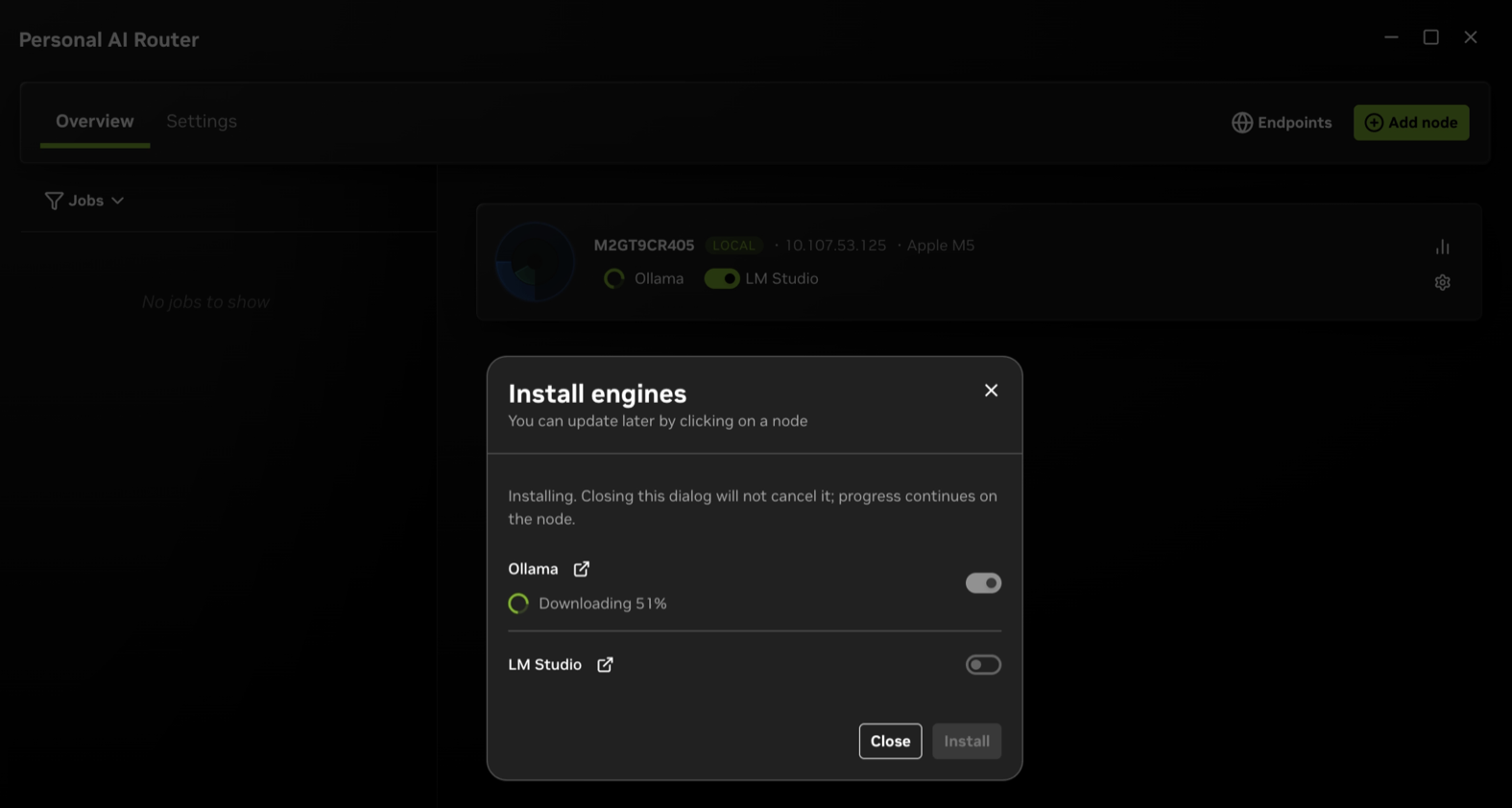
Get an engine running. On the node's card, open Engine settings and select Install next to Ollama, LM Studio, or llama.cpp. PAIR downloads and sets the engine up for you, so nothing needs to be in place beforehand.
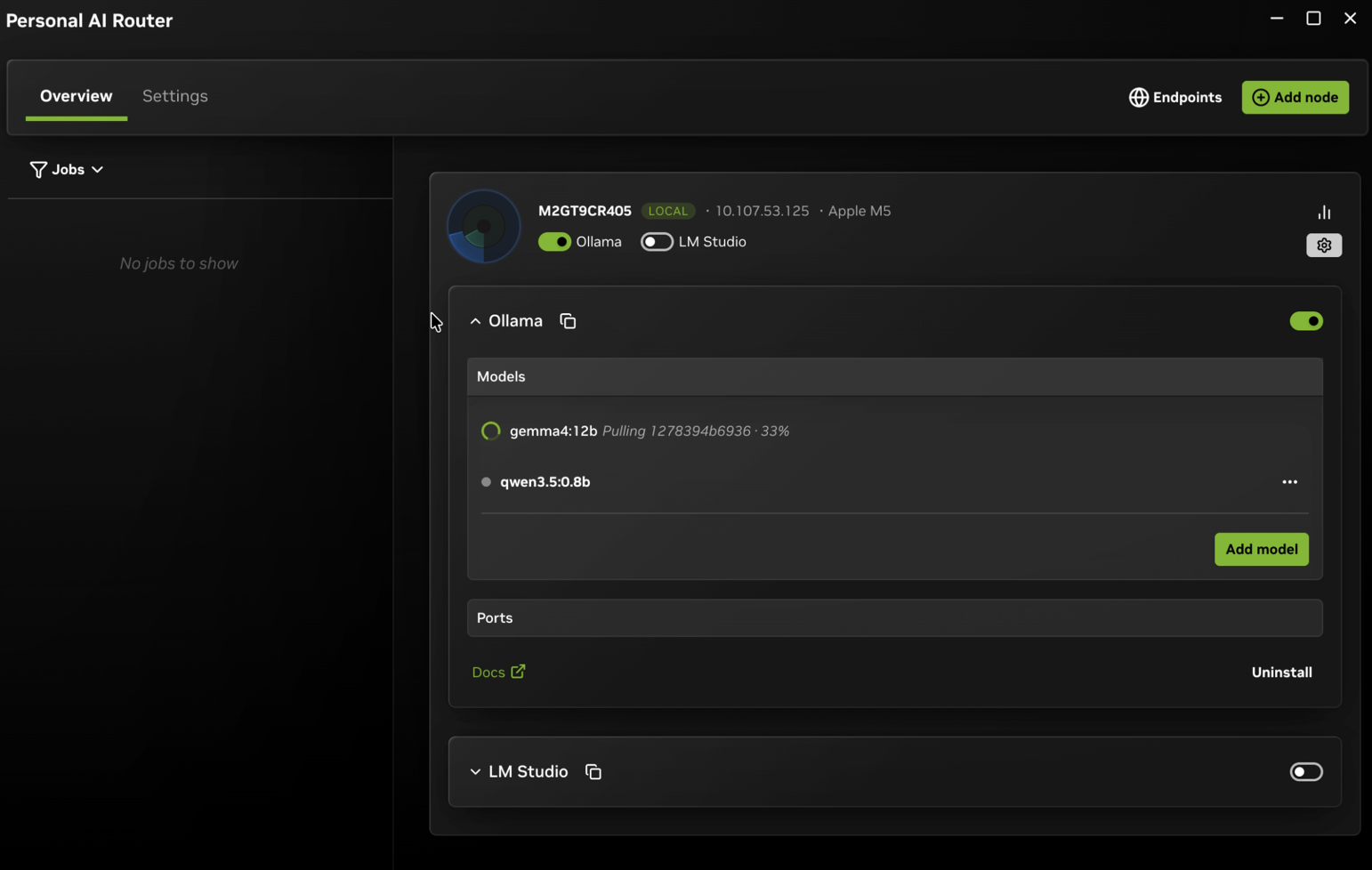
- Add a model. Select Add model on the same card and download one.
qwen4:12bis used for this example; it can be replaced with a model of your choice. llama.cpp populates this list from popular GGUF repositories on Hugging Face. Type to filter the list, or press Enter to search the wider public catalog. Its exact IDs include the repository and quantization, such asggml-org/gemma-3-1b-it-GGUF:Q4_K_M.
-
Send a request. Two equally good options:
-
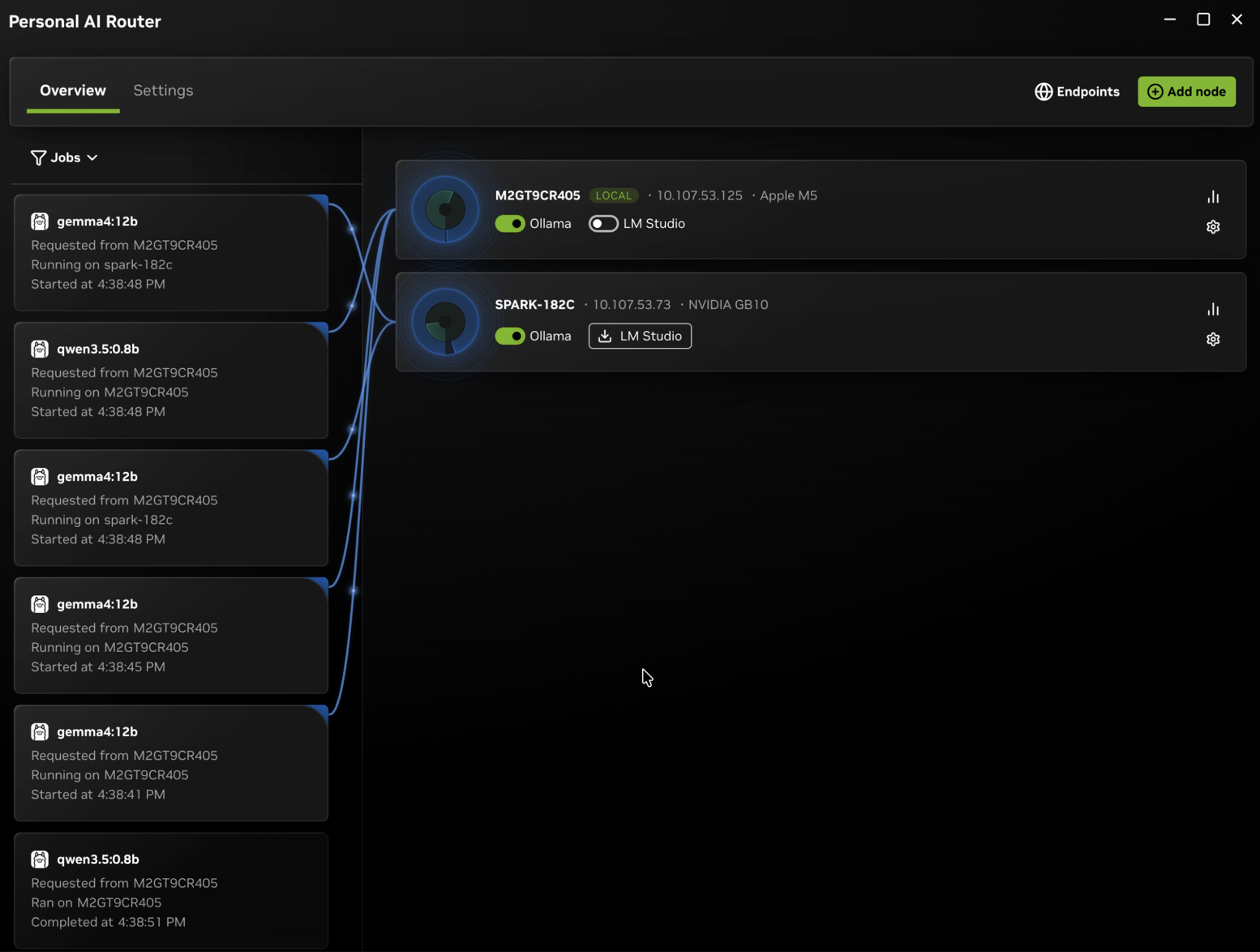
Let PAIR generate the traffic. Select Test on Settings → Service and PAIR sends a minute of inference through the same path, so you can watch the jobs appear without writing anything.
-
Send one yourself. Use the
curlcall below. The job then appears under Jobs, naming the node that served it.
With Ollama on its default port, this runs as written:
curl http://127.0.0.1:11434/v1/chat/completions \
  -H "Content-Type: application/json" \
  -d '{"model":"qwen4:12b","messages":[{"role":"user","content":"In one sentence, what does a router do?"}]}'
The reply is ordinary OpenAI-shaped JSON, abbreviated here:
{
  "object": "chat.completion",
  "model": "qwen4:12b",
  "choices": [
    {
      "message": {
        "role": "assistant",
        "content": "A router decides where each incoming message should go and forwards it there."
      },
      "finish_reason": "stop"
    }
  ]
}
If you changed a port, or you are using LM Studio or llama.cpp rather than Ollama, copy the URL from Endpoints → API endpoints instead of assuming the one above.
That is a single machine working. To route across machines, pair a second one from Settings → Cluster and repeat the engine and model steps there. The inviting machine shows a six-digit PIN, and you enter that PIN on the machine you invited.
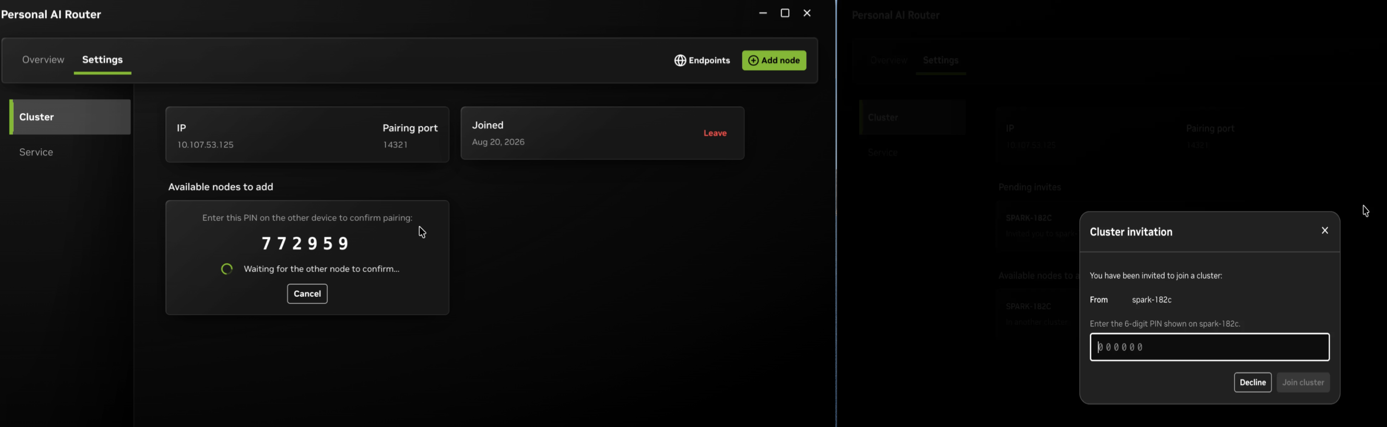
The Getting Started Guide covers the same ground in detail, plus pairing, ports, and connecting your own applications.
Uninstalling
Removing PAIR and removing your data are separate steps, and the default is to keep your data.
Windows. Uninstall from Apps & features, or the Start menu entry. The uninstaller stops PAIR, removes its firewall rules, and asks whether to delete your data. Decline and it stays; accept and it is removed.
Linux. sudo apt remove nvpair uninstalls the application and keeps your
data. Use sudo apt purge nvpair to remove the data as well. Run
dpkg -l | grep -i pair first if you need to confirm the installed package name.
A purge removes the engines PAIR installed under its own data directory, but not
one a vendor installer placed in your home, as LM Studio does — uninstall that
engine from PAIR before removing the package, or use its own uninstaller.
macOS. Run the uninstaller that ships inside the app bundle. It stops PAIR, removes its firewall rules, unregisters its privileged helper, and then removes the application:
sudo "/Applications/NVIDIA PAIR.app/Contents/Resources/installer-tools/uninstall-macos.sh"
An install from before the app was renamed is still called PAIR.app; use
/Applications/PAIR.app in the path instead. Add --purge to remove your data
as well. Dragging PAIR to the Trash instead
leaves the privileged helper registered, so use the uninstaller.
Your data means settings, logs, cluster identity and certificates, and any engine
PAIR installed for you. An engine the uninstaller cannot remove — one still
holding a file open, say — is left in place rather than stopping the uninstall;
remove it with its own uninstaller. Model weights are not touched — they live in the
engine's own storage (~/.ollama, ~/.llamacpp, ~/.lmstudio/models), so
removing PAIR does not delete the models you downloaded. Delete those through the
engine, or by removing its directory. An engine you installed yourself is also
left alone.
To clear your data without uninstalling, use Settings → Service → Reset app data. It removes the same set — settings, logs, cluster identity and certificates, and PAIR-installed engines — then restarts the application as if it were newly installed. Model libraries are left alone here too. This is the quickest way to start over after a broken cluster or a bad engine install.
If this machine belongs to a cluster, deal with membership too — otherwise the other nodes keep listing it as a member. You have two options:
- Leave from this machine before uninstalling: Settings → Cluster →
Leave, or press
lon the terminal interface's Nodes tab and confirm withy. - Remove it from another node, which any member can do from Settings → Cluster by removing that node from the list.
The second option works after the fact as well, so forgetting to leave first is recoverable.
Documentation
If you are new to PAIR, reading in this order will get you productive fastest. Each entry assumes the ones before it.
- Overview — what PAIR does and how its pieces fit together. Start here so the vocabulary in every other document makes sense.
- Getting started — install it, pair two machines, prepare a model, and send a first request. This is the only document most users need. When you update, Release notes lists what changed and the Upgrade guide covers any steps the update needs.
- Managing engines — install, start, stop, update, and uninstall engines; what PAIR restores after you quit or relaunch.
- Engine settings — change an engine's ports and its launch command, on this machine or a paired one, and give a browser access to your models.
- Terminal interface — the same tasks from a terminal, for a machine with no desktop environment. Skip it if every machine you run has a desktop.
- Troubleshooting — worth skimming once before you need it, so you know where the diagnostics live. Alongside it, Known issues lists the significant limitations we are already aware of, and Collecting and sanitizing logs covers preparing a log you can share.
- Architecture — the process model, how a request is routed, and where the trust boundaries are. Read this before changing anything, or if you want to know why PAIR behaves the way it does.
- Building and running — prerequisites, building from source, running the services without the desktop application, and writing your own client against the JSON-RPC API.
- Developer guide — read this before contributing: where the code lives, how a change travels through the layers, and the conventions the project enforces.
Component references, for when you already know what you are looking for:
- Services — the background services, and from there each component's own reference
- Desktop application — working in the application, and from there its architecture, contracts, and CLI documentation
Releases
See the releases page for what changed in each release.
Roadmap
These are features we want to add to PAIR. This list is a direction for the project, not a commitment to delivery or implementation order. Community feedback and contributions will help shape priorities.
Platform support
- [ ] Full support for Windows ARM64 systems.
- [ ] DGX Station support.
Engines and integrations
- [x] llama.cpp support.
- [ ] vLLM support.
- [ ] EXO support.
- [ ] ComfyUI integration.
- [ ] Unsloth support.
- [ ] Tailscale integration.
Routing and clusters
- [ ] Route OpenAI-compatible API requests across different inference engines.
- [ ] Inference request queuing.
- [ ] Increase number of scheduler variables for better QoS.
- [ ] A "cluster as a node" view.
- [ ] KV cache-aware scheduling.
Usability and reliability
- [ ] Requester-only clients that send work without hosting an inference engine.
- [ ] Launch PAIR automatically on system startup.
- [x] Configure engine launch options and environment variables from PAIR.
- [ ] Stability and reliability improvements informed by real-world use.
Have a feature request or a workflow you want PAIR to support? Open an issue and tell us how you would use it.
Development Team
NVIDIA team members working on PAIR:
| Name | GitHub | Role |
|---|---|---|
| Noah Tervalon (Terve) | @Noah-Tervalon-Nvidia | PAIR Developer - Community Lead |
| Chris Kelsey | @ckelseynv | PAIR Developer - UI/UX Lead |
| Sherief Farouk | @sherief-nv | PAIR Developer - Scheduling, Team Lead |
| Preston Goode | @nv-pgoode | PAIR Developer - Engine Management Lead |
| Kaylee Lubick | @kjlubick | PAIR Developer - Security Lead |
| Lucas Brodzinski | @LB-NV | PAIR Technical Program Manager |
| Ambrish Dantrey | @adantrey | PAIR Engineering Manager |
| Seth Schneider | @NV-sschneider | PAIR Product Manager |
Contributing and governance
Support
See SUPPORT.md for public support channels and scope.
Security
PAIR includes local HTTP endpoints, LAN discovery, a PIN-based trust bootstrap, and cluster networking. Read SECURITY.md before deploying it on an untrusted or shared network. Do not report vulnerabilities in a public issue.
License
This project is licensed under the Apache License 2.0. See Third-Party Software Notices for bundled dependencies. Inference engines, models, and other software used with PAIR may have separate terms.
📈 近 7 天 Star 趋势
🏆 排名变化趋势
📋 历史上榜记录
| 日期 | 榜单 | 排名 | 周期新增 | 总 STAR |
|---|