📄 仓库 README
在 GitHub 查看 ↗ # ZimaOS Public Evaluation Program
[![release][release-badge]][release]
[![download][download-badge]][download]
[![community][community-badge]][community]
[](http://bit.ly/3J3P03Q)
[](http://bit.ly/4mvPMoN)
# ZimaOS Public Evaluation Program
[![release][release-badge]][release]
[![download][download-badge]][download]
[![community][community-badge]][community]
[](http://bit.ly/3J3P03Q)
[](http://bit.ly/4mvPMoN)
Welcome to join the public evaluation program of ZimaOS. ZimaOS is evolved from CasaOS, and we have built a release version of ZimaOS for better hardware compatibility and update experience. It will perfectly adapt to the Zima series hardware and also be compatible with x86-64 systems with UEFI.
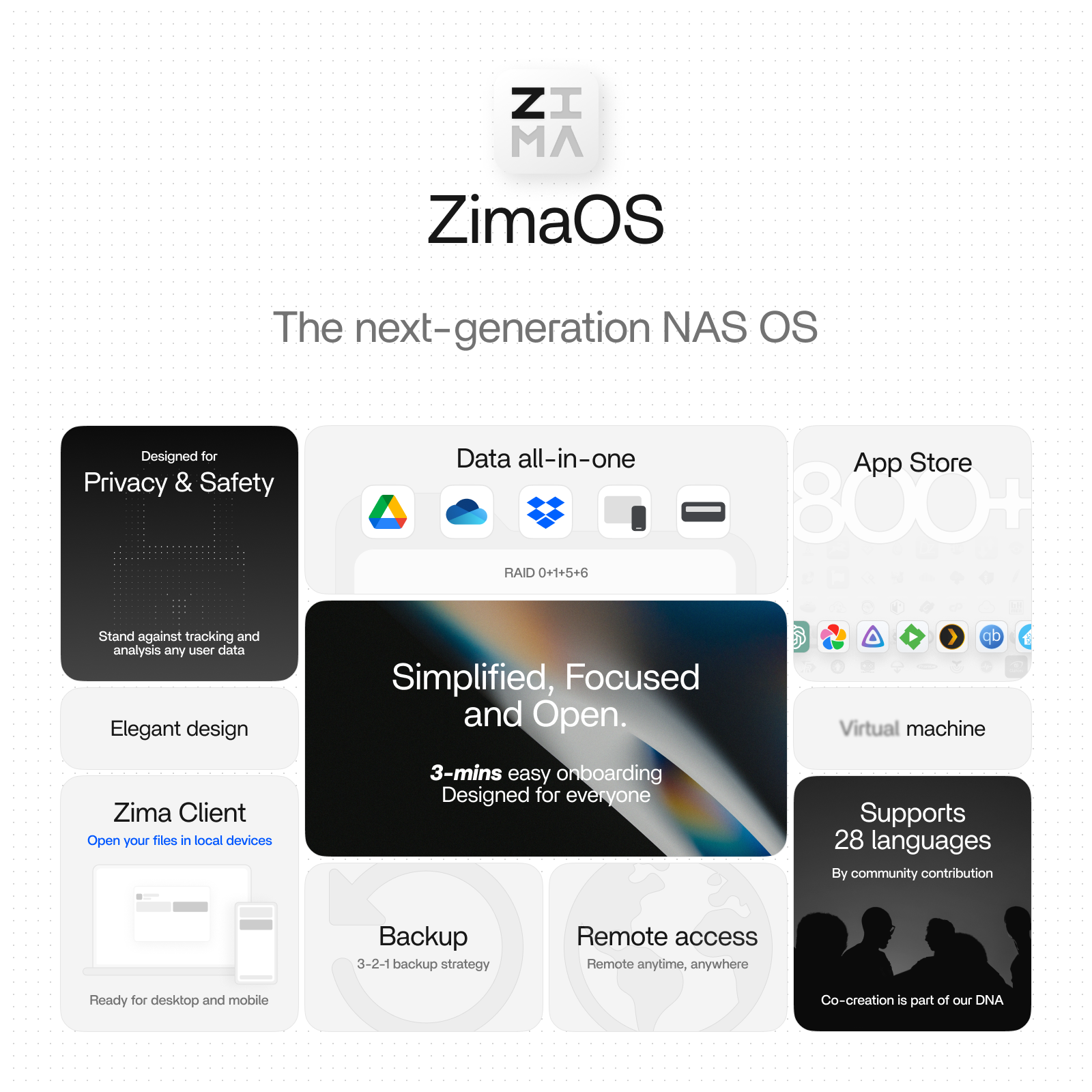
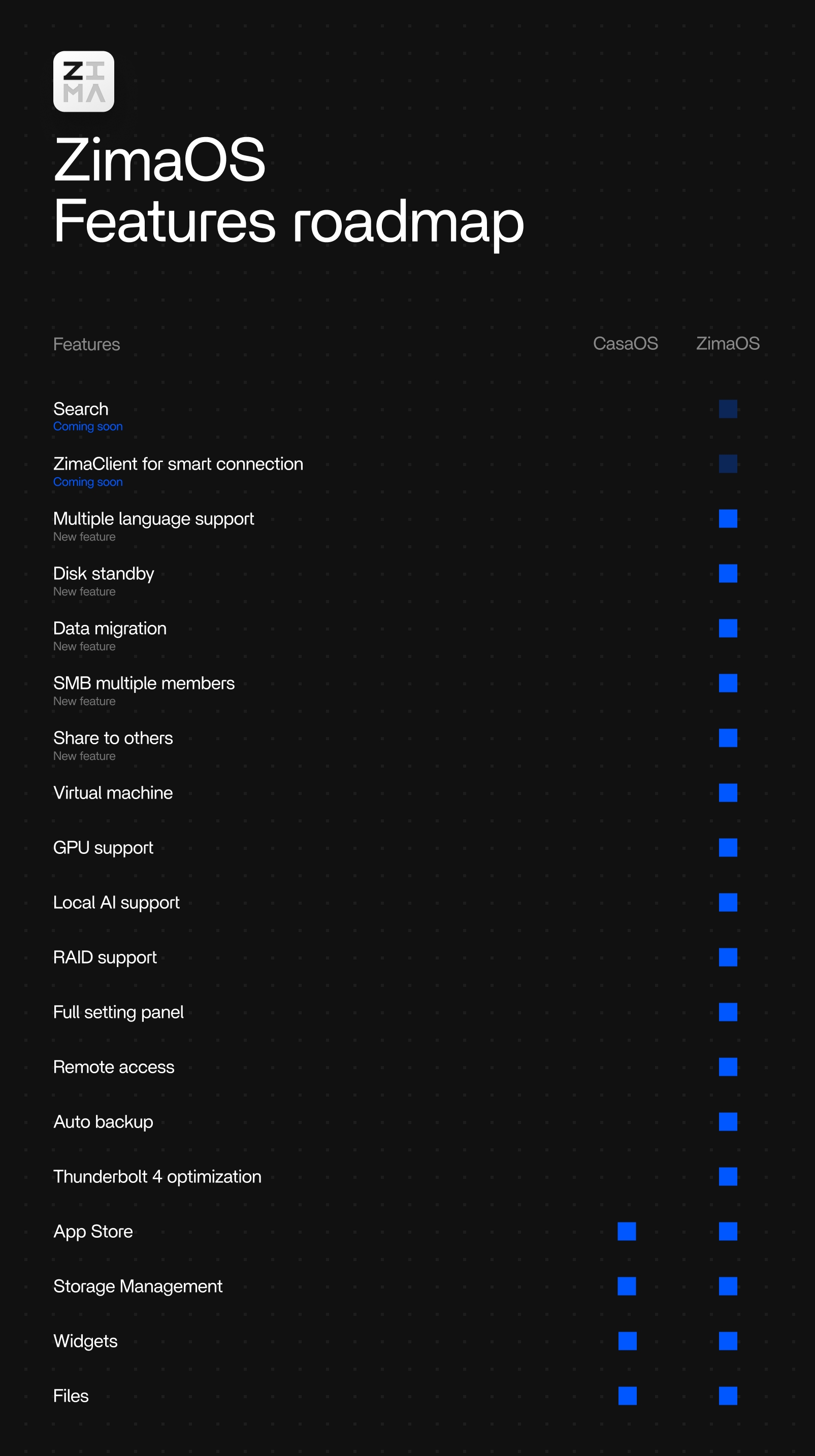
It is built using Buildroot and has stable OTA update functionality. Based on CasaOS, we have built a series of new applications. You can find the specific differences between it and CasaOS from the table below:
Discussion
This project is just for releasing test images, if you want to discuss related issues, feel free to go to our forum. Icewhale Community
Distribution Features
- Lightweight and memory-efficient
- Minimized I/O
- Over The Air (OTA) updates
- Offline updates
- Better disk management capabilities
Supported hardware
- ZimaBoard
- ZimaBoard2
- ZimaBlade
- ZimaCube
- Generic x86-64 (e.g. Intel NUC)
Getting Started
Installation
-
Preparation - Enable UEFI boot in BIOS/UEFI and disable Secure Boot. - Back up any important data on the target drive. The selected disk will be erased.
-
Download the image - Open
Releasesand download the installer image. - Pick the file namedzimaos_XXXXX_installer.img(XXXXXvaries by version). -
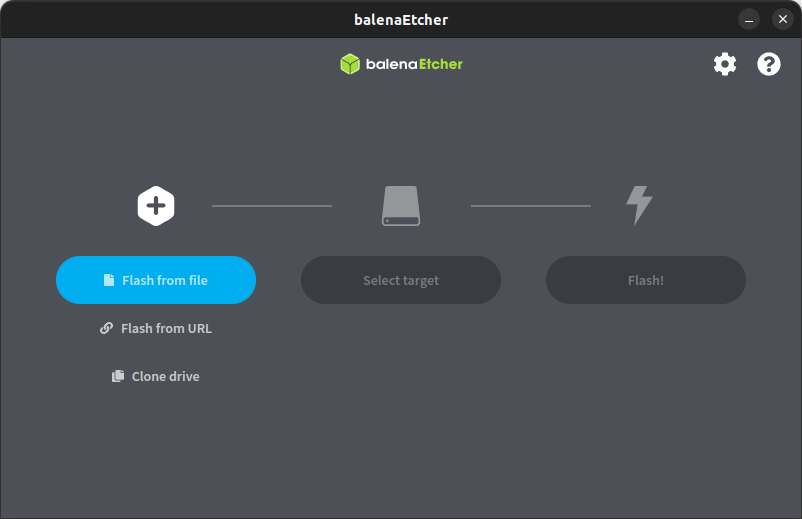
Create the USB installer - Use Balena Etcher (Windows/macOS/Linux):
https://etcher.balena.io/- Steps: 1) Launch Etcher. 2) Select the downloaded*.imgfile. 3) Choose the target USB drive (verify the correct device). 4) Click Flash, wait for completion, then safely eject the USB drive.
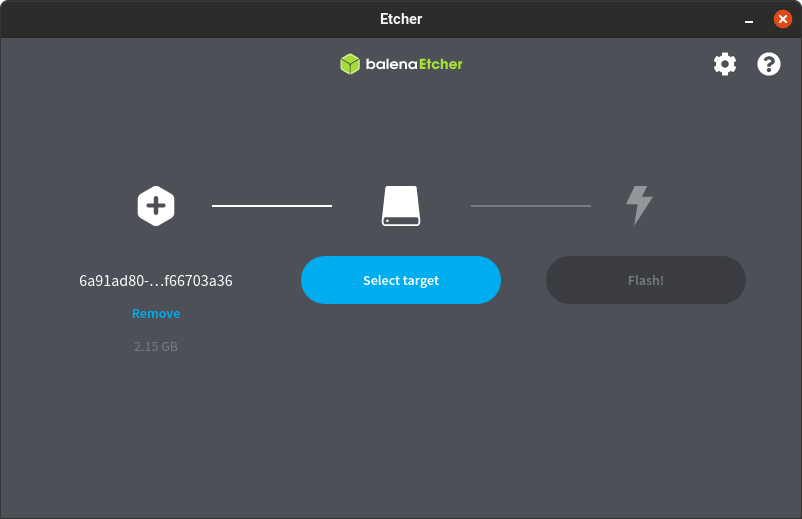
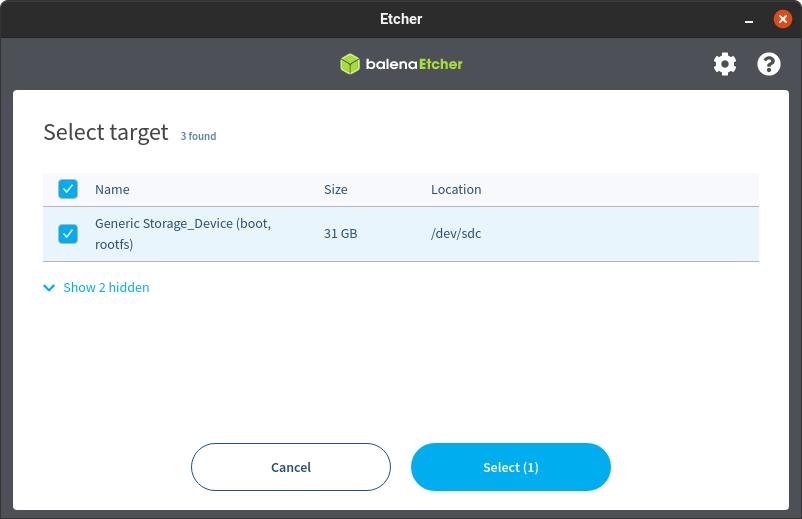
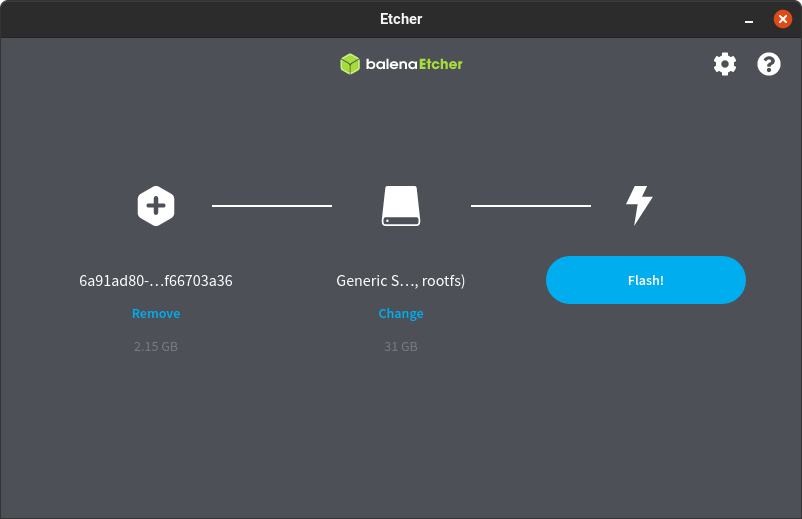
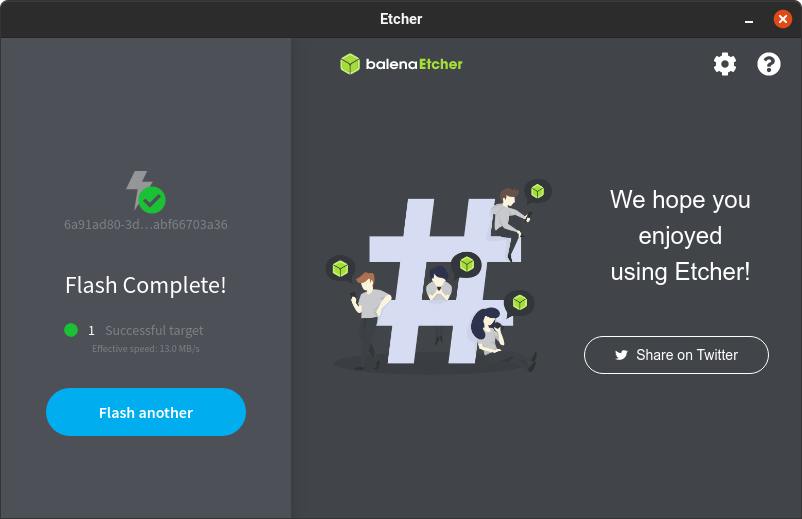
- Install ZimaOS - Insert the USB installer into the target device (Zima hardware or generic x86‑64 PC). - Open the BIOS/Boot Menu and boot from the USB device in UEFI mode. - Follow the on‑screen installer to select the target disk and confirm installation (this erases the disk). - When installation completes, reboot as prompted and remove the USB installer. - Boot from the installed disk (UEFI) to start ZimaOS and finish the initial setup.
Installation on Proxmox
Follow the link. Thanks @silycr for the tutorial!
📈 近 7 天 Star 趋势
🏆 排名变化趋势
📋 历史上榜记录
| 日期 | 榜单 | 排名 | 周期新增 | 总 STAR |
|---|