📄 仓库 README
在 GitHub 查看 ↗




Wiki | Tutorials | Troubleshooting
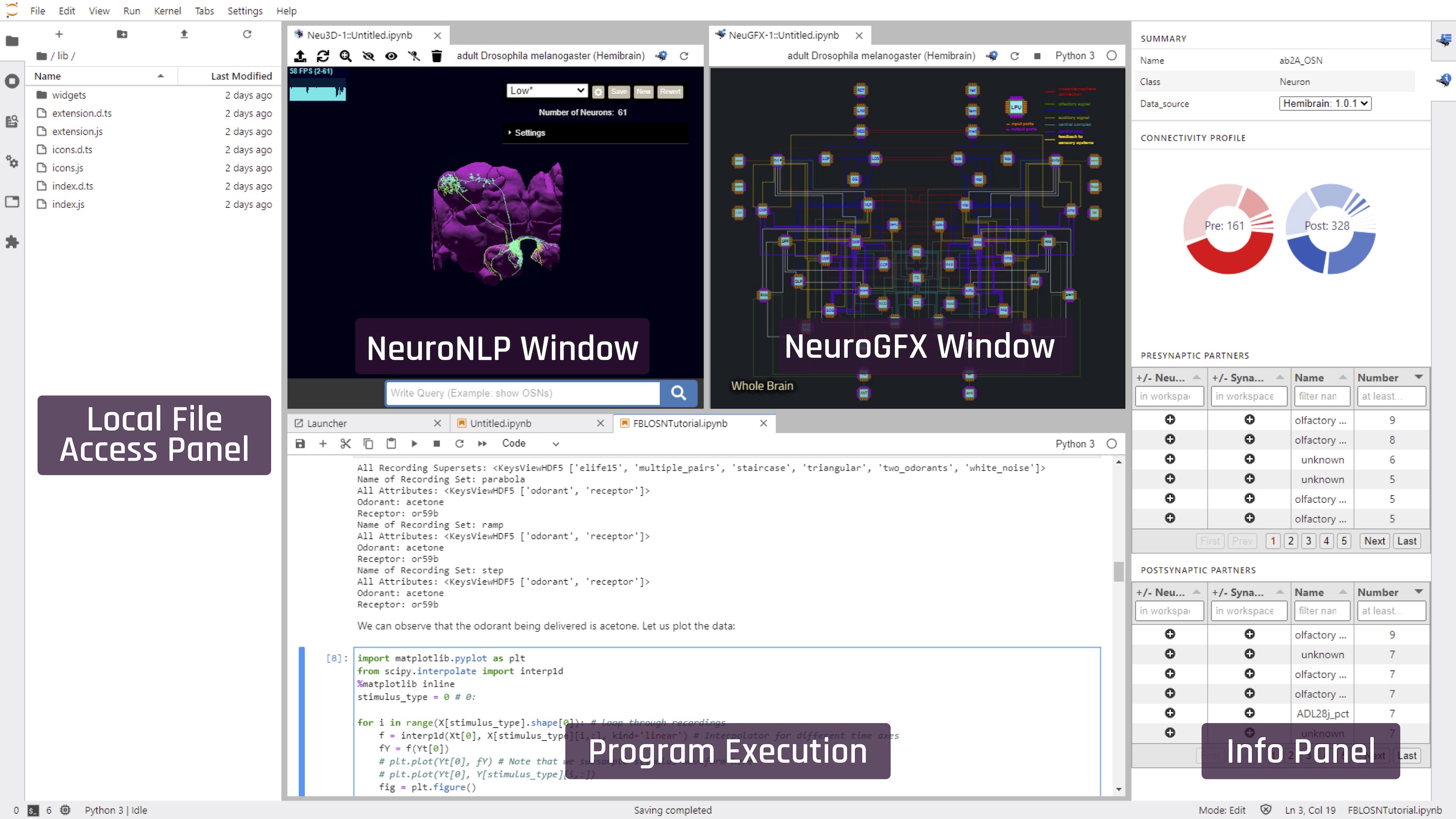
FlyBrainLab is an interactive computing platform for studying the function of executable circuits constructed from fruit fly brain data. FlyBrainLab is designed with three main capabilities in mind: (i) 3D exploration and visualization of fruit fly brain data, (ii) creation of executable circuits directly from the explored and visualized fly brain data, and (iii) interactive exploration of the functional logic of the devised executable circuits.
FlyBrainLab provides an environment where computational researchers can present configurable, executable neural circuits, and experimental scientists can interactively explore circuit structure and function ultimately leading to biological validation.
More details about FlyBrainLab can be found in the following publication:
- Aurel A. Lazar, Tingkai Liu, Mehmet K. Turkcan, and Yiyin Zhou, Accelerating with FlyBrainLab the Discovery of the Functional Logic of the Drosophila Brain in the Connectomic EraFlyBrainLa, eLife, February, 2021.
This repository serves as the entry point for FlyBrainLab, where documentation and installation scripts can be found.
Content
- 1.1 Installing Only User-side Components
- 1.2 Full Installation
- 1.3 Docker Image
- 1.4 Amazon Machine Image
- 2.1 Launching FlyBrainLab
- 2.2 FlyBrainLab User Interface
- 2.3 Configuring Backend Servers
- 2.4 Getting Started Tutorials
1. Installation
FlyBrainLab consists of backend components and user-side components. There are a few options for installation.
- Installing only User-side Components: provides instructions for installing a copy of all FlyBrainLab user-side components that, by default, connect to backend servers hosted by the Fruit Fly Brain Observatory Team. If you only need to visualize and explore the biological data, this will be the fastest way to install. However, the public backend servers do not provide capabilities for executing neural circuits on GPUs using Neurokernel. It may also be helpful to visit BrainMapsViz where you can directly interact with the NeuroNLP web application without any installation.
- Full Installation: provides instructions for installing both the user-side and backend components on the same machine. By default, FlyBrainLab will connect to the backend servers locally hosted.
- Docker Image: We maintain this Docker image with a full FlyBrainLab installation. If you are set up with Docker with GPU support, this will be the easiest way to try FlyBrainLab that runs locally.
- Amazon Machine Image: We also maintain AMI
ami-02218ae5a3d1fd06dthat has the FlyBrainLab fully installed. It is helpful in case you do not have a machine with NVIDIA GPU handy, but still want to try out the full installation.
1.1 Installing Only User-side Components
#### System Requirement - Supported OS (64-bit): Linux, Windows and macOS. - Minimum 2GB disk space. - [conda](https://docs.conda.io/en/latest/): See its [Installation Instructions](https://docs.conda.io/projects/conda/en/latest/user-guide/install/). Additional requirement for macOS: - Xcode Command Line Tools: use the following command to install:xcode-select --install
Can’t install the software because it is not currently available from the Software Update server.
conda create -n flybrainlab python=3.9 git -y
conda activate flybrainlab
python -m pip install git+https://github.com/mkturkcan/autobahn-sync.git \
                      git+https://github.com/FlyBrainLab/Neuroballad.git \
                      nxt_gem==2.0.1 \
                      git+https://github.com/mkturkcan/nxcontrol \
                      flybrainlab\[full\] \
                      neuromynerva
conda create -n flybrainlab python=3.9 git -y
activate flybrainlab
python -m pip install git+https://github.com/mkturkcan/autobahn-sync.git git+https://github.com/FlyBrainLab/Neuroballad.git nxt_gem==2.0.1 git+https://github.com/mkturkcan/nxcontrol flybrainlab[full] neuromynerva
# create anaconda environment called flybrainlab with appropriate packages installed
conda create -n flybrainlab python=3.9 git -c conda-forge -y
# activate the flybrainlab environment just created
conda activate flybrainlab
# if you have conda<4.4, you may need to use `source activate flybrainlab` instead
# If you are on Windows, use `activate flybrainlab` instead.

# Create a preferred installation directory and go into that directory, For example:
# mkdir ~/MyFBL
# cd ~/MyFBL

# Clone packages into your preferred directory (~/MyFBL) in the example above
git clone https://github.com/FlyBrainLab/Neuroballad.git
git clone https://github.com/FlyBrainLab/FBLClient.git
git clone https://github.com/FlyBrainLab/NeuroMynerva.git

# Install FBLClient
# If you are a user
python -m pip install ./Neuroballad
python -m pip install ./FBLClient\[full\]

# If you are a developer
# python -m pip install -e ./Neuroballad
# python -m pip install -e ./FBLClient[full]

# Install NeuroMynerva
cd ../NeuroMynerva
# If you're a user using JupyterLab 3.x
python -m pip install .
jupyter lab

# If you're a user using Jupyter Lab 2.x
# conda install nodejs cookiecutter git yarn -c conda-forge -y
# jlpm
# jupyter labextension install .
# jupyter lab

# If you're a developer using JupyterLab 3.x
# python -m pip install -e .
# jupyter labextension develop . --overwrite
# jlpm run watch
# jupyter lab  # in separate terminal

# If you're a developer using JupyterLab 2.x
# conda install nodejs cookiecutter git yarn -c conda-forge -y
# jlpm
# jupyter labextension link .
# jlpm run watch:src
# jupyter lab --watch  # in separate terminal
#echo "Installing prerequisites"
#sudo apt update
#sudo apt install -y wget default-jre curl build-essential tar apt-transport-https tmux sendmail graphviz graphviz-dev
# existing directories
CUDA_ROOT=/usr/local/cuda # root directory where you installed cuda

# To be installed
BASE=$HOME # base directory where the folders will be installed
CROSSBAR_ENV=crossbar # conda environment for crossbar/ffbo processor
FFBO_ENV=ffbo # conda environment for main fbl
NLP_ENV=ffbo_legacy # additional conda environment for NLP
FFBO_DIR=$BASE/ffbo # directory to store local repositories
ORIENTDB_ROOT=$BASE/orientdb # root directory where you want to install OrientDB
FFBO_PORT=8081 # main port number of the FFBO processor, make sure to use an uncommon port that will not be used by other program
ORIENTDB_BINARY_PORT=2424 # Binary port of OrientDB, please change this if you are on running this on a multi-user machine to avoid running OrientDB on a wrong port
ORIENTDB_HTTP_PORT=2480 # HTTP port of OrientDB, please change this if you are on running this on a multi-user machine to avoid running OrientDB on a wrong port
DATABASE_MEMORY=8G # maximum amount of memory you want to assign to the database for java heap in GB
DATABASE_DISKCACHE=10240 # amount of memory assigned to caching disk in MB
bash fbl_full_installation_ubuntu.sh
rm -rf $FFBO_DIR
rm -rf $ORIENTDB_ROOT
rm -rf ~/.ffbo
conda env remove -n $FFBO_ENV
conda env remove -n $NLP_ENV
conda env remove -n $CROSSBAR_ENV
export ORIENTDB_ROOT_PASSWORD=root
export ORIENTDB_OPTS_MEMORY='-Xms1G -Xmx8G' # increase or decrease Xmx to fit the memory size of your machine
export ORIENTDB_SETTINGS=-Dstorage.diskCache.bufferSize=10240 # the amount of memory in MB used for disk cache. This plus Xmx above must be smaller than the total size of memory on your machine.
docker pull fruitflybrain/fbl:latest
docker pull fruitflybrain/fbl:latest
conda activate flybrainlab
jupyter lab
$FFBO_DIR/bin/start.sh
````

where `$FFBO_DIR` is the directory you configured to install FlyBrainLab in.

Default port is 8888. Go to browser with url: `localhost:8888`, and refer to [FlyBrainLab User Interface](#22-flybrainlab-user-interface).

A set of NeuroArch databases should have been downloaded during the installation process. For more information, see the [Dataset Version Tracker](https://github.com/FlyBrainLab/datasets). After installation, to learn more about how to use FlyBrainLab, check out the tutorials at the [Tutorials](https://github.com/FlyBrainLab/Tutorials) repository.

#### Launching FlyBrainLab from FlyBrainLab Docker Image

Assuming all GPUs will be available to the docker container, run

```bash
docker run --name fbl --gpus all -p 9999:8888 -it fruitflybrain/fbl:latest
docker run --name fbl --gpus all -p 9999:8888 -v /path/to/directory:/home/ffbo/orientdb/databases -it fruitflybrain/fbl:latest


@article {Lazar2021eLife,
    author = {Lazar, Aurel A. and Liu, Tingkai and Turkcan, Mehmet Kerem and Zhou, Yiyin},
    title = {Accelerating with FlyBrainLab the Discovery of the Functional Logic of the Drosophila Brain in the Connectomic Era},
    year = {2021},
    doi = {10.7554/eLife.62362},
    journal = {eLife}
}
📈 近 7 天 Star 趋势
🏆 排名变化趋势
📋 历史上榜记录
| 日期 | 榜单 | 排名 | 周期新增 | 总 STAR |
|---|