📄 仓库 README
在 GitHub 查看 ↗Bubble Card
 Read this in your language (Français, Deutsch, Español, 简体中文, 日本語... and much more)
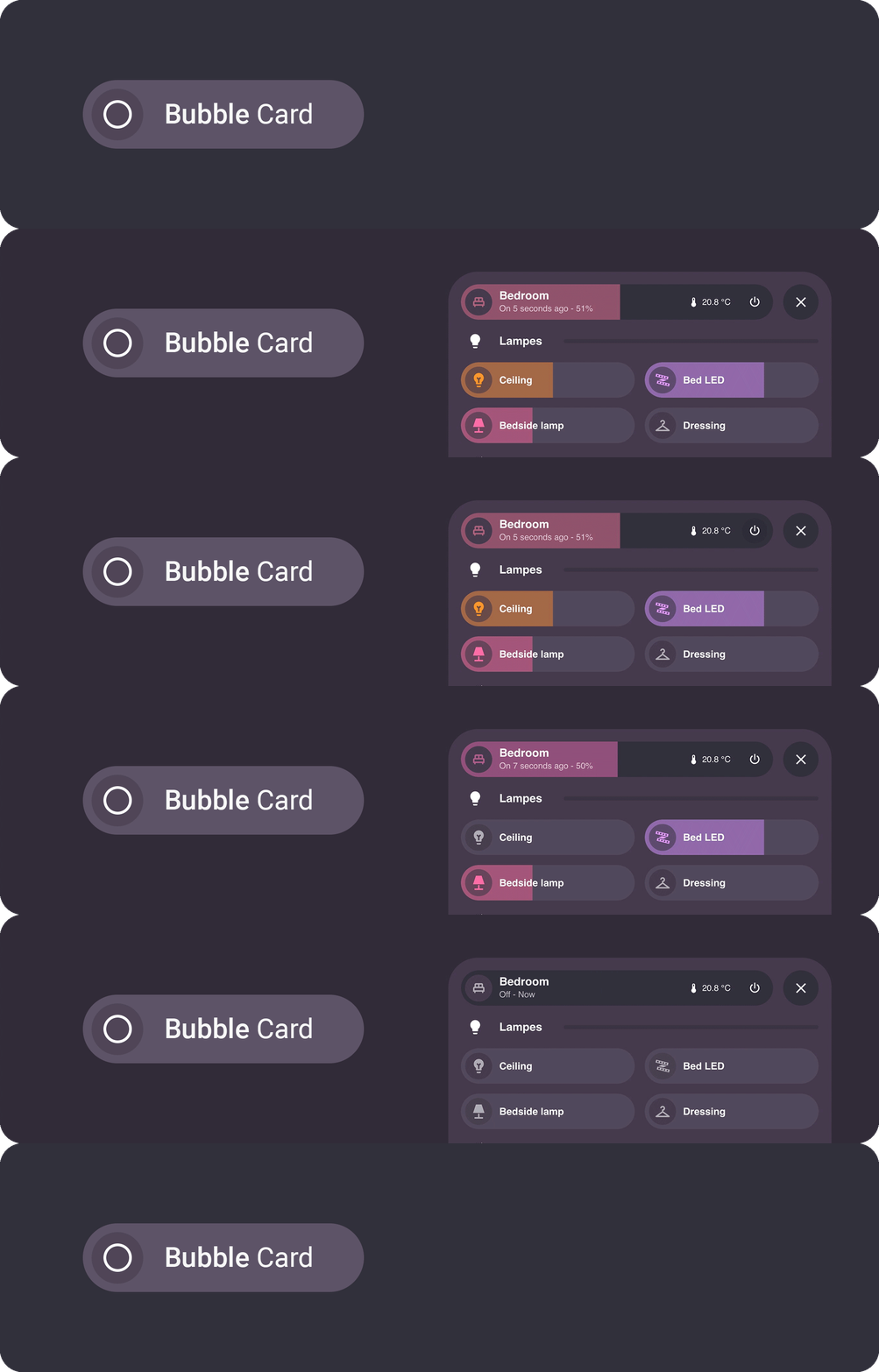
Bubble Card is a minimalist and customizable card collection for Home Assistant, featuring modern pop-ups and an integrated Module Store with over 100 community-made modules.









Table of contents
Installation Configuration Pop-up Horizontal buttons stack Button Media player Cover Select Climate Calendar Separator Empty column Sub-buttons only Sub-buttons Entity suggestions Card layouts Conditions Actions Styling Templates Modules Localization Help Contributing Donate
Installation
Home Assistant lowest supported version: 2023.9.0
Without HACS
1. Download this file: [bubble-card.js](https://raw.githubusercontent.com/Clooos/Bubble-Card/main/dist/bubble-card.js) 2. Add this file to your `/www` folder. To get the editor in your language, download `bubble-card-.json` from the [dist folder](https://github.com/Clooos/Bubble-Card/tree/main/dist) as well, for example `bubble-card-fr.json`, and put it next to `bubble-card.js` (without it the editor stays in English) 3. On your dashboard click on the icon at the right top corner then on `Edit dashboard` 4. Click again on that icon and then click on `Manage resources` 5. Click on `Add resource` 6. Copy and paste this: `/local/bubble-card.js?v=1` 7. Click on `JavaScript Module` then `Create` 8. Go back and refresh your page 9. You can now click on `Add card` in the bottom right corner and search for `Bubble Card` 10. After any update of the file you will have to edit `/local/bubble-card.js?v=1` and change the version to any higher number If it's not working, just try to clear your browser cache.
With HACS (Recommended)
This method allows you to get updates directly on the Home Assistant Community Store 1. If HACS is not installed yet, download it following the instructions on [https://hacs.xyz/docs/setup/download/](https://hacs.xyz/docs/use/download/download/) 2. Proceed to the HACS initial configuration following the instructions on [https://hacs.xyz/docs/configuration/basic](https://hacs.xyz/docs/configuration/basic) 3. On your sidebar go to "HACS" 4. Search for "Bubble Card", or click on the blue button below 5. Click on "Download" 6. Go back on your dashboard and click on the icon at the right top corner then on `Edit dashboard` 7. You can now click on `Add card` in the bottom right corner and search for `Bubble Card` If it's not working, try to clear your browser/app cache (on all your devices if needed). #### Videos You can also take a look at my YouTube channel for step by step videos. [](https://www.youtube.com/@cloooos)

Configuration
All options can be configured in the Home Assistant editor. But you can find more details and the YAML in the documentation below.
Main options (YAML + description)
| Name | Type | Requirement | Supported options | Description | | --- | --- | --- | --- | --- | | `type` | string | **Required** | `custom:bubble-card` | Type of the card | | `card_type` | string | **Required** | `button`, `calendar`, `climate`, `cover`, `empty-column`, `horizontal-buttons-stack`, `media-player`, `pop-up`, `select`, `separator` or `sub-buttons` | Type of the Bubble Card, see below | | `styles` | object list | Optional | Any CSS stylesheets | Allows you to customize your Bubble Card CSS, see [styling](#styling) |Global CSS variables (see Styling)
| Variable | Expected value | Description | | --- | --- | --- | | `--bubble-border-radius` | `px` | Border radius for all supported elements | | `--bubble-main-background-color` | `color` | Main background color for all supported elements | | `--bubble-secondary-background-color` | `color` | Secondary background color for all supported elements | | `--bubble-accent-color` | `color` | Accent color for all supported elements | | `--bubble-icon-border-radius` | `px` | Icon border radius for all supported elements | | `--bubble-icon-background-color` | `color` | Icon background color for all supported elements | | `--bubble-sub-button-border-radius` | `px` | Border radius for all sub-buttons | | `--bubble-sub-button-background-color` | `color` | Background color for all sub-buttons | | `--bubble-box-shadow` | see [box shadow](https://developer.mozilla.org/fr/docs/Web/CSS/box-shadow) | Box shadow for all supported elements | | `--bubble-border` | see [border](https://developer.mozilla.org/fr/docs/Web/CSS/border) | Border for all supported cards |Check out this video to learn about Bubble Card and its capabilities. My YouTube channel is quite new and focuses on tutorials about Home Assistant and Bubble Card. Don’t hesitate to subscribe to help increase my channel’s visibility. Thank you in advance!
Pop-up
This card allows you to create a pop-up with any content. Each pop-up is hidden by default and can be opened by targeting its link (e.g. '#pop-up-name'), with any card that supports the navigate action, or with the horizontal buttons stack that is included.
[!TIP]
Pop-up trigger
This feature allows you to open a pop-up based on the state of any entity, for example, you can open a "Security" pop-up with a camera when a person is in front of your house. You can also create a toggle helper (input_boolean) and trigger its opening/closing in an automation.
Opening a pop-up when a
binary_sensorison
yaml
type: custom:bubble-card
card_type: pop-up
hash: '#kitchen'
name: Security
icon: mdi:video
trigger_entity: binary_sensor.front_door_motion
trigger_state: 'on'
trigger_close: true
Different ways to close a pop-up
They are many ways to close a pop-up. For instance, you can swipe from the pop-up header to the bottom, by doing a long swipe inside the pop-up to the bottom, by pressing Escape on desktop, by removing the hash in the URL or by simply pressing the close button.
Pop-up options
Options (YAML + descriptions)
| Name | Type | Requirement | Supported options | Description | | --- | --- | --- | --- | --- | | `hash` | string | **Required** | Any unique hash (e.g. `'#kitchen'`) with ' ' | This is how you will open your pop-up | | `popup_style` | string | Optional | `bubble` (default), `classic` or `home-assistant` | Define the pop-up visual style | | `popup_mode` | string | Optional | `default` (default), `fit-content`, `centered` or `adaptive-dialog` | Define the pop-up layout mode. With `popup_style: home-assistant`, only `default` (full height on mobile, like the "More info" panel) and `adaptive-dialog` (fits its content on mobile) are used. | | `with_bottom_offset` | boolean | Optional | `true` or `false` (default) | Only used with `popup_mode: fit-content` or `adaptive-dialog`, and with `popup_style: home-assistant`. Applies a bottom offset on mobile, useful when your dashboard includes a footer card. | | `full_width_on_mobile` | boolean | Optional | `true` or `false` (default) | Only used with `popup_mode: centered`. Expands the pop-up to full screen width on mobile, useful on smaller displays. | | `performance_mode` | string | Optional | `default` (default) or `performance` | Optimize the pop-up open animation. `performance` slightly delays content rendering and background blur, also disables backdrop blur if set. | | `auto_close` | string | Optional | A timeout in milliseconds (e.📈 近 7 天 Star 趋势
🏆 排名变化趋势
📋 历史上榜记录
| 日期 | 榜单 | 排名 | 周期新增 | 总 STAR |
|---|